

An unexpected key set came up when I scanned
In short: The fob in your hand is still linked to a different key set in Keyhive. Cancel out of what’s on screen, unassign the fob from the key set that came up, then assign it to the keys it’s actually on.
When you’d do this: You tap a fob expecting one set of keys and Keyhive names another, either a different asset or a different set on the same asset.
What’s happened
The fob is doing exactly what it’s told: it’s showing the key set it’s linked to. That link is wrong, usually for one of two reasons:
- The fob was moved onto different keys without being unassigned and reassigned in Keyhive, so the record still points at the keys it used to be on.
- The wrong key set was picked when the fob was assigned, easily done when an asset has several sets with similar names.
Either way, the repair is the same: break the old link and make the right one.
Before you start
Don’t finish the flow that came up. Completing a checkout, return or transfer records the movement against the wrong key set, which then has to be unpicked. Cancel out first.
Check the fob is on the keys you think it is. The name Keyhive showed you is the record; the keys in your hand are the truth. Make sure you know which key set this fob should point at before you reassign it.
On the Hive
You can do the whole repair at the Hive, with the fob in your hand.
-
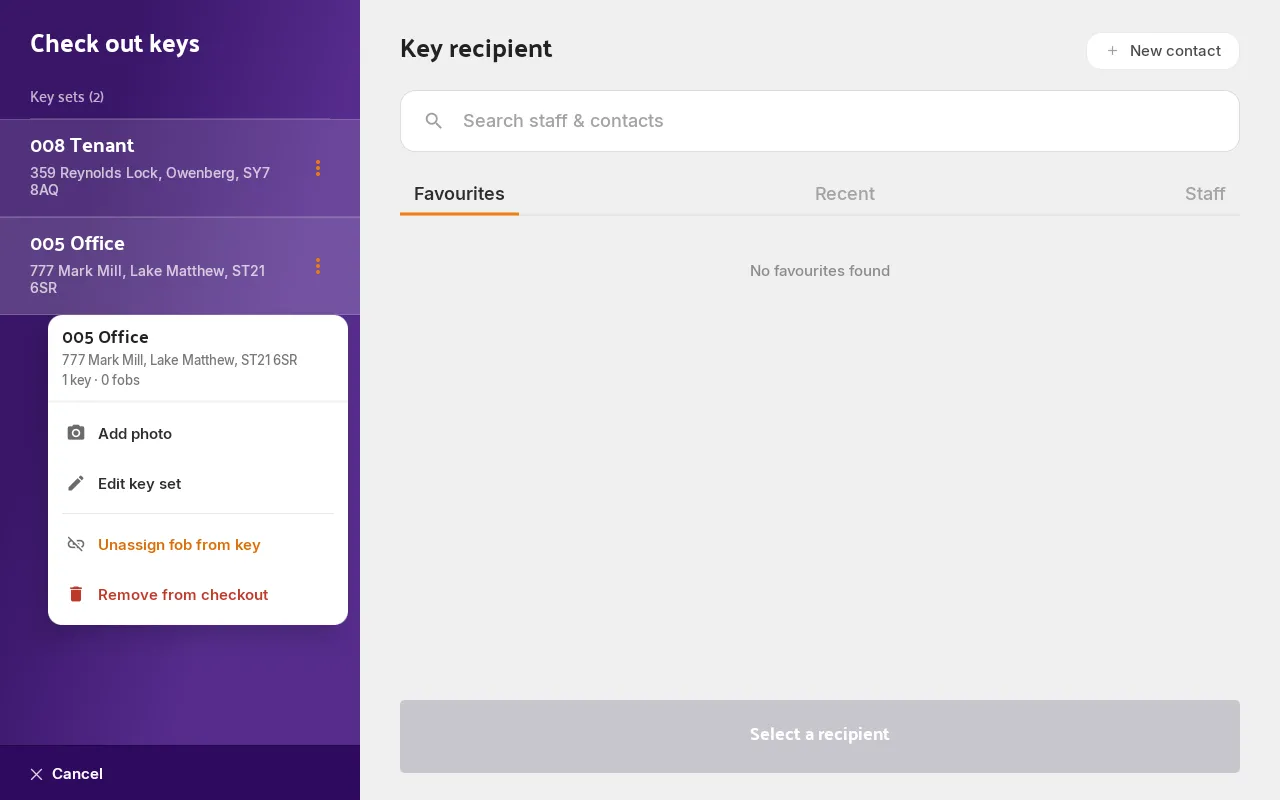
Tap the fob on the reader. The key set that came up is listed in the panel on the left.
-
Tap that key set in the panel to open its menu.
-
Tap Unassign fob from key and confirm. The fob comes off that key set, which is left untagged but keeps its holder, its history and its key / hook number.
If that was the only key set you’d scanned, the Hive drops the flow and takes you back to the home screen.
-
Tap the fob again. With nothing linked to it, the Hive now opens the Assign fob flow.
-
Search for the right asset, tap the correct key set, and confirm. See How to assign a fob to a key set.
Scanning the fob now brings up the right keys.
In the portal
Use the portal when you’re not at a Hive, or when the fob won’t scan.
- Open the key set that came up. Search for it by the name Keyhive showed you, using the search bar at the top of any page.
- Click the actions icon (the vertical dots) next to its name, and choose Unassign fob. See How to unassign a fob.
The fob is now free, but the portal can’t put it on a key set, because assigning is done on the Hive or the mobile app. Scan the fob at either and pick the right key set.
If the key set that came up is checked out
A fob can’t come off a key set that’s out with someone, so there’s a step before you can repair the link: close that checkout.
- If those keys are back with you, return the key set as normal. See How to return a key.
- If those keys are genuinely gone, whether lost or handed over for good, close the checkout as won’t be returned. See How to close a checkout for a key that won’t come back.
Once the checkout is closed, unassign the fob and assign it to the right key set as above.
Good to know
- Unassigning isn’t a return. The key set that came up keeps its holder, its checkout history and its hook number. All that changes is the fob.
- That key set now needs a fob of its own. Until it gets one it’s untagged and can’t be checked out, so find the keys and fob them up.
- Nothing recorded before you noticed corrects itself. If a key went out or came back against the wrong key set, open that checkout and put it right. See How to see the checkout history of a key set.
- One fob, one key set. Keyhive won’t let a fob point at two sets, or a set carry two fobs, which is why the old link has to come off before the new one goes on.