

How to pass a key to someone else
In short: Keys that are already out can go straight from one person to the next without coming back to you first. Scan the fob on the mobile app, tap Pass to someone else, choose who’s taking them, and they sign. This is a mobile-app job. The Hive and the web portal can’t do it.
When you’d do this: You’re out on a job and the keys are needed by someone else next, a colleague taking over, or a contractor arriving as you leave. Instead of driving the keys back so they can go out again, you hand them over where you stand and record it on your phone.
Before you start
The keys have to be out on a short-term checkout. You start by scanning the fob that’s on them, so:
- a key set sitting in a key store can’t be passed on: it isn’t with anyone yet, so check it out instead;
- a key set out on a long-term checkout can’t either: its fob was removed when it went out, so there’s nothing to scan.
You don’t have to be the person holding the keys. Anyone signed in to the mobile app can record the handover, so if two people meet and only one has the app, that phone does the job.
Passing the keys on
-
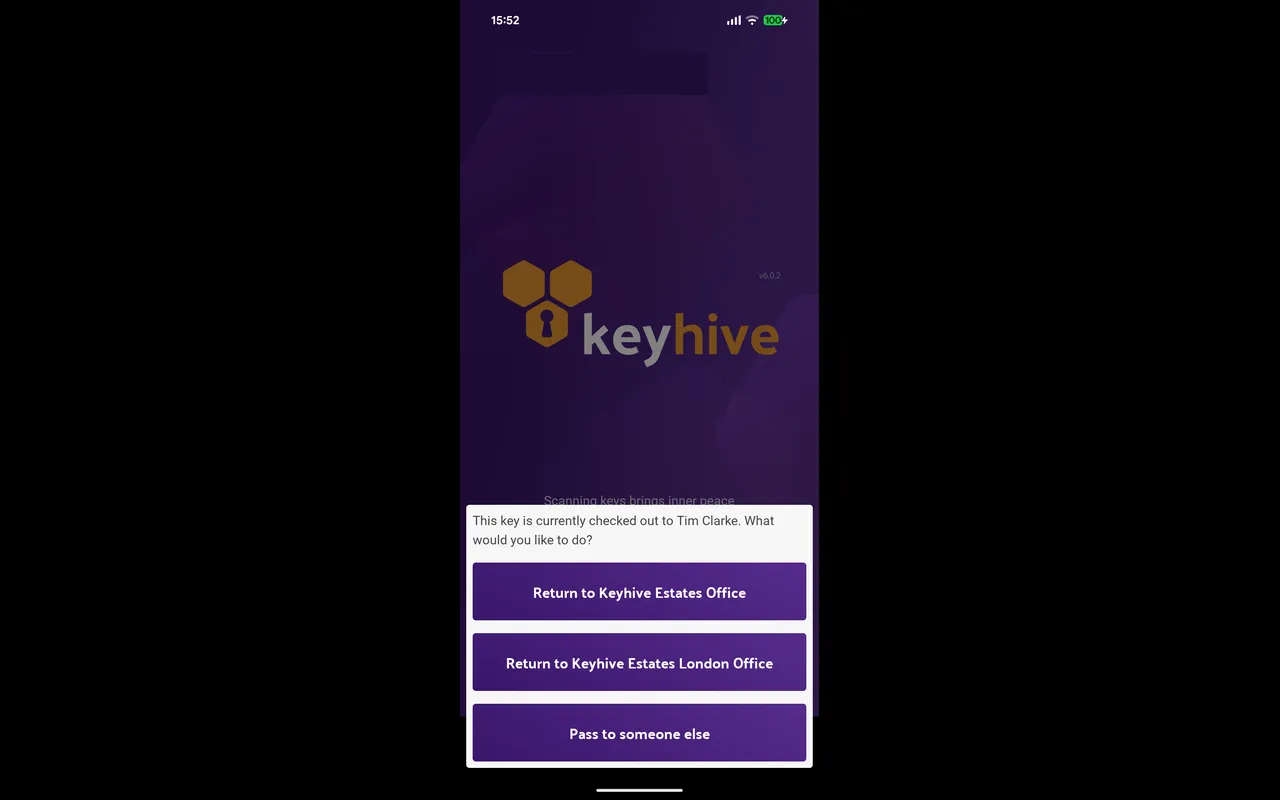
Scan the fob. Tap the scan button on the home screen and hold the phone to the fob. Because the key set is checked out, the app tells you who has it and asks what you want to do. Tap Pass to someone else.
-
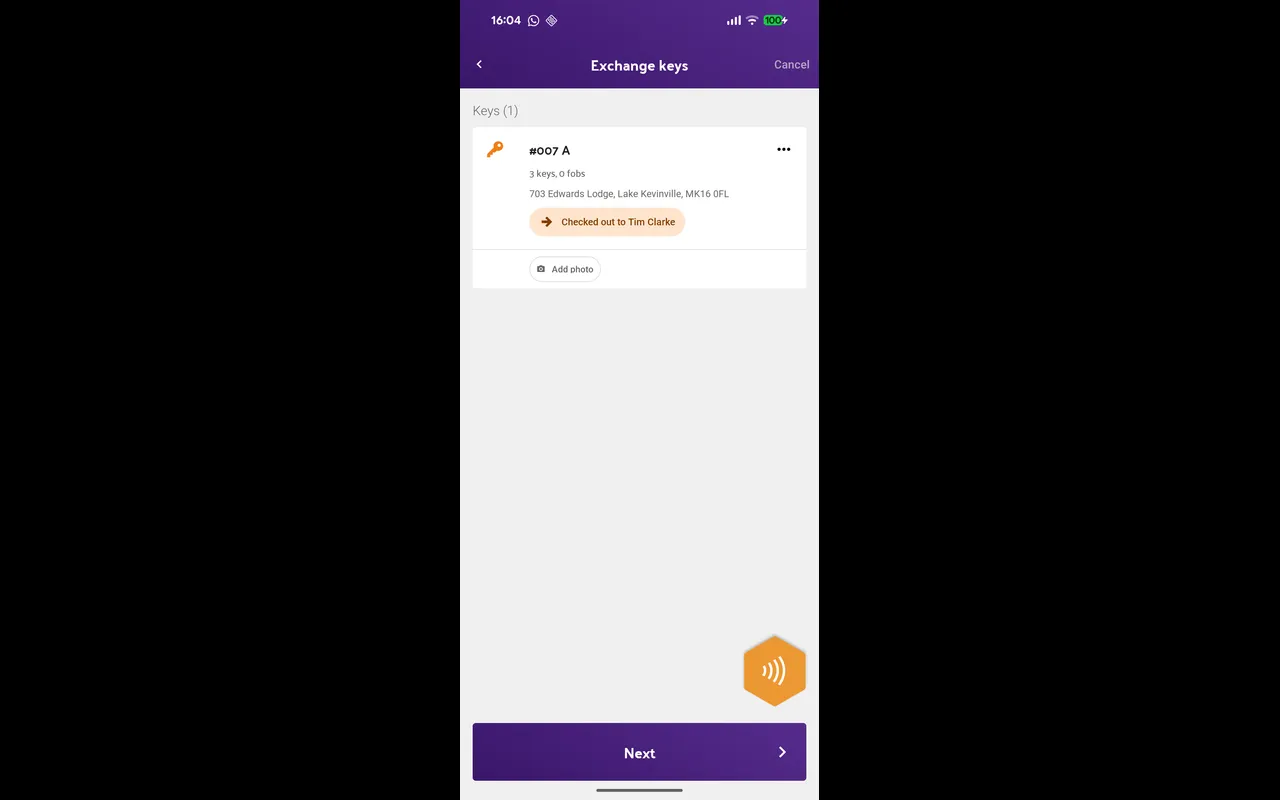
Scan any others going with them. The screen is headed Exchange keys. That’s this flow’s name on screen. Keep scanning to add more key sets, remove anything that shouldn’t be there, then tap Next. Only key sets that are currently checked out can be added here.
-
Choose who’s taking them. Pick the new holder from Favourites, Recent or Staff, search for someone, or add a new contact if they’re not in Keyhive yet.
-
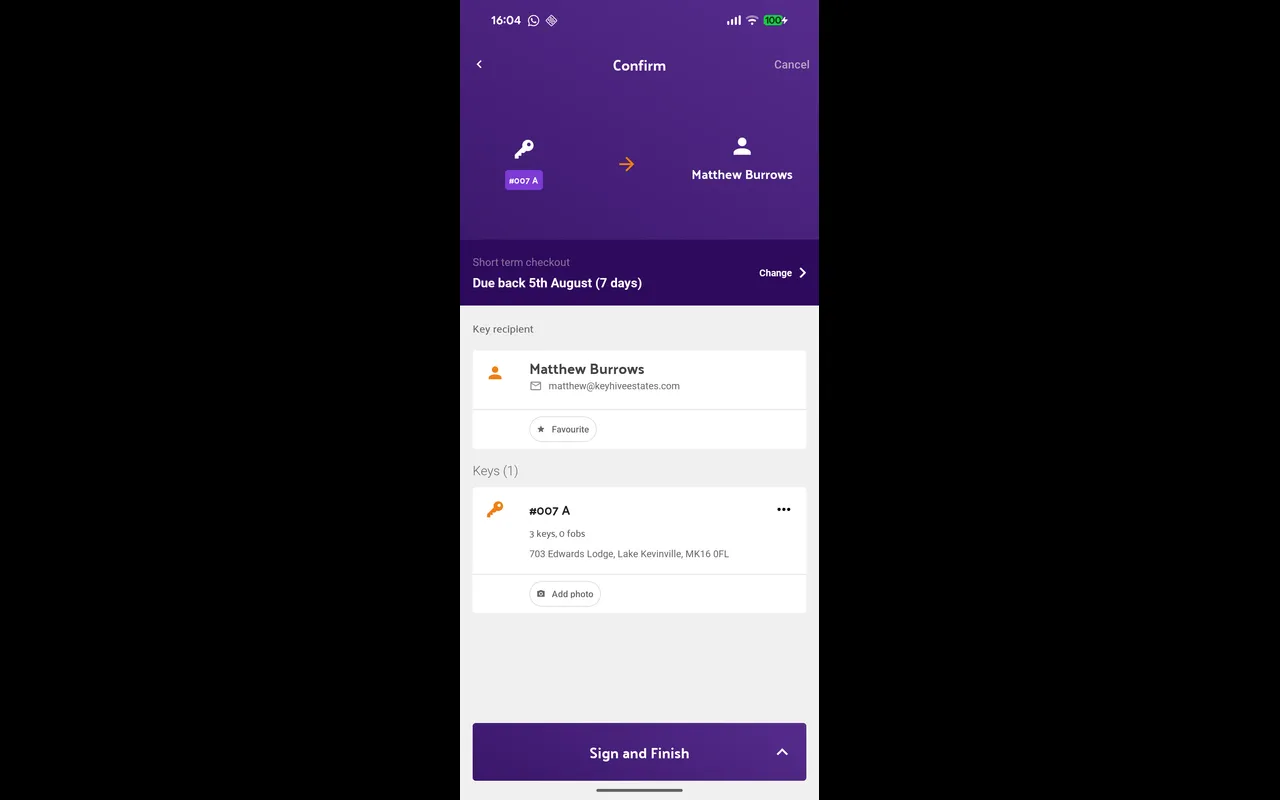
Check the return date. The confirm screen shows the key sets, who’s taking them, and a return date. That date is worked out fresh from your default checkout length for whoever you just picked. It isn’t what was left of the old one. Change it if you need to.
-
Sign and finish. Tap Sign and Finish and the person taking the keys signs on screen, exactly as they would at a normal checkout. The handover is recorded: they’re now responsible for the keys, and the person who had them isn’t.
Passing keys on for the foreseeable future
On the confirm screen you can change the handover to long-term: no return date at all. Two things happen if you do:
- The fobs come off. The app asks you to confirm you’ve physically removed them from the keys, and they’re freed for reuse.
- A photo of each key set is required before you can finish.
Because the fob is gone, the keys come back later by assigning a fob again rather than by scanning. Only choose it if the keys genuinely have no date to come back by. See Short-term vs long-term checkouts.
Good to know
- The keys never come back to you, and that’s the point. Passing them on closes the first person’s checkout and opens the next person’s in one step, so there’s no gap where nobody’s accountable for the keys.
- The history shows a return followed by a checkout. The first checkout is recorded as returned to the person who took the keys on, then a new checkout to them starts. Reading down a key set’s history you’ll see the chain of who had it, in order.
- One handover, one new holder. Everything you scan goes to the same person on the same return date. If keys are splitting between two people, do it twice.
- This isn’t a transfer. A transfer moves a key set between key stores and nobody becomes responsible for it. Passing keys on moves them between people. See How to transfer a key to another key store.
- Add a photo if it helps. You can attach a photo to each key set as it changes hands, as a record of condition or of exactly which keys were handed over. See How to add a photo of a key set.
- No phone to hand? There’s no way to pass keys on from the Hive or the web portal. The keys have to be returned and then checked out to the next person.