

How to create a key / hook number
In short: On the Key / Hook Numbers page in the portal, click Create key / hook number, type the number that’s written on the hook, drawer or slot, and save. It joins your list as available until you attach it to an asset.
When you’d do this: When you add a hook, drawer or peg to your board, or you find one that isn’t in Keyhive yet. If you’re setting up a whole board for the first time, import the list instead. See How to import key / hook numbers from a spreadsheet.
Steps
-
Click Key / Hook Numbers in the sidebar.
-
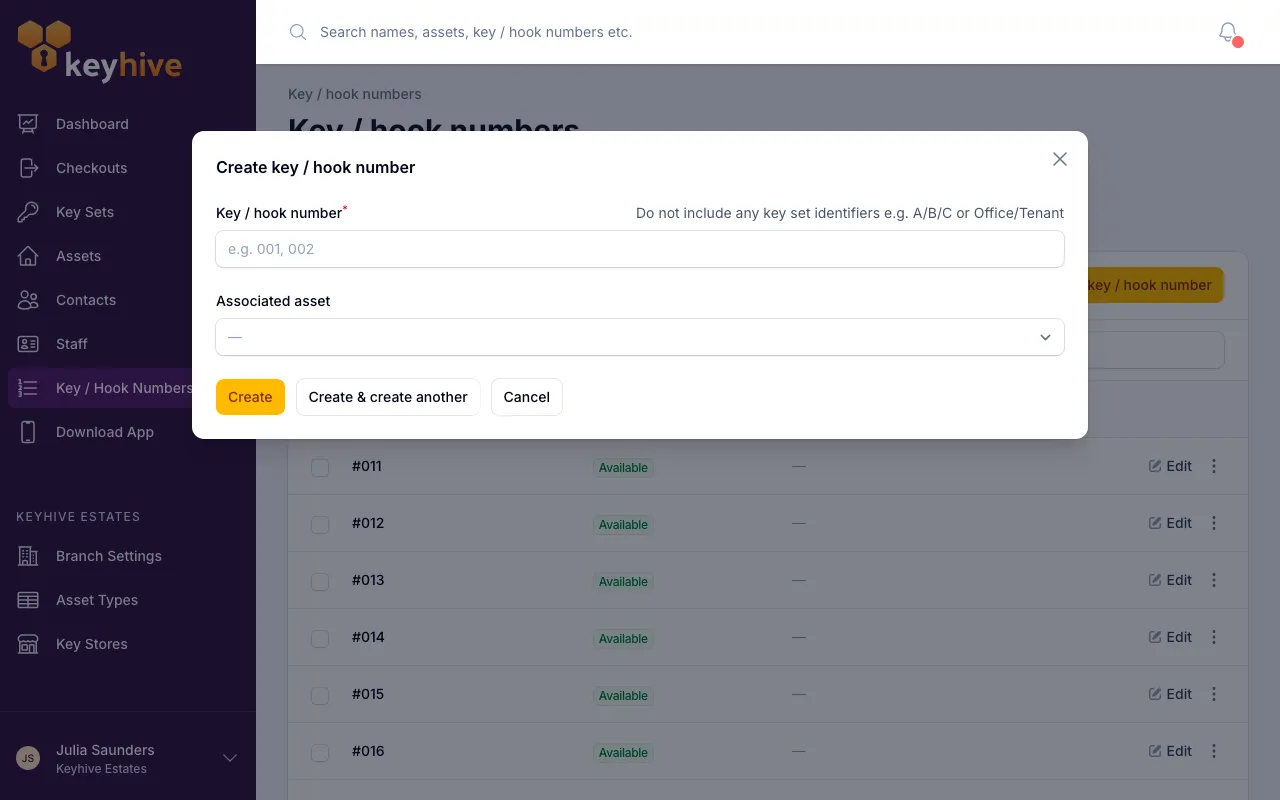
Click Create key / hook number at the top of the list.
-
Type the number. Use exactly what’s written on the hook, drawer or slot.
Leave out the set identifier. The number is just
52, not52A. Keyhive adds the A/B/C or Office/Tenant part when it names each key set, so including it here gives you key sets called “52AA”. You’ll see the same reminder on the form. -
Choose an associated asset, or don’t. If you already know whose keys will hang there, pick the asset from the dropdown (search by name or description). Leave it blank and the number goes straight into Available, ready to be assigned later.
-
Click Create.
Good to know
- Each number can only exist once. If the number is already on your list, you’ll see “This key number has already been added.” It’s there already, so there’s nothing to create.
- You can change it later. Click Edit on any row to correct the number or change which asset it’s attached to.
- Attaching it to an asset makes it In use. The asset’s key sets then carry that number. See Understanding key / hook numbers.
- Adding a number doesn’t move any keys. Nothing changes about checking keys out or returning them; you’ve just told Keyhive that the hook exists.