

How to see a contact's notification history
In short: Open the contact’s page in the web portal. If Keyhive has ever emailed or texted them, a Notification history panel sits between their details and their keys, listing what was sent, about which key sets, and when.
When you’d do this: Before you chase someone about a key they’ve still got, so you know whether they’ve already been told, and how recently. It’s also the answer to “did they actually get told the date had moved?”
Before you start
This is a web portal job. Notification history isn’t on the Hive or the mobile app.
No panel means nothing has ever been sent to them. The panel only appears once there’s something to show, so a contact who has never had a key go overdue won’t have one. See Nothing in the history below if you expected otherwise.
Find it
- Open the contact. Type their name into the search bar at the top of any page and click them in the results, or click Contacts in the sidebar and pick them from the list. See How to view, edit and delete a contact.
- Scroll to Notification history, just below their contact details and above their held key sets.
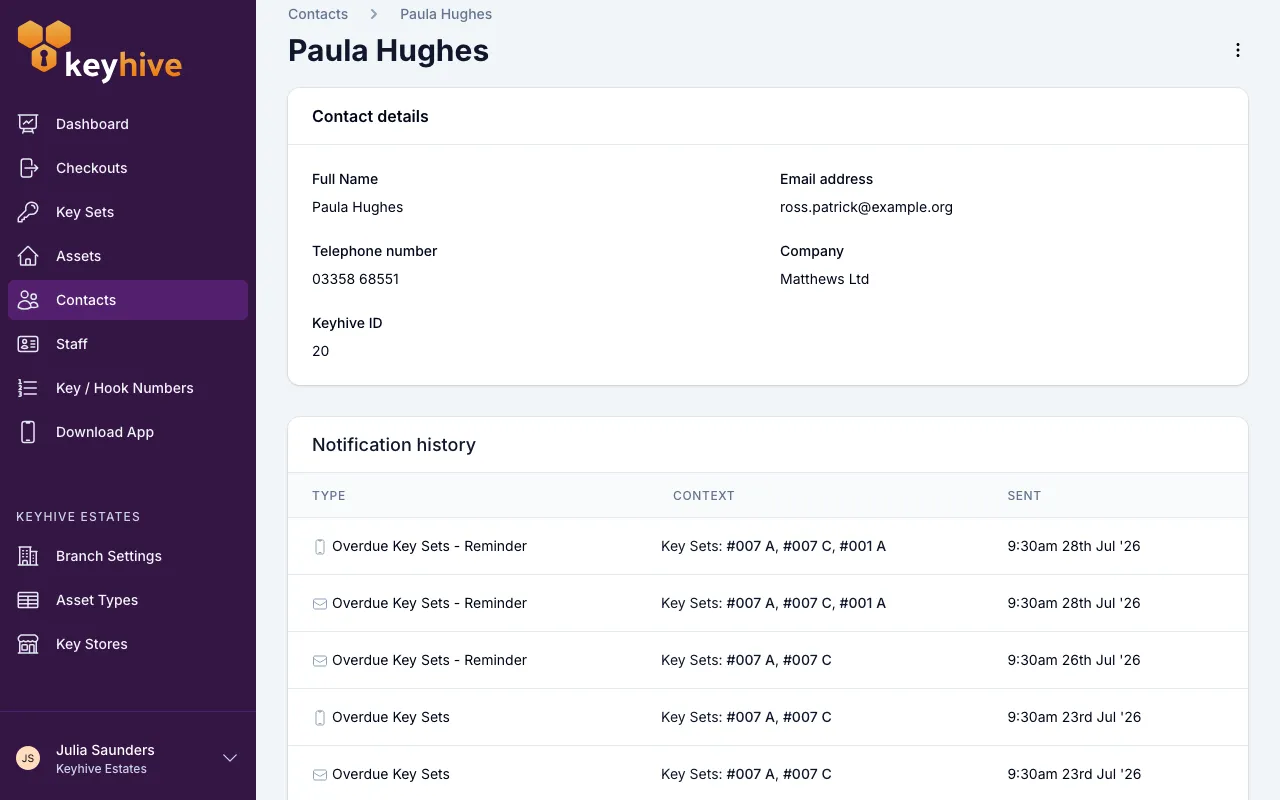
Each row is one message sent to that contact:
- Type. What the message was, with an icon showing how it went: an envelope for an email, a phone for a text message.
- Context. The key sets the message was about. Click one to open that checkout in a new tab. A dash means the message wasn’t about a particular key.
- Sent: when it went out.
Newest is at the top, five to a page. Click through the pages for older messages. The history goes back as far as the contact does.
What Keyhive sends a contact
Three things reach this list, and nothing else. Keyhive never emails a contact when they take a key out, only when one is late back or its date moves.
- Overdue Key Sets: sent the first morning a key set of theirs is overdue. This goes out on weekdays at 8am.
- Overdue Key Sets - Reminder: the weekly nudge for keys that are still out and still late, sent on Monday mornings. Someone who was first told about a key on Monday won’t also get the reminder that day.
- A return date change: sent the moment you give one of their checkouts a new return date, so they know the new one. See How to change a checkout’s return date.
One message can cover several key sets. If someone has three keys overdue, they get one email listing all three, and the Context column shows all three.
The same notice can appear twice, once as an email and once as a text. Those are two separate messages sent to the same person, so both are listed.
Nothing in the history
If you expected a contact to have been notified and they haven’t been, it’s one of these:
- Nothing of theirs is overdue. A key that’s still within its return date, and any long-term checkout, never triggers a notification. Long-term checkouts have no return date, so they’re never overdue and Keyhive never chases them.
- It only went overdue today. The overdue run is a weekday morning job: a key that passed its date at lunchtime is picked up the next working morning, not immediately.
- They have no email address, or it’s mistyped. Nothing can be sent to a contact without a working address. Open the contact, choose Edit from the ⋮ menu next to their name, and put one in. See How to view, edit and delete a contact.
- Their number isn’t a UK mobile. Texts only go to UK mobile numbers. A landline or an overseas number gets the email but not the text.
- Notifications are switched off for your account. Under Settings, the Enable/Disable Notifications panel controls whether overdue emails and texts are sent at all. If Overdue Reminder (Email) or Overdue Reminder (SMS) is set to Disabled, nobody is chased through that channel.
Good to know
- The history shows what was sent, not whether it was read. There’s no delivery or open tracking: a row means Keyhive sent it to the address or number on the contact at that moment.
- Changing a contact’s email doesn’t rewrite the history. Past rows stay as they are; future messages go to the new address.
- Changing a return date stops the chasing. Once a checkout has a new date in the future it’s no longer overdue, so no further overdue emails go out about it until that date passes too.
- The same panel exists on a checkout and on a staff member. A checkout’s page shows a Notifications panel covering just that checkout, and a staff member’s page has a Notification history of their own, and staff get chased about overdue keys exactly like contacts do.
- A deleted contact takes their notification history with them. Their checkout record survives, but there’s no page left to show the messages on.