

How to transfer a key to another key store
In short: A transfer moves a key set from one key store to another: from the office to a van, from a van to a safe. You can do it on the Hive, on the mobile app, or in the web portal. The key set stays available the whole time; it’s just available somewhere else.
When you’d do this: Keys are physically moving between two of your locations, stocking a vehicle for the day, bringing a set back from a second office, or tidying keys into the safe they should be kept in.
Before you start
Key stores aren’t switched on for every account. If you don’t see the transfer option anywhere, either they’re not turned on for you or you only have one store, and with one store there’s nowhere for a key to be transferred to. See Understanding key stores.
The key set has to be with you, not with someone. Transfers are for keys at rest. A key set that’s checked out to a person has to be returned first. The return is where you choose which store it lands in, so a key coming back from a job doesn’t need a transfer at all.
On the Hive
-
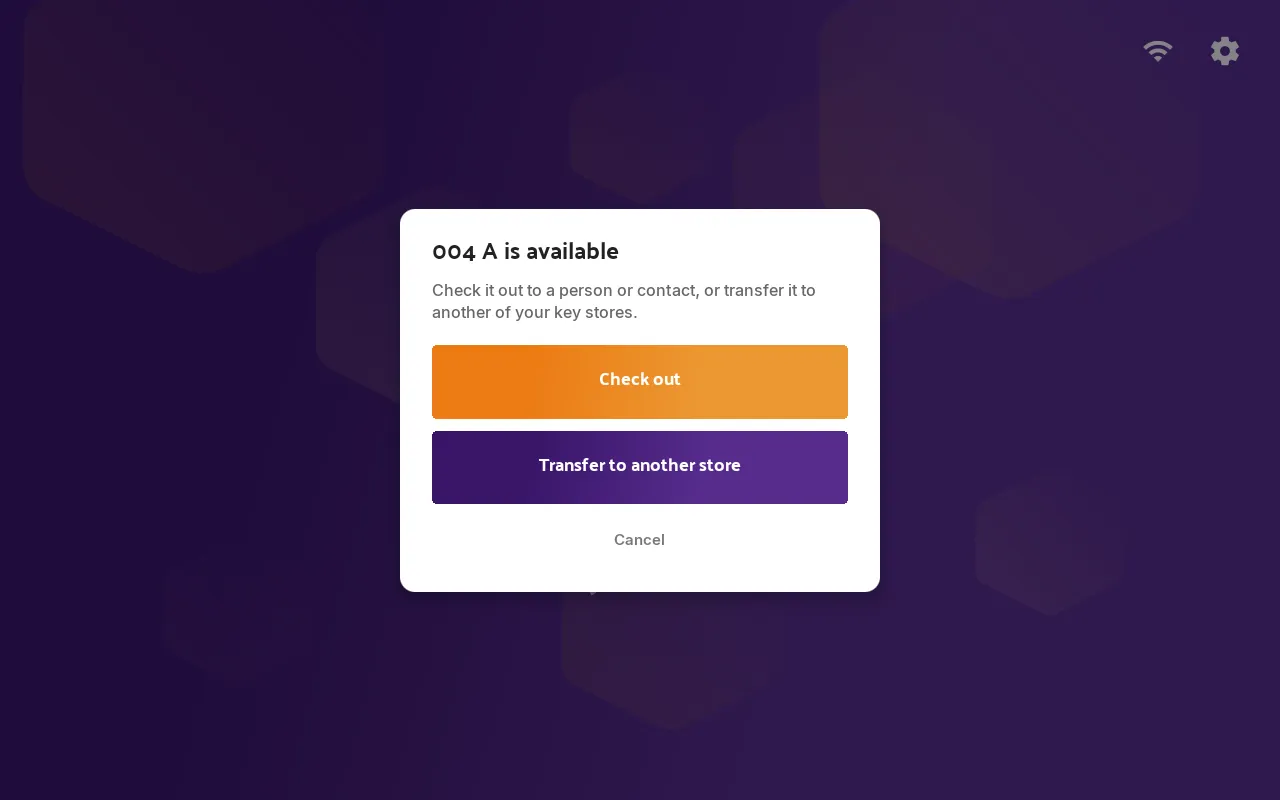
Tap the fob on the reader. Because the key set is available, the Hive asks what you want to do with it: Check out or Transfer to another store. Tap Transfer to another store.
-
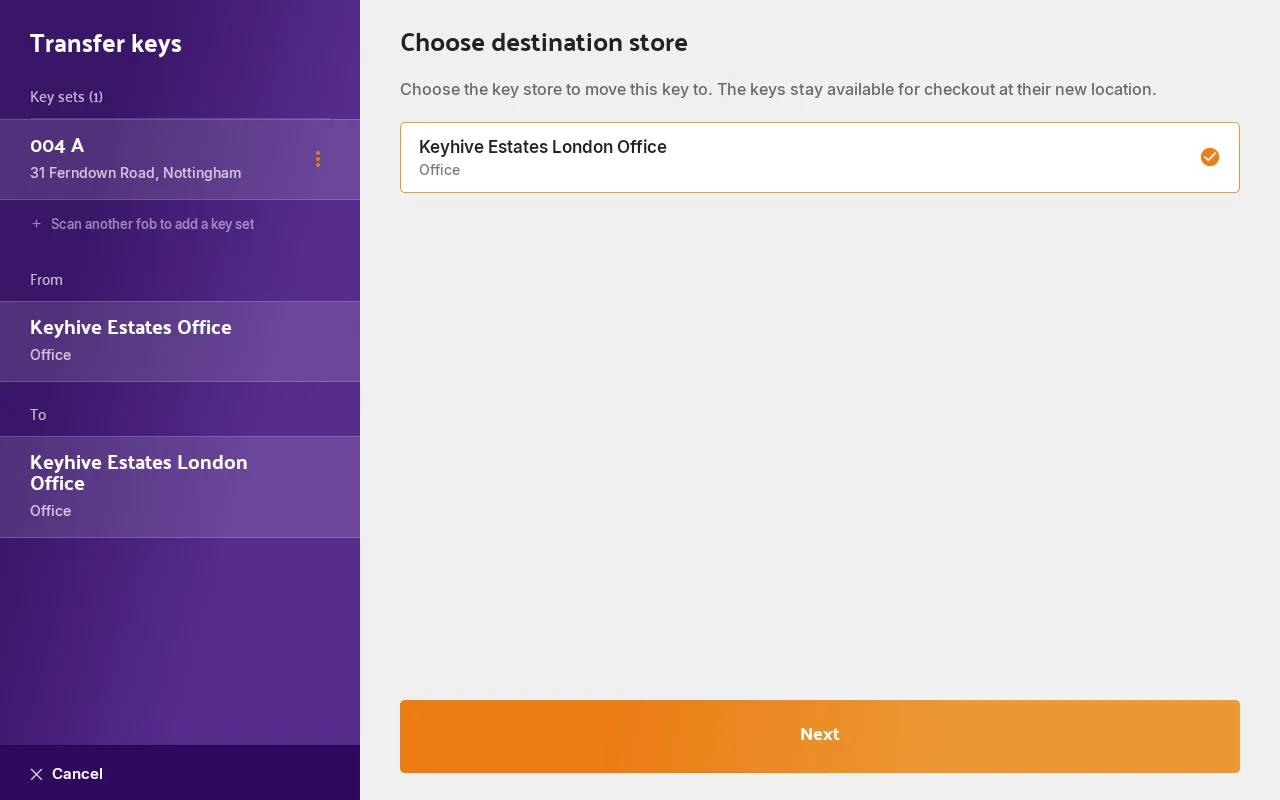
Keep tapping fobs if you’re moving several. Each key set is added as it’s read and they build up in the panel on the left, exactly as they do when checking several out. Choose Remove from transfer on any you didn’t mean to add.
-
Choose the destination store. Pick where the keys are going. The panel on the left shows the move as From and To so you can check it before you go on. Tap Next.
-
Confirm and sign. Sign on screen and tap Transfer keys. The key sets are recorded in their new store straight away.
If a fob won’t add, the Hive says why and carries on so you can keep scanning:
- “Already added”: that key set is already in this transfer.
- “Checked out — can’t be transferred” (usually naming who has it): it’s out with someone and needs returning first.
- “This fob isn’t assigned to a key set yet”: the fob is blank. See How to assign a fob to a key set.
On the mobile app
Use the phone when the keys are being moved by someone who isn’t stood at the Hive: loading a vehicle, or carrying a set between offices.
-
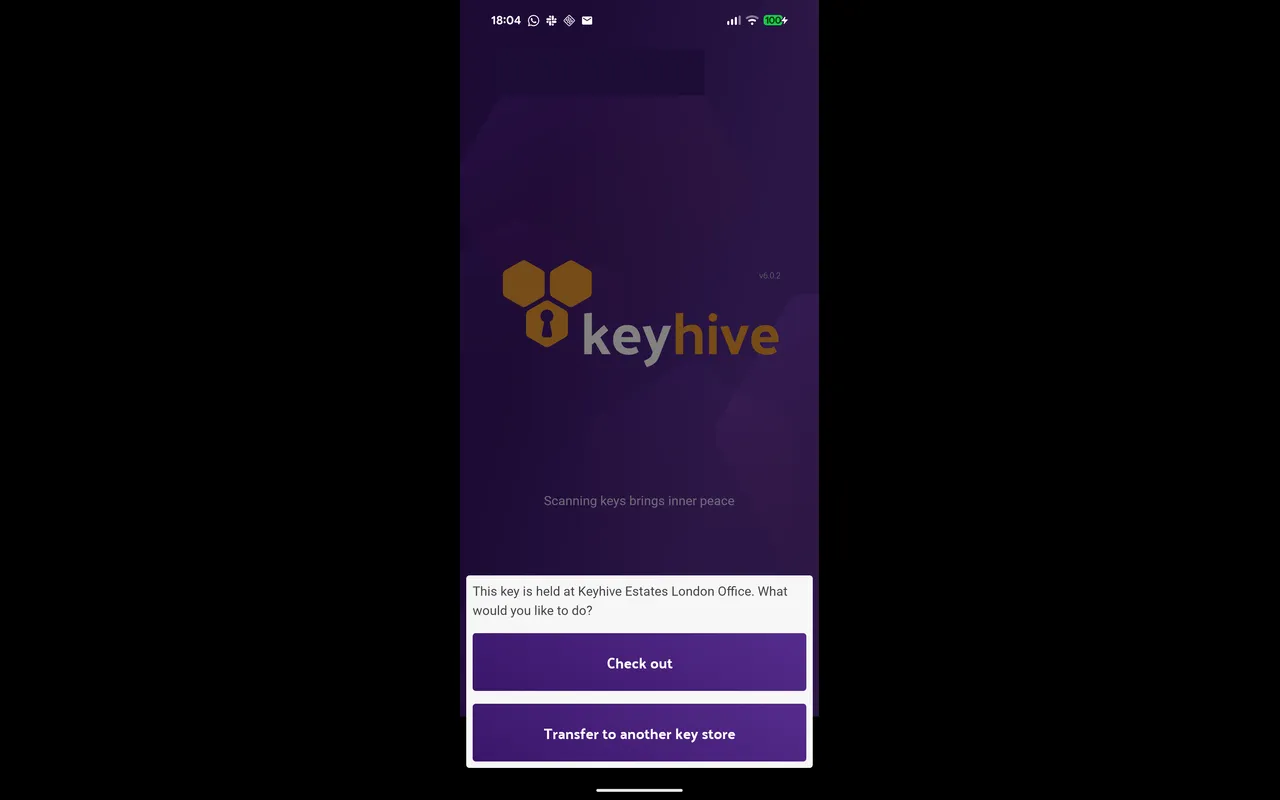
Scan the fob. Tap the scan button on the home screen and hold the phone to the fob. Because the key set is available, you’re asked what you want to do with it: tap Transfer to another key store.
-
Scan the rest. The Transfer keys basket lists everything you’ve scanned. Keep scanning to add more, remove anything that shouldn’t be there, then tap Next.
-
Select the destination. Choose which store the keys are moving to and tap Next.
-
Confirm. The Confirm key transfer screen shows the key sets and the store they’re going to. Sign, and the transfer is recorded.
In the web portal
The portal is where you correct or record a move at a computer. For example, someone tells you a set has been in the van all week and Keyhive still thinks it’s in the office.
-
Open the key set you want to move.
-
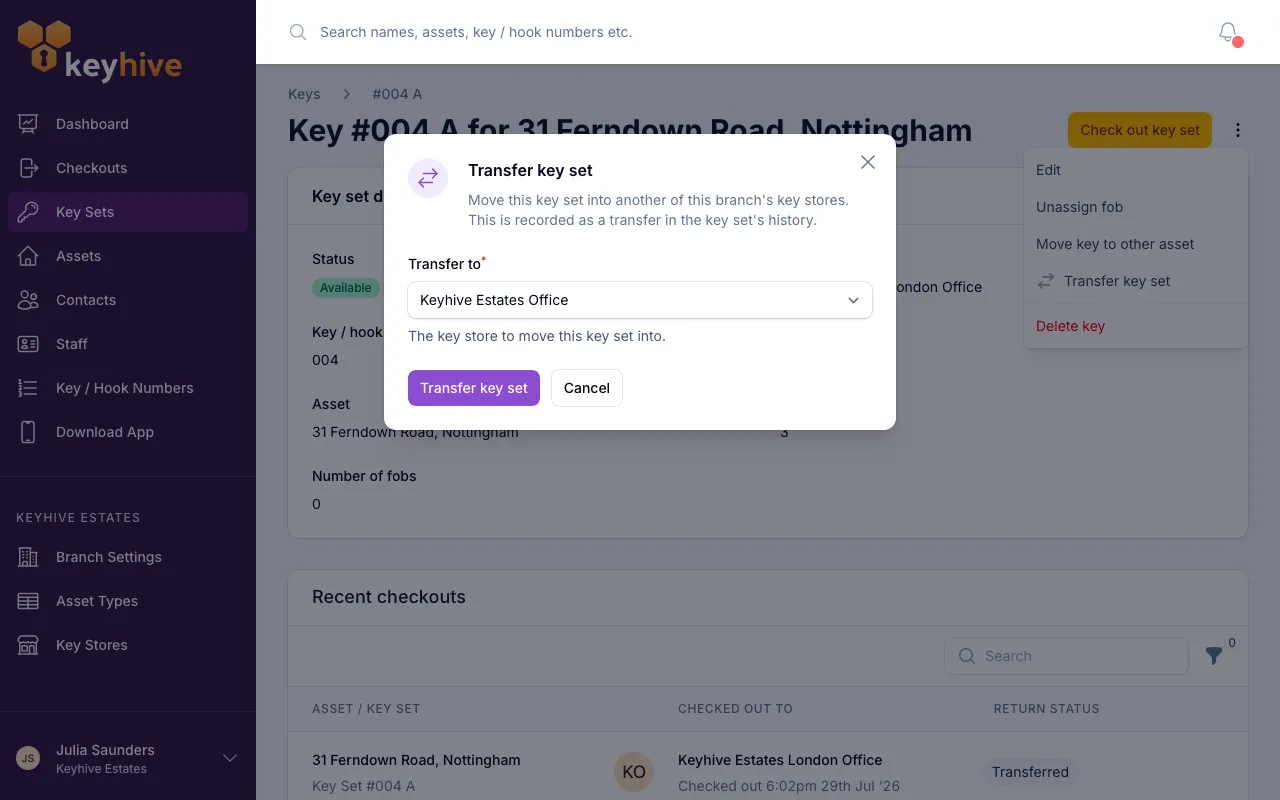
Click the actions icon (the vertical dots) at the top of the page and choose Transfer key set.
-
Choose where it’s going under Transfer to.
-
Click Transfer key set to record it.
Good to know
- A transfer isn’t a checkout. Nobody becomes responsible for the keys: the key set stays available and ready to go out from its new store. You can’t transfer a key set to a person, and you can’t check one out to a store. See Understanding key stores.
- It’s recorded. Every transfer shows in the key set’s history with where it went and when, so you can see how a key ended up where it is.
- Several at once on the apps; one at a time in the portal. The Hive and mobile app move a whole batch to the same store in one go. The portal handles one key set per transfer.
- The portal is the only way to move a key set that has no fob. There’s nothing to scan on an untagged key set, so use Transfer key set on its page.
- Attach a photo if it helps. On the Hive and mobile app you can add a photo to a key set as it moves. See Using photos and locations on checkout and return.
- Emptying a store before deleting it? Transfer its key sets somewhere else first. Keyhive won’t delete a store that still holds keys. See How to manage key stores.