

How to archive and restore an asset
In short: Open the asset, click the ⋮ menu next to its name, and choose Archive. It disappears from your everyday lists, its key / hook numbers go back into the pool and its fobs are freed, but nothing is destroyed, and Restore from the same menu brings it back.
When you’d do this: When you’re finished with something you hold keys for, such as a property that’s sold, a vehicle that’s gone, or a unit you no longer look after. You want it out of the list and its hook free for the next one, without losing the record of who had those keys.
Before you start
Archiving is reversible. It’s the safe way to put something away. It is not the same as closing a checkout as won’t be returned, which deletes a key set for good. See How to close a checkout for a key that won’t come back.
Archive rather than edit. If a new property comes onto the same hook, archive the old asset and create a new one. Renaming the old one instead keeps the previous holder’s checkouts attached to the new address.
This is a portal job. There’s no way to archive or restore on the Hive or the mobile app.
This is an admin job. Archiving and restoring both need Manager or Admin access. If there’s no Archive in the ⋮ menu, ask someone who has it.
What archiving does
Archiving an asset takes its key sets with it. Once archived:
- The asset and its key sets drop out of your everyday lists. The Assets list hides them, and they can no longer be checked out.
- Its fobs are freed. Each fob comes off its key set the moment you archive, ready to put on another one.
- Its key / hook numbers go back to Available. The hook is empty, so the next asset can have it. See Understanding key / hook numbers.
- The history stays. Every checkout is kept, including who took those keys, when, and whether they came back.
- It can’t be edited. Edit goes from the ⋮ menu until you restore it.
Archived assets still turn up in the search bar at the top of the page, marked Archived, so finding one later doesn’t mean hunting through the list.
Resolving open checkouts first
Keyhive won’t let you archive an asset while someone is still holding its keys on a short-term checkout, and it asks you to decide what happens to any that are out long-term. Deal with both before you get to the Archive button and the rest is one click.
Keys out on a short-term checkout
These block the archive. If a key set is out and expected back, the asset can’t be archived. A warning appears listing each open checkout, with a View checkout link to each one.
Resolve each one first:
- The keys are back with you. Return them.
- The keys aren’t coming back. Close the checkout as won’t be returned.
Then archive the asset.
Keys out long-term
These don’t block the archive, but they can’t simply be put away either. A long-term checkout means the keys are out indefinitely with someone, which is exactly what happens when a property is sold and its keys go to the new owner.
So when the asset has keys out long-term, the archive form asks for a reason for closing the long-term checkout:
- Lost. The keys have gone missing.
- Handed over. You’ve given them away for good.
- Decommissioned. They’ve been retired or destroyed.
- Other. Anything else. A Note is required so there’s a record of why.
⚠️ Those key sets are deleted permanently, not archived. They don’t come back if you restore the asset later, because you’ve recorded them as gone. The checkouts and the reason you gave are kept as history. Key sets that were sitting with you are only archived, and do come back.
Archiving an asset
-
Open the asset. Search for it at the top of any page, or find it in the Assets list. See How to view and edit an asset.
-
Click the ⋮ menu next to its name, and choose Archive.
-
Choose a reason, if you’re asked for one. This only appears when the asset has keys out long-term. See above.
-
Click Archive.
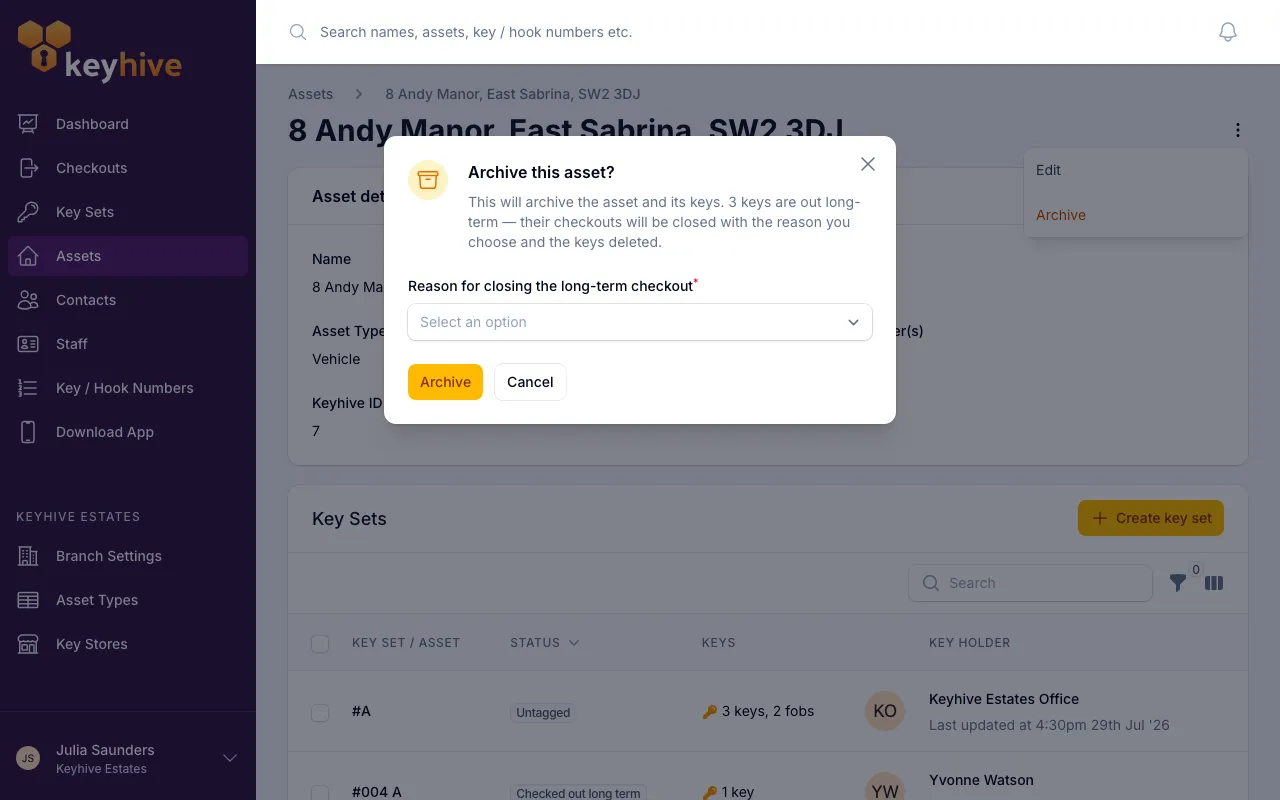
You land back on the Assets list, with the asset now hidden from it.
Archiving several at once
Working through a batch is quicker from the list:
- Click Assets in the sidebar.
- Tick the assets you want to archive.
- Click Archive in the toolbar that appears, and confirm.
The same rules apply, with one difference worth knowing: assets with a key out on a short-term checkout are skipped rather than reported one by one. Anything that didn’t archive is still in your list afterwards. Resolve its checkout and archive it on its own.
If any of the selected assets have keys out long-term, you’ll be asked for a single reason that applies to all of them.
Restoring an asset
Find the archived asset
Archived assets are hidden by default, so you need to bring them into view first. Either:
- Search for it at the top of any page. Archived assets appear in the results with an Archived badge. Click it to open its page.
- Or filter the Assets list. Click Filter, and set Archived to Include archived (everything) or Only archived (just the ones you’ve put away).
Restore it
-
Open the asset and click the ⋮ menu.
-
Choose Restore, and confirm.
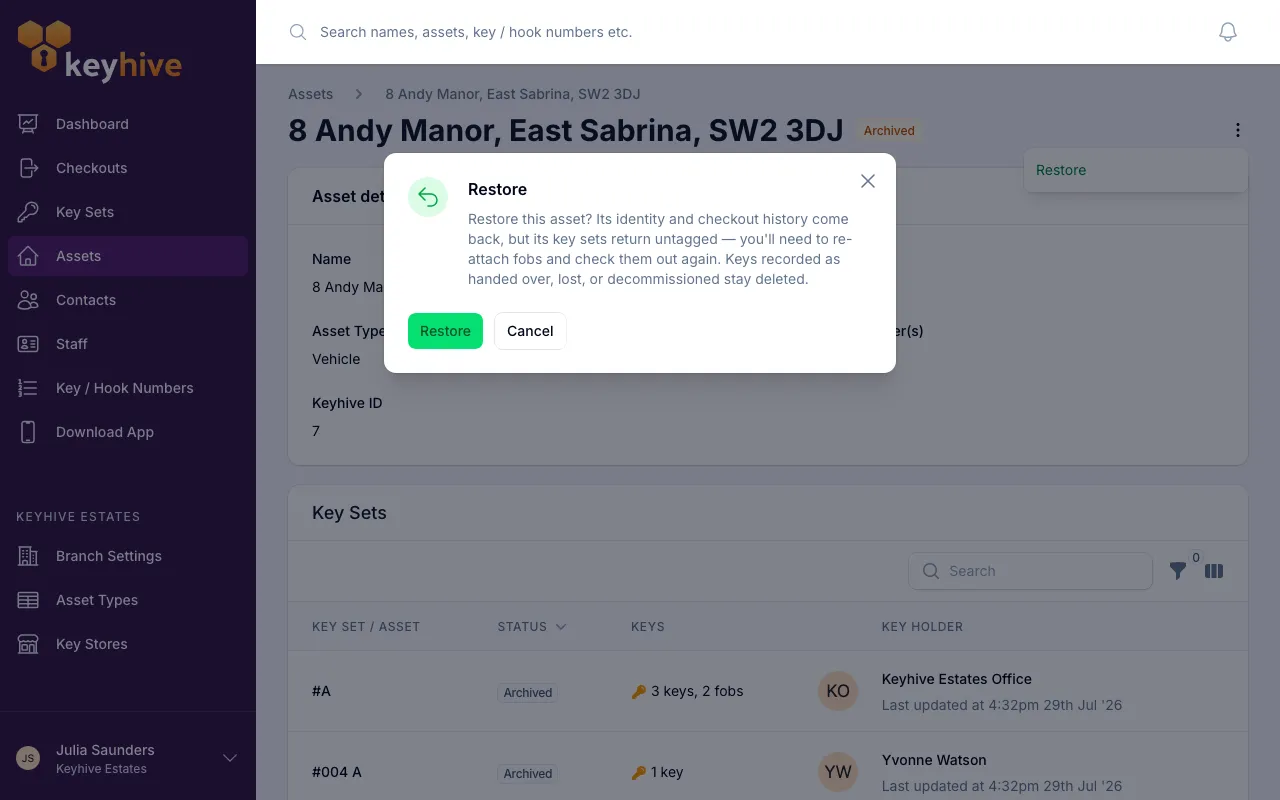
You land on the asset’s page, back in everyday use and editable again.
To restore a batch, tick them in the Assets list and click Restore in the toolbar. The Restore button only appears once you’ve changed the Archived filter; there’s nothing to restore in the default view.
What comes back, and what doesn’t
- The asset and its history come back in full: its name, description, type and every checkout ever recorded against it.
- Its key sets come back untagged. Their fobs were freed when you archived, and they aren’t re-attached. Assign a fob to each set before you can check it out again. See How to assign a fob to a key set.
- Key sets recorded as lost, handed over or decommissioned stay deleted. Those keys were recorded as gone rather than put away, so they don’t return.
- Its key / hook number comes back only if nothing else has taken it. Archiving freed the number, so another asset may be on that hook now. If so, give the restored asset a different one. See How to assign a key / hook number to an asset.
Good to know
- Nothing is deleted by archiving. An archived asset can sit archived indefinitely at no cost, and there’s no separate step that removes it for good.
- The Number of Assets count on asset types ignores archived assets. A type showing zero can still be the type an archived asset will come back as, so move those before deleting a type. See How to manage asset types.
- An archived asset can be found but not changed. If you need to correct something on it, restore it, edit it, and archive it again.
- A spreadsheet import won’t skip an archived asset. Importing a file with the same name creates a second, active asset rather than updating the archived one. Restore it first if you’re topping up an existing list. See How to import assets from a spreadsheet.
- Assets from a connected outside system can be archived too, and archiving stops Keyhive keeping that asset up to date. Restoring starts it again. See Assets that sync from an outside system.