

How to see which keys are out right now
In short: Open Checkouts in the web portal and click the Checked out tab. You’ll see every key set that’s out at this moment, who has it, and when it’s due back.
When you’d do this: Locking up at the end of the day, checking whether a key set is available before promising it to someone, or taking stock of what’s outstanding.
Before you start
This is a web portal job. The Hive and the mobile app move keys but neither shows a list of everything that’s out.
Viewing what’s out
-
Go to Checkouts. Click Checkouts in the sidebar.
-
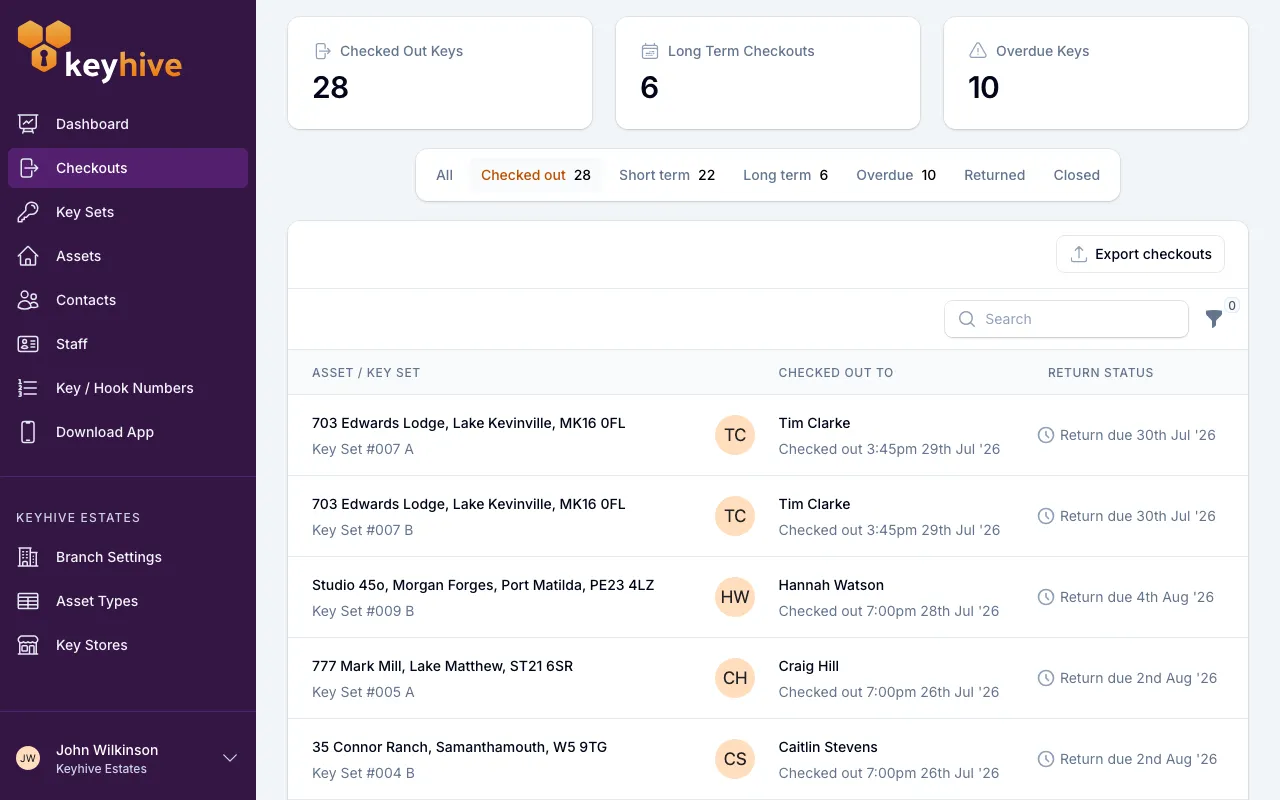
Check the Checked Out Keys tile. At the top of the page are three counts: Checked Out Keys, Long Term Checkouts and Overdue Keys. The first is how many key sets are out right now. Click the tile and it takes you straight to the list.
-
Or click the Checked out tab. The tabs below the tiles are All, Checked out, Short term, Long term, Overdue, Returned and Closed. The Checked out tab carries a badge with the same count. Click it and the list shows only keys that are still out.
-
Read the list. Each row tells you:
- the asset and key set that’s out,
- who has it, and when it went out,
- and where it stands: Return due 3rd Jul ‘25, a red Overdue: Expected 3rd Jul ‘25 for one that’s late, or Long term checkout for a set out indefinitely.
The most recently touched checkouts are at the top.
-
Open a row for the detail. Click any row to open that checkout, where you’ll find its full record and the actions you can take on it.
What “checked out” covers
The Checked out tab is everything still out, of every kind: sets due back on a date, sets out indefinitely, and sets that are already late. The three tabs next to it split that same list up:
- Short term: out with a return date. See Short-term vs long-term checkouts.
- Long term: out indefinitely, with no return date, so these never appear as overdue.
- Overdue: past its return date and still out. See How to view overdue checkouts.
Narrowing the list down
- Search by asset name, key set name, or the name of the person holding the keys. It’s the quickest way to answer “has anyone got 52A?”.
- Filter by date using Checked out after / Checked out before, to separate keys that went out this morning from ones that have been out for months.
Good to know
- The same counts greet you on the dashboard. Checked Out Keys, Long Term Checkouts and Overdue Keys sit at the top of the page you land on when you sign in, and clicking one opens the matching tab on the Checkouts page.
- The list is live. As soon as a key is returned, it drops off and the counts update.
- For one person’s keys, open their page. Their Held key sets panel is the same information for that individual. See How to see what a staff member is holding or How to view, edit and delete a contact.
- The Key Sets list gives you the other angle. Click Key Sets in the sidebar and use Filter → Status → Checked out or Checked out long term. That’s one row per key set with the holder alongside, rather than one row per checkout.