

How to find anything with the search bar
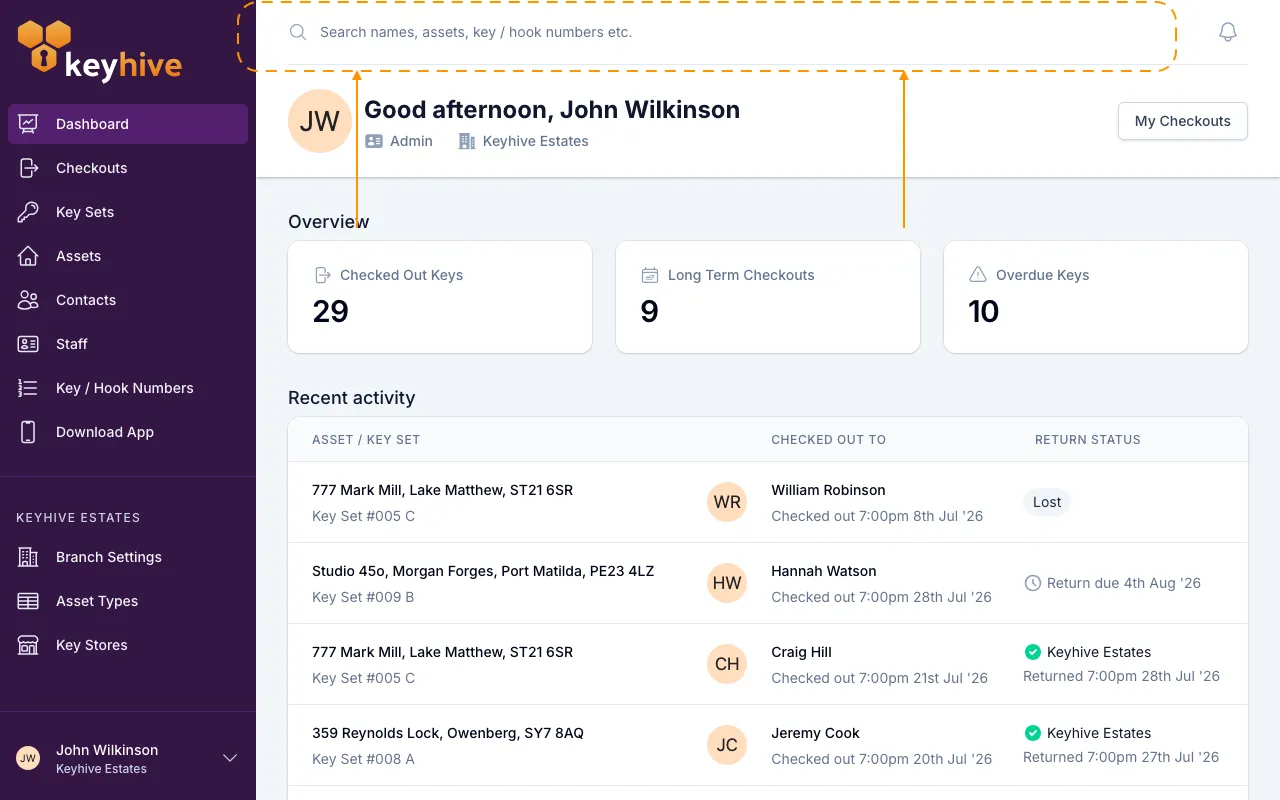
In short: The search bar sits at the top of every page in the web portal. Type two characters or more: an asset’s name, a key set’s name, a key / hook number, or a person’s name, and results drop down as you type. Click one to open it.
When you’d do this: Almost every time you want a particular thing rather than a list. Someone’s on the phone asking about a key set, a colleague wants to know who’s got the keys to a unit, or you need a contact’s page.
Where it is
The bar runs across the top of the portal, above whatever page you’re on, and it’s there on all of them. There’s nothing to open first.
What you can search for
Type any of these:
- An asset’s name: the address, registration, unit or room name it was created under. Its description is searched too, so a door code or a floor you noted there will find it.
- A key set’s name, such as
52A. - A key / hook number, if you use them. Two characters is enough, so short numbers still work.
- A staff member or contact, by name, email address, phone number, or the company a contact belongs to.
Reading the results
Results appear under the bar as you type, most relevant first, and update with every few letters. Clicking anywhere else on the page closes them.
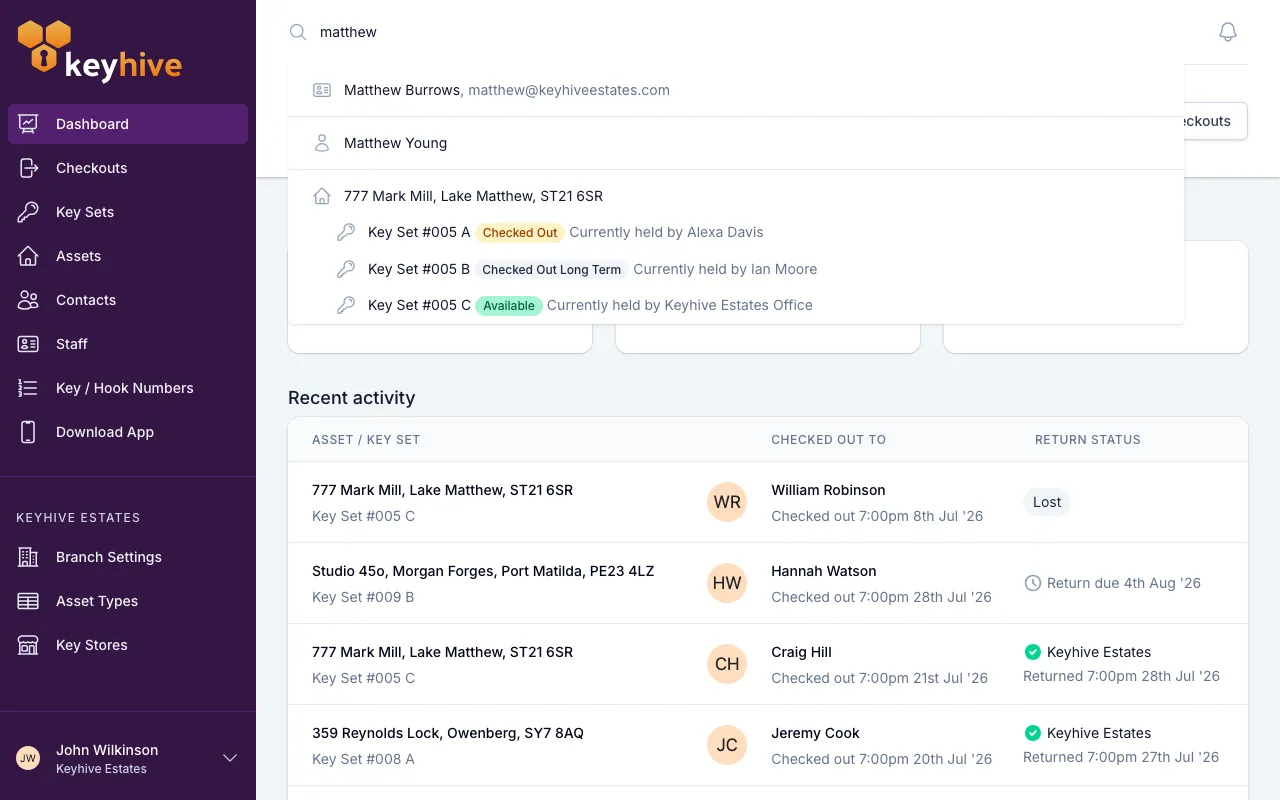
An asset comes with its key sets underneath it. Each one shows its name, its status (available, checked out, out long term, or untagged) and, if it’s out, who’s currently holding it. Often that’s the whole answer, and you don’t need to click anything.
Click the asset to open its page, or click a key set to go straight to that set.
Contacts show with their company alongside, and staff with their email address, so you can pick the right person out of several with similar names.
An archived asset still turns up, marked with an Archived badge, useful when you need its history back. Archived contacts and disabled staff don’t appear; open the Contacts or Staff list to find those.
Good to know
- Two characters is the minimum. Nothing happens on a single letter.
- You get the ten best matches. If what you want isn’t among them, add a few more characters rather than scrolling, or open the matching list from the sidebar, where you can filter.
- The search bar doesn’t create anything. If nothing comes up, it isn’t in Keyhive yet. See How to create an asset, How to create a key set or How to create a contact.
- Names are what people search for. Naming an asset the way your team says it out loud is what makes it findable later. See How to create an asset.
- If you work in more than one branch, the search finds things in the one you’re currently in. See Working across more than one branch.