

How to unassign a fob
In short: Open the key set in the portal and choose Unassign fob from its actions menu. The fob comes off, the key set becomes untagged, and the fob is free to go on something else.
When you’d do this: When a fob needs to come off a set of keys, because it’s stopped scanning reliably, you want to reuse it on a different key set, or the keys are going out of circulation and the fob should go back in the pool. Also when the wrong fob ended up on a key set and you need to put the right one on.
Before you start
The key set can’t be checked out. A fob only comes off a key set that’s with you. If it’s out with someone, return it first (or close the checkout if it isn’t coming back), then unassign the fob.
Take the fob off the keys too. Unassigning is the record; physically removing the fob from the ring is the other half. Do both, or the next person to scan it gets a fob Keyhive says belongs to nothing.
In the portal
-
Open the key set. Find it through the search bar at the top of any page, searching the asset name or the key set’s number, and click through to the key set.
-
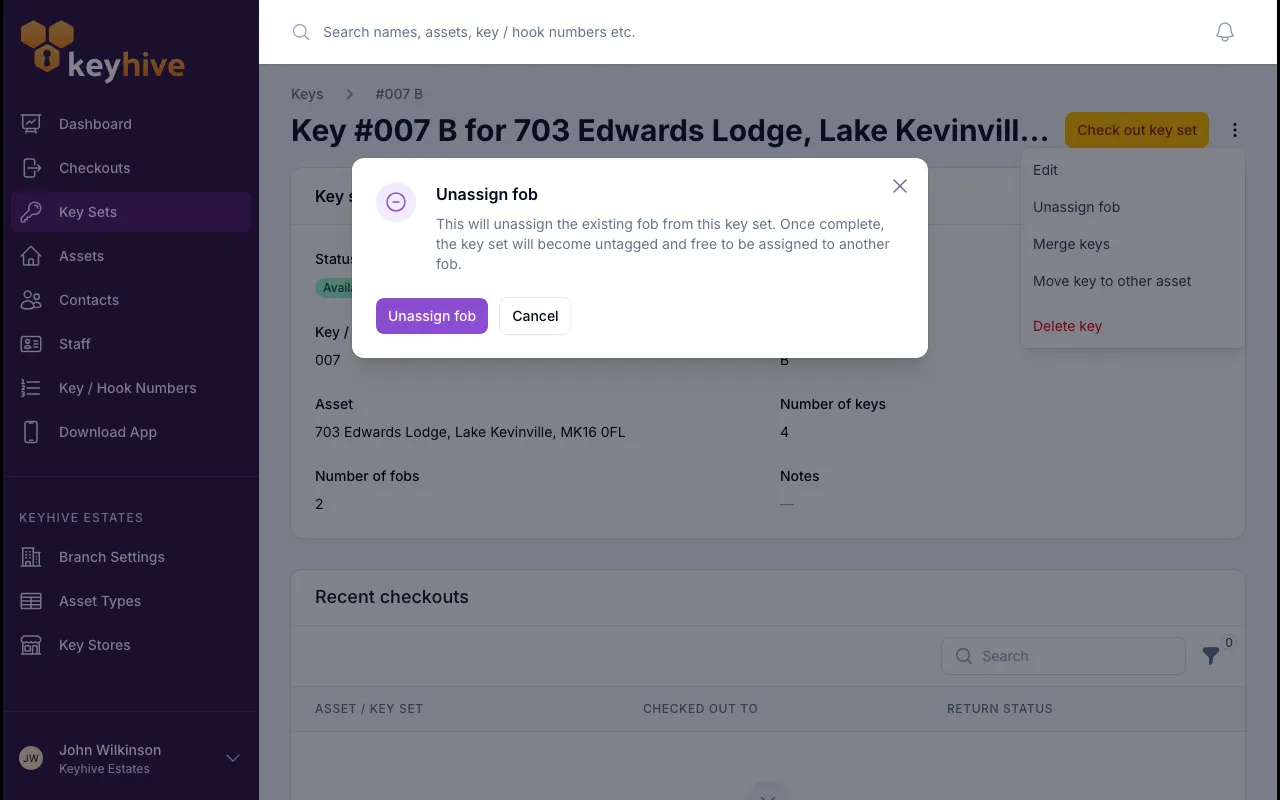
Click the actions icon (the vertical dots) next to its name, and choose Unassign fob.
-
Confirm. Keyhive tells you the key set will become untagged and the fob will be free to use again.
The key set now shows as untagged. It can’t be checked out until it has a fob again.
No Unassign fob in the menu? Either the key set has no fob on it already, or it’s currently checked out. See Before you start.
On the Hive
The Hive can do this too, but only with the fob in your hand: you scan it, then take it off from the key set panel.
-
Tap the fob on the reader. Because the fob is on an available key set, the Hive opens a checkout. Don’t worry about that: you won’t be completing it.
-
Open the key set’s menu in the panel on the left: tap the key set the fob belongs to.
-
Tap Unassign fob from key and confirm on the warning that appears. It spells out what happens: the fob is freed for another key set, and the key set itself keeps its holder, history and checkouts.
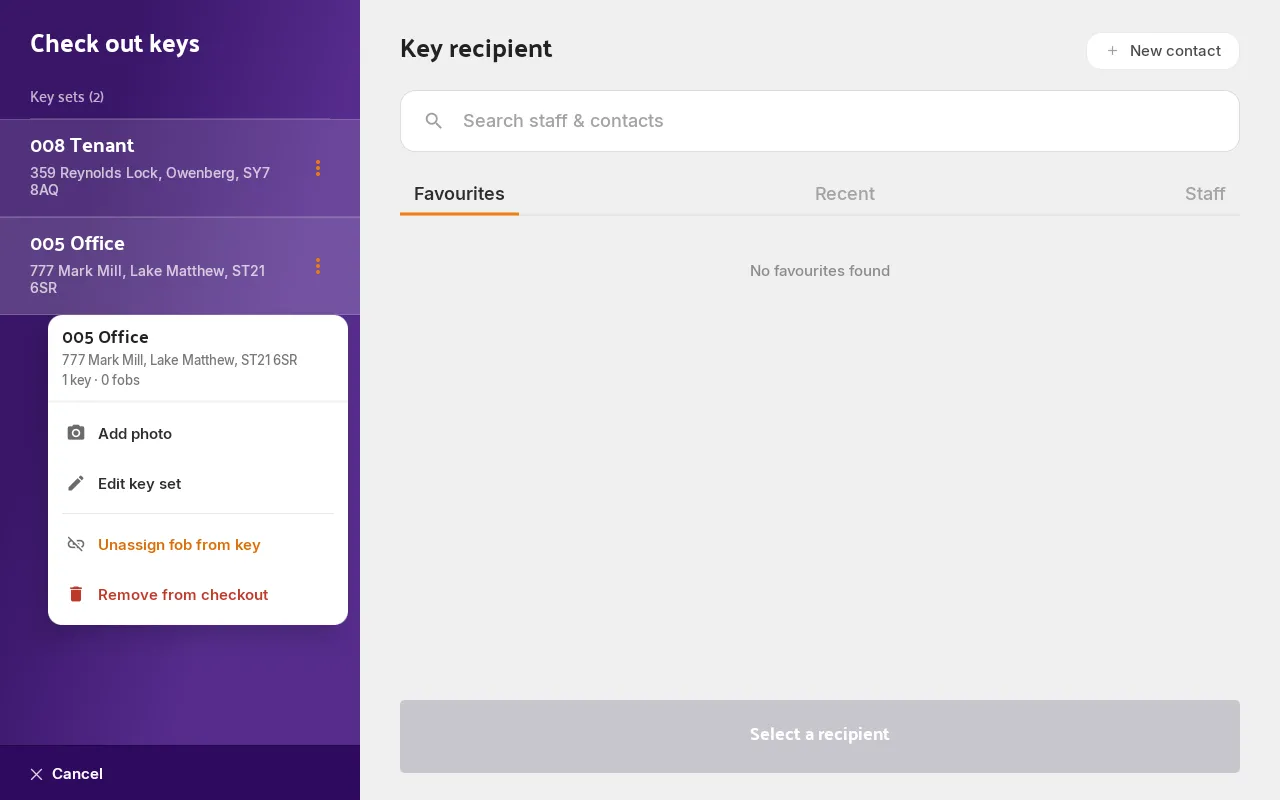
The fob is off. If it was the only key set you’d scanned, the Hive drops the checkout and takes you back to the home screen; if you’d scanned others, the key set is removed from the checkout and the rest carry on.
Putting a different fob on the key set
Swapping a fob is two jobs, in this order:
- Unassign the old fob (above), which leaves the key set untagged.
- Assign the new one: put it on the ring, tap or scan it, and pick the key set. See How to assign a fob to a key set.
You can’t assign a second fob straight over the top: a key set carries one fob at a time, and one that already has one is greyed out in the assign list. Taking the old one off first is what makes the key set selectable.
Good to know
- This isn’t a return, and nothing about custody changes. The key set keeps its holder, its checkout history and its key / hook number. All that changes is the fob.
- An untagged key set can’t be checked out. If you’re not putting another fob on straight away, expect it to sit out of use until you do.
- The freed fob is ready for anything. Once it’s off, scanning it starts the assign flow again and it can go on any key set that hasn’t got one.
- A long-term key set has no fob to unassign. Its fob was freed the moment the keys went out. See Short-term vs long-term checkouts.