

How to merge two key sets
In short: In the web portal, open the key set you want to get rid of, click the ⋮ menu at the top of the page and choose Merge keys. Pick the key set you’re keeping, then click Merge and delete key set. The history and photos of both end up on the one you kept, and the other is removed.
When you’d do this: When two records in Keyhive stand for one set of keys. Usually that’s a duplicate, where the same keys were added twice, once in the portal and again at the Hive. But it’s also how you tidy up after two rings have genuinely been combined into one.
Before you start
This is a web portal job. There’s no way to merge on the Hive or the mobile app.
You need Manager or Admin access. Merging deletes one of the two records, so it’s limited to those roles. If there’s no Merge keys in the ⋮ menu, ask someone who has it.
Open the key set you’re getting rid of, not the one you’re keeping. The merge runs one way: the set you start from is the one that disappears.
Both sets have to be on the same asset. The picker only offers the other key sets belonging to the same asset. If the duplicate was registered against a different asset, move it onto the right one first, then come back and merge.
Only one of the two can be out with someone. If both are checked out, Keyhive won’t merge them. See If one of them is checked out below.
Merge them
-
Open the key set you want to remove. Type its name,
52A, say, into the search bar at the top of any page, or click Key Sets in the sidebar and pick it from the list. -
Click the ⋮ menu next to its name, and choose Merge keys.
-
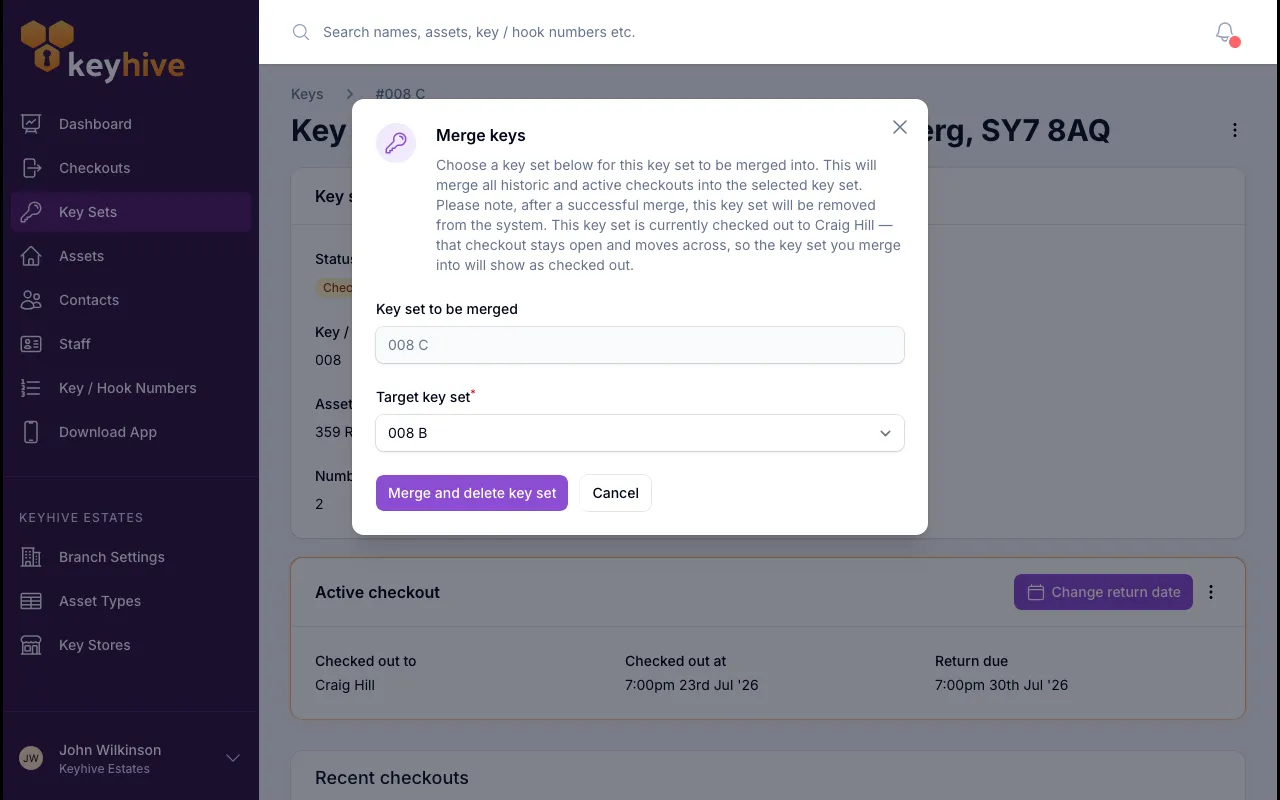
Choose the key set you’re keeping under Target key set. The set that’s about to be removed is shown above it, so you can check you started from the right one.
-
Click Merge and delete key set.
You land on the surviving key set’s page.
What ends up where
Moves to the key set you kept:
- Every checkout, from both sets, so its Recent checkouts panel becomes the full story of these keys, whichever record they went out on.
- The photos taken of both sets.
Stays as it was: the key set you kept keeps its own name, notes, key / hook number and key and fob counts. The other set’s details aren’t carried over or combined, so check the surviving record still describes the keys correctly and edit it if it doesn’t.
Goes: the key set you merged from is removed and can’t be brought back. Its history isn’t lost: it’s on the record you kept.
The merge is recorded on both key sets, naming which went into which.
If one of them is checked out
You can merge a set that’s out with someone. The checkout crosses over still open, and the person holding the keys becomes the holder of the surviving set, which then shows as checked out. Before you confirm, the form tells you who’s got them.
If both sets are checked out, the merge is refused. A key set can only have one open checkout, so Keyhive shows a warning with a link to each one. Deal with one of them first, either mark it returned if the keys are back, or close it as one that won’t come back if they’re gone, then merge.
Then sort out the fobs
Two records meant two fobs, and only one is still in use.
- The surviving key set keeps its own fob. That’s the one to leave on the ring.
- The other fob is freed the moment the merge goes through, so it’s no longer attached to anything. Take it off the keys. If it stays on the ring, scanning it at the Hive won’t bring anything up. You can put it straight on another set, see How to assign a fob to a key set.
- If the set you kept had no fob and the other one was checked out, that fob comes across with the keys instead, so the holder can still scan them back in.
- If the set you kept had no fob and neither was out, it’s still untagged afterwards and can’t be checked out until you assign one.
Good to know
- Merging isn’t moving. If the keys are simply registered against the wrong asset and there’s no duplicate to get rid of, use How to move a key set to another asset instead.
- There’s no undo. Nothing is deleted except the key set record itself, but putting the two back into separate records means creating one again from scratch.
- Merge keys only appears when there’s somewhere to merge to. A key set that’s the only one on its asset has no option in the ⋮ menu, and neither does anyone below Manager.
- Two at a time. To fold three records into one, merge the first into the one you’re keeping, then the second.