

How to view overdue checkouts
In short: Open Checkouts in the web portal and click the Overdue tab. You’ll see every key set that’s past its return date and still out, who has it, and when it was due back.
When you’d do this: Whenever you want to know which keys should have come back by now, for a quick morning check, chasing up before the weekend, or working out where a missing key set has got to.
What counts as overdue
A checkout is overdue when all three are true:
- the key set is still out (the checkout hasn’t been closed), and
- it went out as a short-term checkout with a return date, and
- that return date has passed.
Long-term checkouts are never overdue. They have no return date to miss, so they’ll never appear here. If a key you’re worried about isn’t in the list, that’s the usual reason. See Short-term vs long-term checkouts.
Viewing the overdue list
-
Go to Checkouts. Open the Checkouts page in the portal.
-
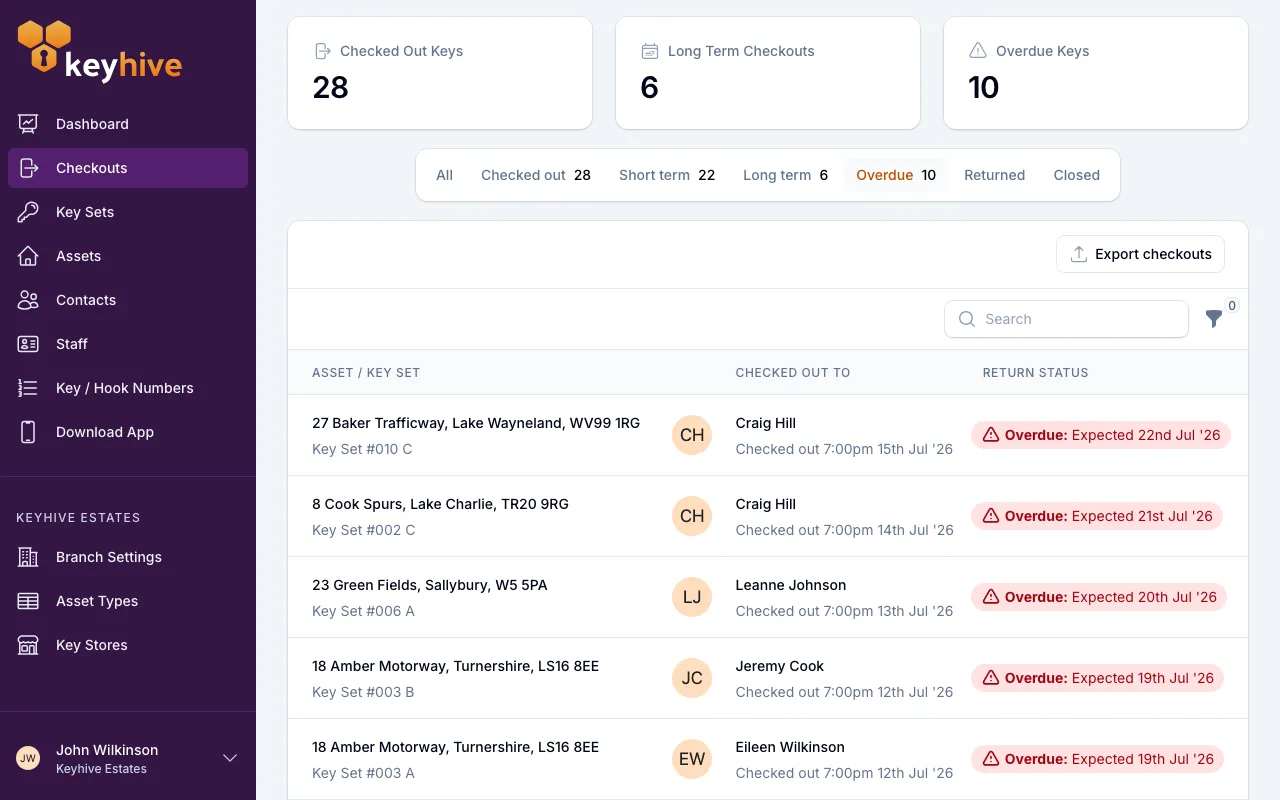
Check the Overdue Keys tile. At the top of the page are three counts: Checked Out Keys, Long Term Checkouts and Overdue Keys (marked with a warning triangle). The number is your total right now. Click the tile and it takes you straight to the overdue list.
-
Or click the Overdue tab. The tabs below the tiles let you switch between All, Checked out, Short term, Long term, Overdue, Returned and Closed. The Overdue tab carries a badge with the same count. Click it to filter the list down to overdue checkouts only.
-
Read the list. Each row tells you:
- the asset and key set that’s out,
- who has it, and when it was checked out,
- a red “Overdue: Expected 3rd Jul ‘25” marker showing the date it was due back.
-
Open a checkout for the detail. Click any row to open that checkout, where you’ll find its full history and the actions you can take on it.
Narrowing the list down
Once you’re on the Overdue tab, the usual list tools still apply:
- Search by asset name, key set name, or the name of the person who has the keys, handy when you’re chasing one particular key.
- Filter by date using Checked out after / Checked out before, useful for separating keys that have only just slipped past their date from ones that have been out for months.
- Export checkouts to a spreadsheet if you want to work through the list offline or share it. See How to export checkouts to a spreadsheet.
What to do about an overdue key
For each overdue key, you’ve got three options:
- It’s coming back, just later than planned. Give the checkout a new return date so it stops showing as overdue and the person holding the keys is told the new date. See How to change a checkout’s return date.
- It’s already back. Mark it as returned so the key set is available again. See How to return a key.
- It isn’t coming back. If it’s lost, been handed over for good, or retired, close it as won’t be returned rather than marking it as returned. See How to close a checkout for a key that won’t come back.
Good to know
- Elsewhere in Keyhive, an overdue key still shows in red. A checkout list on a person, asset or key set page shows the same red overdue marker, but you just can’t filter to only overdue from there. Use the Checkouts page for that.
- The list is live. As soon as a key is returned or its date is changed, it drops off the overdue list and the counts update.