

How to view available key / hook numbers
In short: Open Key / Hook Numbers in the portal and click the Available tab. That’s every number that isn’t attached to an asset: a free hook, ready to use.
When you’d do this: When something new comes in and you need a hook, drawer or slot for its keys, and you want to know which ones are free without walking to the board to look.
Steps
-
Click Key / Hook Numbers in the sidebar.
-
Click the Available tab. The list now shows only the free numbers, and the tab carries a count so you can see how many you have at a glance.
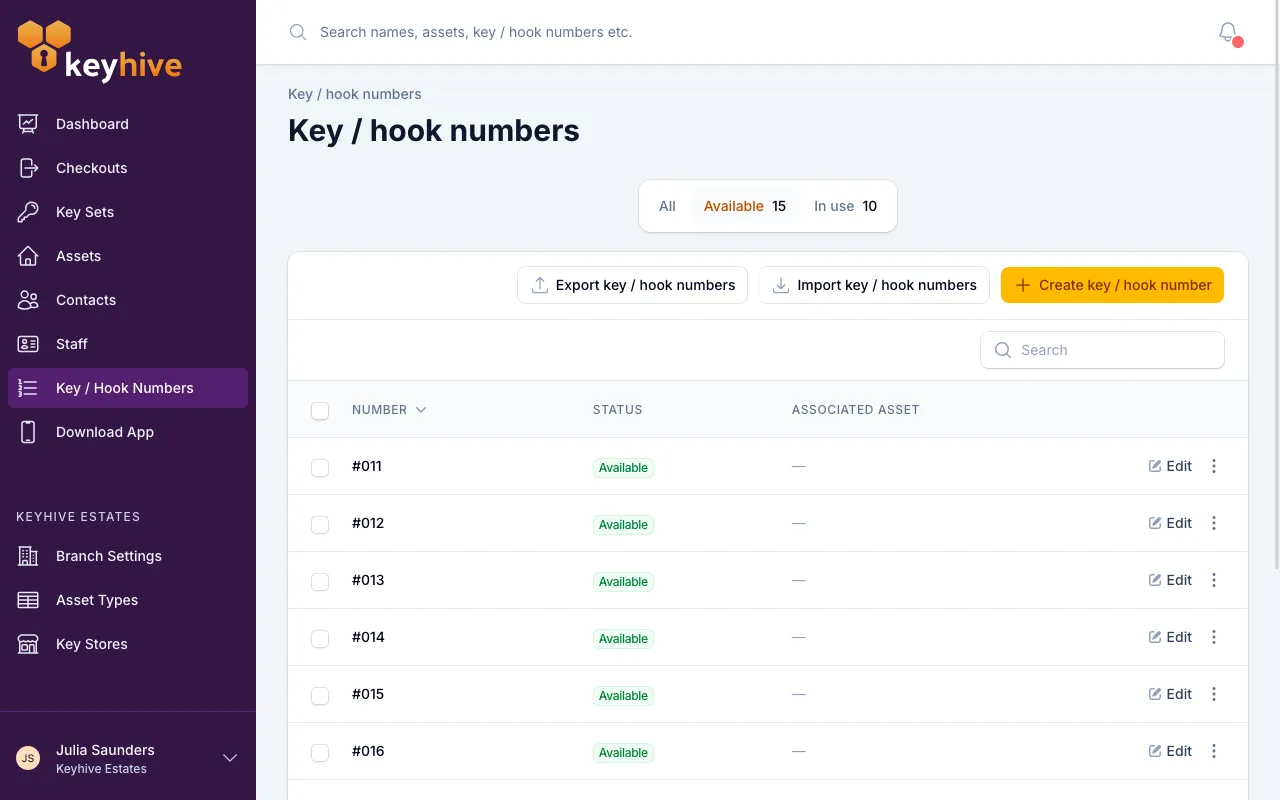
The other two tabs are All (every number you’ve added) and In use (the numbers currently attached to an asset, with that asset named beside each one; click its name to open it).
Good to know
- Numbers are listed in numerical order, so 2 comes before 10. Click the column heading to reverse it.
- Search finds a specific number. Type a number into the search box to check whether it’s free, or type an asset’s name to find the number its keys hang on.
- The tab stays in the address bar, so you can bookmark the Available list and come straight back to it.
- Archiving an asset frees its numbers. They move to Available on their own, and you don’t need to unassign them first. See Numbers are reused, not used up.
- A key set being out doesn’t free its number. The keys are with someone, but the hook still belongs to that asset, so the number stays In use.
- You’ll see the free numbers again when you assign one. The number picker on an asset or key set lists the available ones for you, so you don’t have to check this page first. If a number isn’t listed there, it either hasn’t been added yet or it’s in use by another asset.