

How to change a staff member's details or role
In short: In the portal, open the person from the Staff list, click the ⋮ menu next to their name and choose Edit. Change their name, mobile number or role, and click Save.
When you’d do this: When someone’s name changes, when their details were typed wrong at invite time, or when what they’re allowed to do changes, such as someone stepping up to manage staff and tidy up records, or stepping back from it.
Before you start
This is an admin job. You need Manager or Admin access. If there’s no Edit on someone’s page, ask someone who has it.
You can’t edit someone whose role is above yours. A manager can edit staff and other managers, but not an admin, so their Edit isn’t there.
You can’t change your own role. Editing your own record shows only the role you already hold, so promoting or demoting yourself isn’t possible; another admin has to do it.
It’s a portal job. You can’t change anyone’s details from the Hive or the mobile app.
You can’t change their email address. It’s shown greyed out on the form, and there’s no admin route to it, only the person themselves can change it, from their own Profile Settings. See How to change your own details and password.
Change their details or role
-
Open the person. Click Staff in the sidebar and click their row, or type their name into the search bar at the top of any page.
-
Click the ⋮ menu next to their name, at the top right, and choose Edit.
-
Change what you need. Their first name, surname, mobile number and role are all editable here.
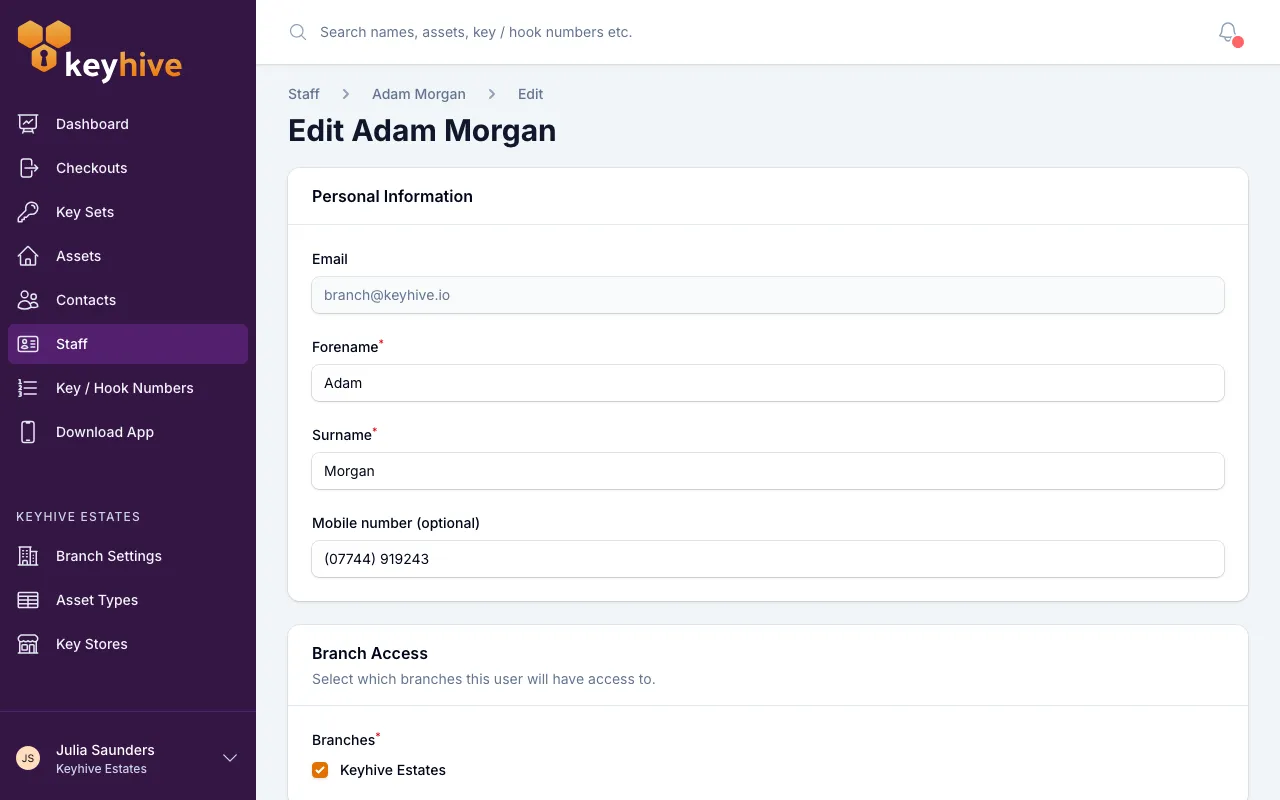
-
Pick a role if that’s what you’re changing. Only the roles up to your own are listed: a manager can make someone a manager, but not an admin. Each carries a short description on screen; for what they mean day to day, see Understanding staff roles.
-
Click Save.
You land back on their page, with the new details under Staff details.
Good to know
- A new role applies straight away. It follows them everywhere they sign in, the portal and the mobile app, and across every branch they can reach. One person has one role; you can’t make someone an admin in one branch and an everyday user in another.
- Their photo isn’t yours to change. It’s set by them from their own Profile Settings, and shows next to their name and wherever they appear as the person holding keys.
- Which branches they can reach is a separate job, and an Admin’s to do. See Giving a staff member access to more than one branch.
- Correcting a name doesn’t disturb their history. Every checkout they’ve ever made stays attached to them and shows the new name from then on. See How to see what a staff member is holding.
- Changing a role isn’t how you stop someone using Keyhive. If they’ve left the business, disable them instead.