

How to see the checkout history of a key set
In short: Open the key set’s page in the web portal and scroll to Recent checkouts. Every time that set has gone out is listed: who took it, when, and how it ended. Click a row for the full record.
When you’d do this: When you need to know who last had a set of keys, after a break-in or a complaint, when a key comes back damaged or short, or when someone says they never had it. It’s also how you check whether a set is in regular use before you retire it.
Before you start
This is a web portal job. The Hive and the mobile app move keys but don’t show their history. The phone’s My Keys screen lists what the person signed in is holding right now, which isn’t the same thing.
Find the history
-
Open the key set. Type its name (
52A, say) into the search bar at the top of any page and click it in the results. You can also click Key Sets in the sidebar and pick it from the list, or open it from the Key Sets panel on its asset’s page. -
Scroll to Recent checkouts, at the bottom of the page below the key set’s details.
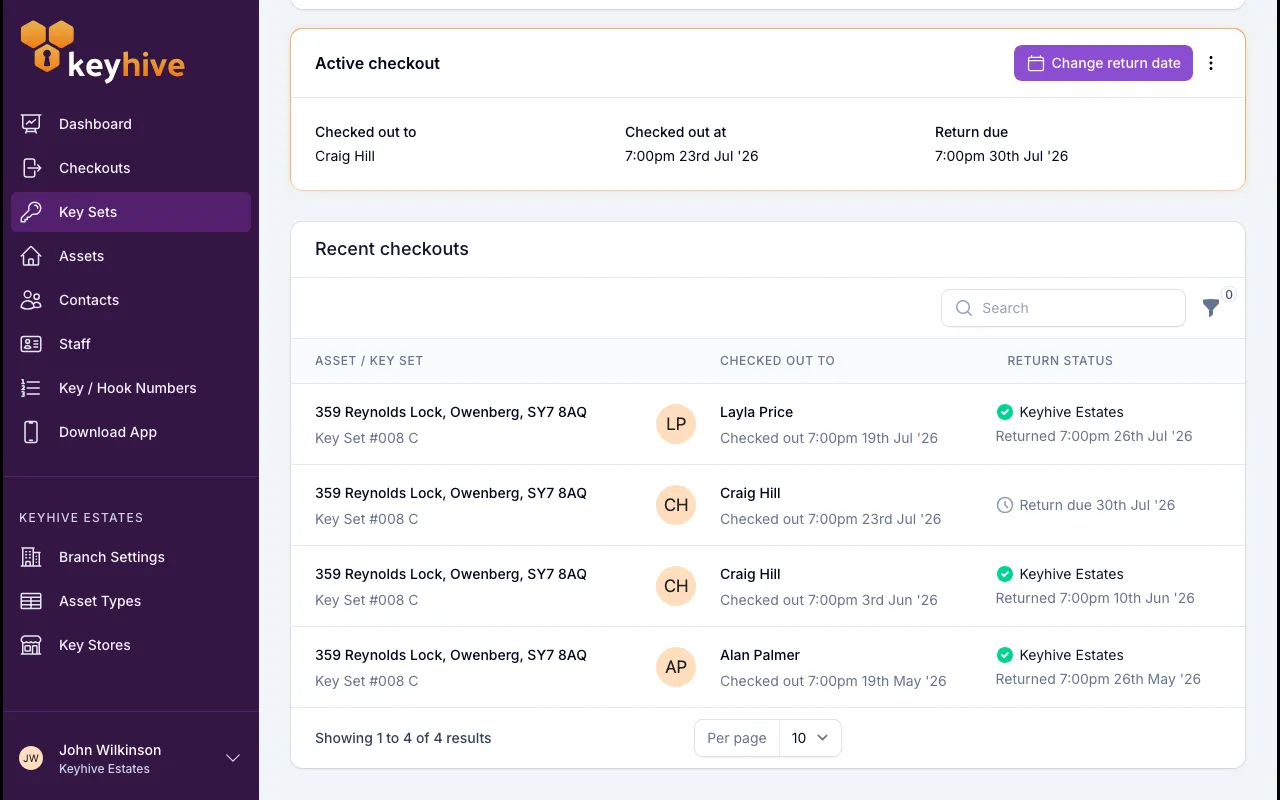
Each row is one checkout of this key set, most recently updated first:
- Asset / Key Set: the asset these keys open, with the set’s name beneath.
- Who had it, with their photo, and the date it went out.
- How it ended, in the last column:
- a green tick and Returned to the key store it was returned at, with the date;
- Return due 3rd Jul ‘25 for a set that’s still out and not yet late;
- a red Overdue: Expected 3rd Jul ‘25 for one that’s late, see How to view overdue checkouts;
- Long term checkout for a set out indefinitely, which has no return date;
- or a grey badge, Lost, Handed over, Decommissioned or Other, for a checkout closed because the keys weren’t coming back, with the note underneath if one was written. See How to close a checkout for a key that won’t come back.
Narrow the list if the set has a long history. The search box matches the name of whoever held the keys, and Filter gives you checked out after / before and returned after / before, enough to pull a particular week or month.
If a key set has never been out, the panel says No checkouts.
Open a checkout for the full record
Click any row to open that checkout on its own page. Three panels there fill in what the list can’t:
- Checkout details: who took the keys, when, how long they’ve been out (or were out for), the signature captured at the Hive or on the phone, and the photo taken as they went out.
- Return details: when they came back and who to, with the photo taken on return. For a checkout closed without the keys coming back this becomes Outcome, showing the reason, when it was closed and who closed it.
- Notifications: any overdue emails or texts sent about this checkout. See How to see a contact’s notification history.
Photos also collect on the key set’s own page. See How to view a key set’s photos.
Or search the Checkouts page
The panel on the key set shows that one set. For anything wider, click Checkouts in the sidebar and search for the set’s name or its asset. You get the same rows plus the tools the panel doesn’t have:
- Tabs: All, Checked out, Short term, Long term, Overdue, Returned and Closed, so you can see, for example, only the times a set went out long-term.
- Export. Take the history into a spreadsheet. See How to export checkouts to a spreadsheet.
Good to know
- The history is per key set, not per asset. An asset with three sets keeps three separate histories. To see all of them together, open the asset and use its own Recent checkouts panel. See How to view and edit an asset.
- The history outlives the key set. Deleting a key set, or closing its checkout as won’t be returned, keeps every checkout on record. The key set’s page goes, though, so from then on you find those checkouts through the Checkouts page or on the person who held them.
- A person’s page has the same list from the other direction. A contact’s or staff member’s page carries a Checkout history panel of everything they’ve ever taken. See How to see what a staff member is holding.
- A key set that’s out right now also has an Active checkout panel higher up its page, with the actions for dealing with it: change the return date, mark it returned, or close it.