

How to export key / hook numbers to a spreadsheet
In short: From the Key / Hook Numbers page in the web portal, click Export key / hook numbers, choose which columns you want, and click Export. Keyhive builds the file in the background and drops a notification in the bell menu when it’s ready: download it as a .csv or an .xlsx (Excel) file.
When you’d do this: When you need your hook list outside Keyhive, for a printed sheet of what’s free before a stocktake, a copy of the board to hand to someone who doesn’t use Keyhive, or a list you want to sort and mark up your own way.
Steps
-
Go to the Key / Hook Numbers page in the web portal, via the Key / Hook Numbers link in the sidebar.
-
Narrow the list first, if you want to. The export gives you exactly what the list is currently showing, so anything you do to the list before you export carries through to the file:
- Tabs. Stay on All for the whole board, or pick Available for a list of just the free hooks, or In use for just the ones that are taken.
- Search. Type part of a number, or an asset’s name, to narrow to those.
-
Click Export key / hook numbers at the top of the list.
-
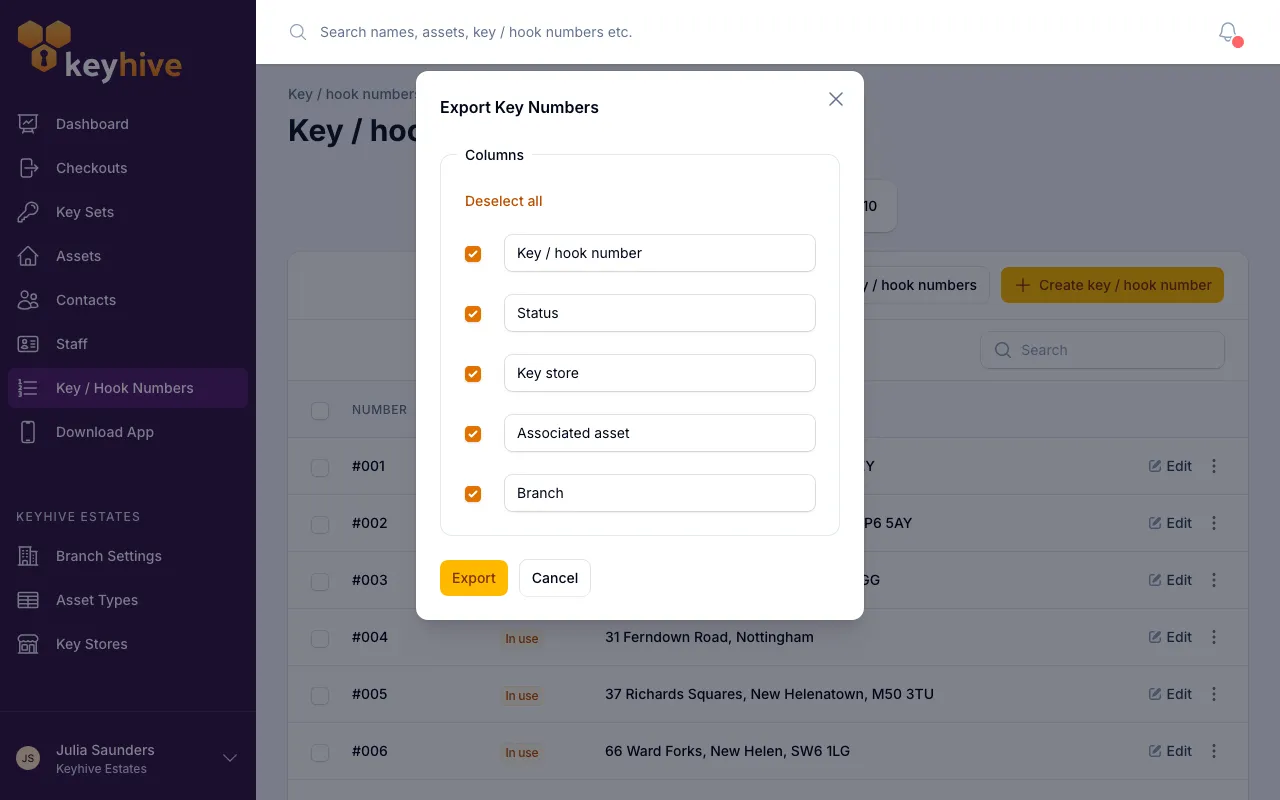
Choose your columns. A window opens listing everything that can go in the file: the number itself, whether it’s available or in use, and the asset it’s attached to. Untick anything you don’t need.
-
Click Export. The window closes and Keyhive starts building the file in the background. You can carry on working, or leave the page.
-
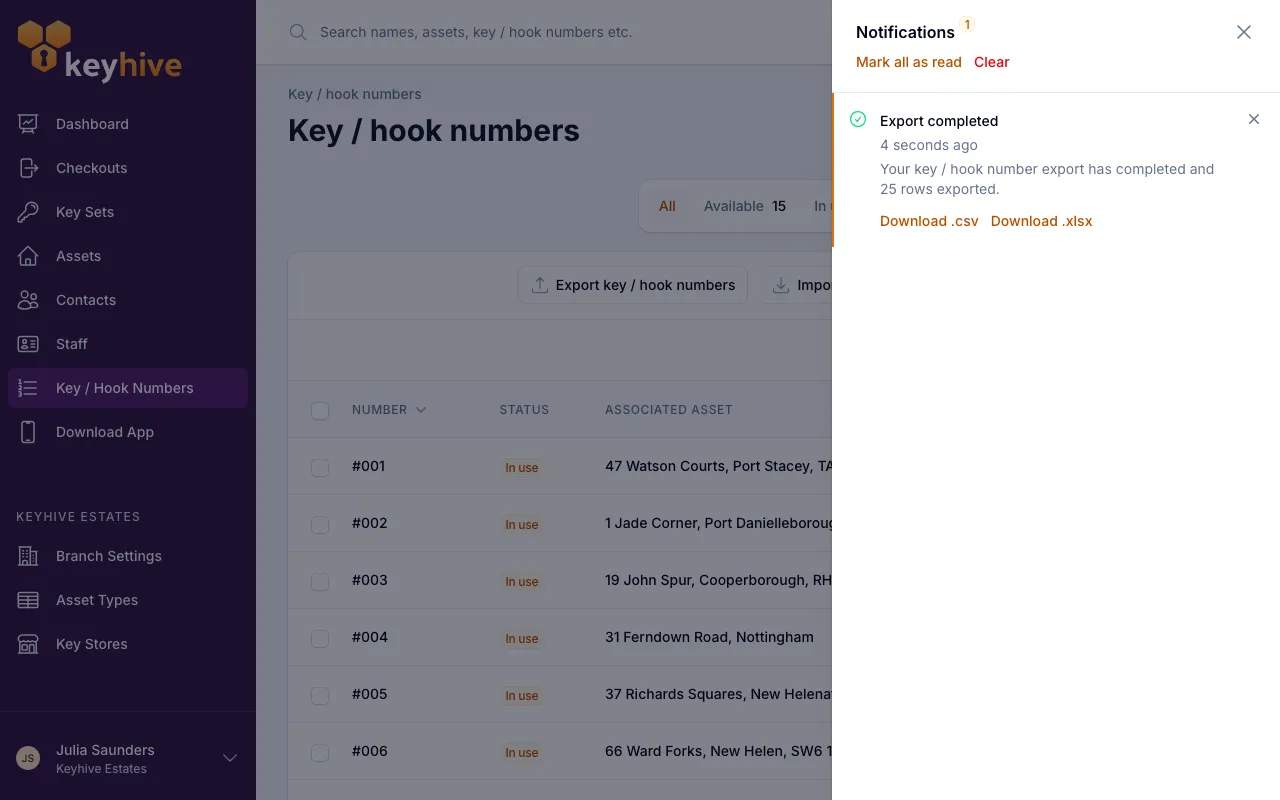
Download the file from the bell. When it’s ready, the bell icon in the top bar gets a red badge. Click it and you’ll see Export completed, telling you how many rows were exported, with two links:
- Download .csv. Opens in any spreadsheet program, and is the safe choice for feeding into another system.
- Download .xlsx. An Excel file, tidier to read and print.
Good to know
- One row per number. Each hook, drawer or slot appears once, in numerical order, whether or not anything is hanging on it.
- Big lists take a little longer. The file is built in the background exactly so a large export doesn’t tie up your screen. If the notification hasn’t appeared yet, give it a moment. It’ll arrive on its own.
- The notification waits for you. It stays in the bell menu until you clear it, so you can come back to the download later. Once you’ve cleared it, run the export again to get a fresh file.
- It’s not an import file. An export is for reading, not for uploading back. If you’re adding numbers, start from the example file in the import window instead. See How to import key / hook numbers from a spreadsheet.
- Exporting changes nothing. It’s read-only: no number is altered, freed or reassigned by exporting it.