

Meet the Hive
In short: The Hive is the unit that sits wherever you manage keys. Tap a fob on it and it works out what that key set is doing right now, then walks you through whatever comes next: handing the keys over, taking them back, putting a fob on them, or moving them to another store.
When it matters: A Hive has arrived and you want to know what it’s for, or someone new is about to use one for the first time.
What it is
A tabletop Android unit that runs nothing but Keyhive. It needs mains power and Wi-Fi, and it lives wherever your keys are managed, such as a reception desk, a key room, or someone’s desk. The fob reader is the stickered spot on the front: hold a fob against it and the unit reads it.
It’s signed in once with a Hive username and password that everyone at that location shares, then left running. That isn’t anybody’s personal Keyhive login, and it isn’t how Keyhive knows who took keys. That comes from who’s chosen on screen during a handover. See How to sign a Hive in.
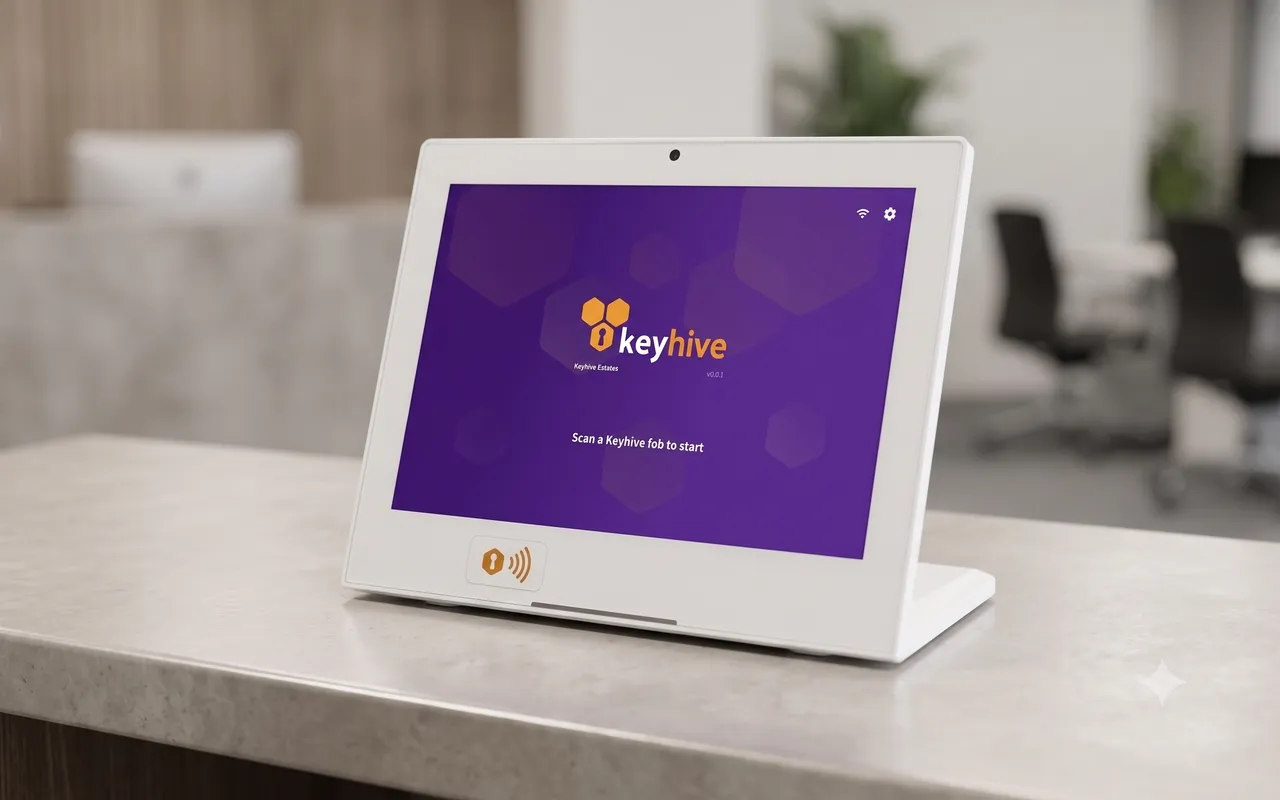
You can have as many Hives as you need, and they all sign in with the same details.
Everything starts with a fob
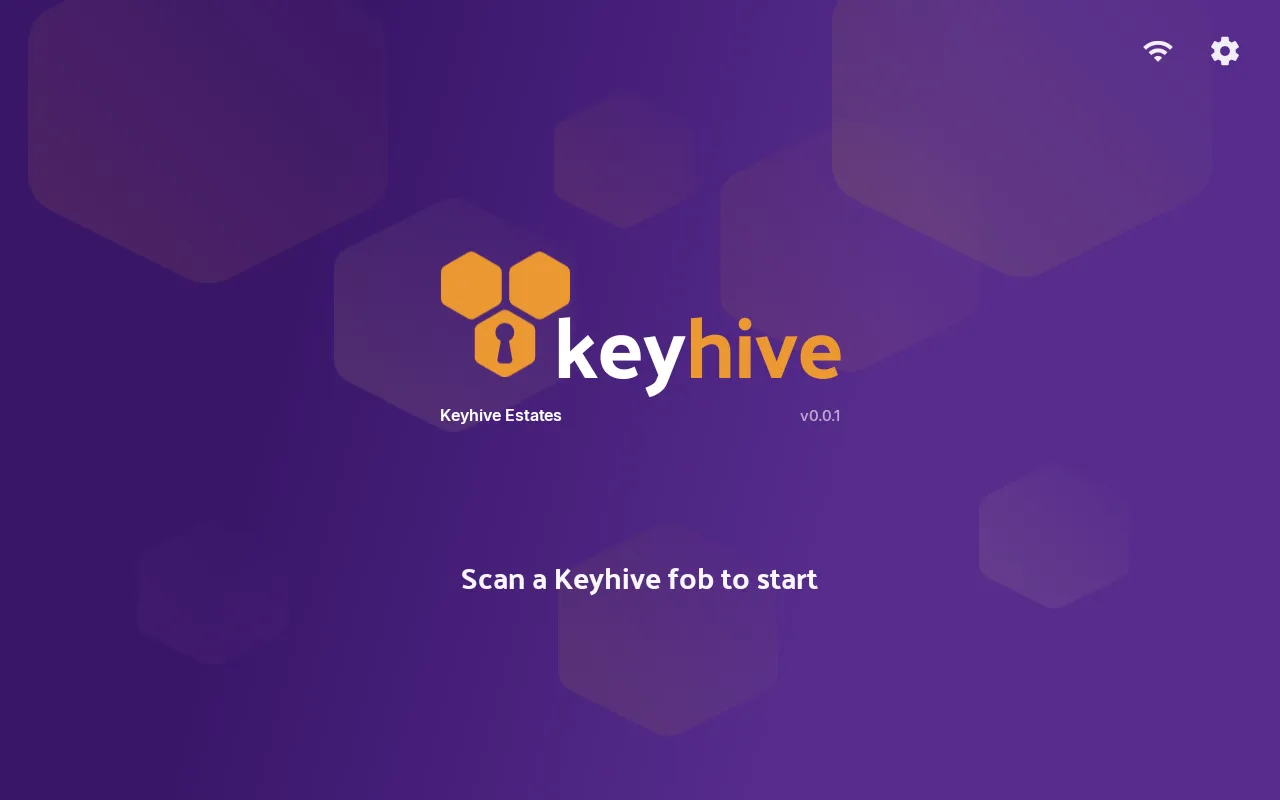
There’s no menu to find your way around. The home screen just says Scan a Keyhive fob to start, and what happens next depends on the key set the fob is attached to.
- The keys are sitting in the office → the Hive opens a checkout: choose who’s taking them, set when they’re due back, and they sign on screen. See How to check out a key.
- The keys are out with someone → the Hive opens a return. Check the key sets listed and confirm. See How to return a key.
- The fob isn’t on a key set yet → the Hive offers to link it to one, and you can create the key set from that same screen if it doesn’t exist. See How to assign a fob to a key set.
- The Hive doesn’t recognise the fob → nothing opens. You’ll see Tag not recognised and can try again.
If your account has more than one key store, tapping an available key set asks whether you’re checking it out or transferring it to another store before it goes any further. See How to transfer a key to another key store.
Keep tapping to do several at once. Whatever flow you’re in, tapping more fobs adds those key sets to it, so a handful of key sets go out, or come back, in one go. See How to check out multiple keys.
Someone not in Keyhive yet? You can add them without leaving the handover. Tap New contact on the key recipient step. See How to create a contact.
The panel on the left
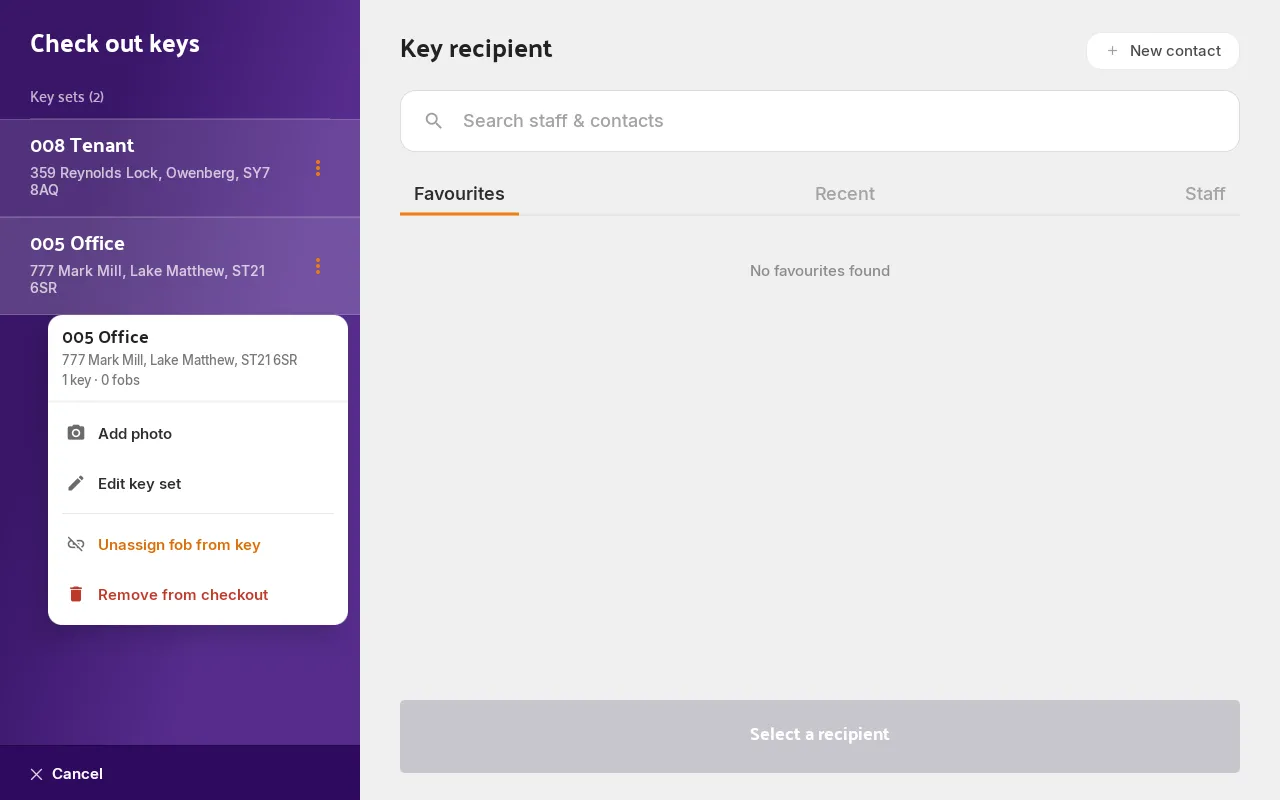
Once you’re in a flow, the panel down the left lists every key set you’ve tapped, so you can check you’ve got the right ones before you finish.
Tap a key set in that panel to open its menu:
- Add photo / View photo: a picture of the keys as they change hands. See How to add a photo of a key set.
- Edit key set: change its name, notes or the number of keys and fobs on the ring. See How to view and edit a key set.
- Remove from checkout (or from the return, or the transfer): take a key set back out of what you’re doing. It’s not offered when it’s the only one left.
- Unassign fob from key: during a checkout only, and only when the key set has a fob. This is the repair for a fob that brought up the wrong keys. See An unexpected key set came up when I scanned.
The two icons in the corner
Top right of the home screen:
The Wi-Fi icon opens the tablet’s own network settings, where you pick a network and enter its password. The Hive can’t do anything without a connection. If it loses one, it says so on screen and won’t let a handover go half-recorded. See How to connect the Hive to Wi-Fi.
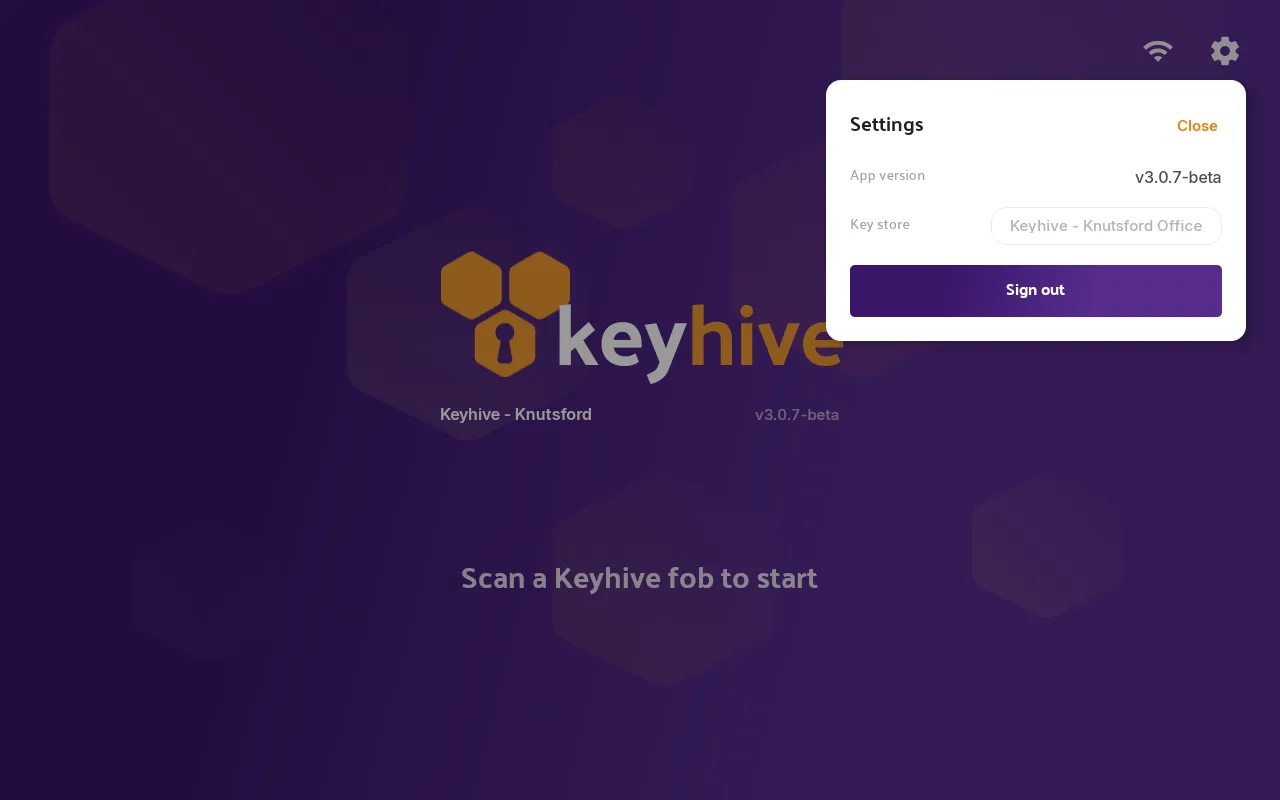
The gear icon opens Settings, which holds three things:
- App version: worth quoting if you ever get in touch about a problem.
- Key store: which store this Hive sits at, so everything returned or assigned here is recorded in the right place. It only appears if your account has more than one store. See How to manage key stores.
- Sign out: signs the unit out completely. It’ll need the Hive username and password again before anyone can use it, so leave it alone unless you’re moving the unit or deliberately taking it out of service.
Good to know
- It records in real time. A checkout finished at the Hive is visible in the web portal straight away, and on the mobile app.
- Signatures stay with the record. Whoever takes the keys signs on screen, and that signature is kept against the checkout.
- One password covers every Hive. There’s nothing to set up per unit beyond signing each one in. See Changing your Hive’s password.
- A key set needs a fob before it can go out. A set without one shows as untagged. Tap a spare fob on the Hive to link it up.