

How to import key / hook numbers from a spreadsheet
In short: On the Key / Hook Numbers page in the portal, click Import key / hook numbers, download the example file, put your numbers into it, and upload it back. They’re added in the background.
When you’d do this: When you’re setting up a board for the first time and have a list of hooks, drawers or slots to get in, or when you’ve added a run of new hooks and don’t want to type them in one at a time.
Before you start
Start from the example file, not a blank spreadsheet. The import modal has a Download example CSV file link. That file already has the heading Keyhive looks for, so replacing its rows with your own numbers is the quickest way to get a file that works first time.
Leave out the set identifiers. The list should read 52, not 52A: the
A/B/C or Office/Tenant part belongs to each key set, and Keyhive adds it when it
names them. See
Understanding key / hook numbers.
Steps
-
Click Key / Hook Numbers in the sidebar.
-
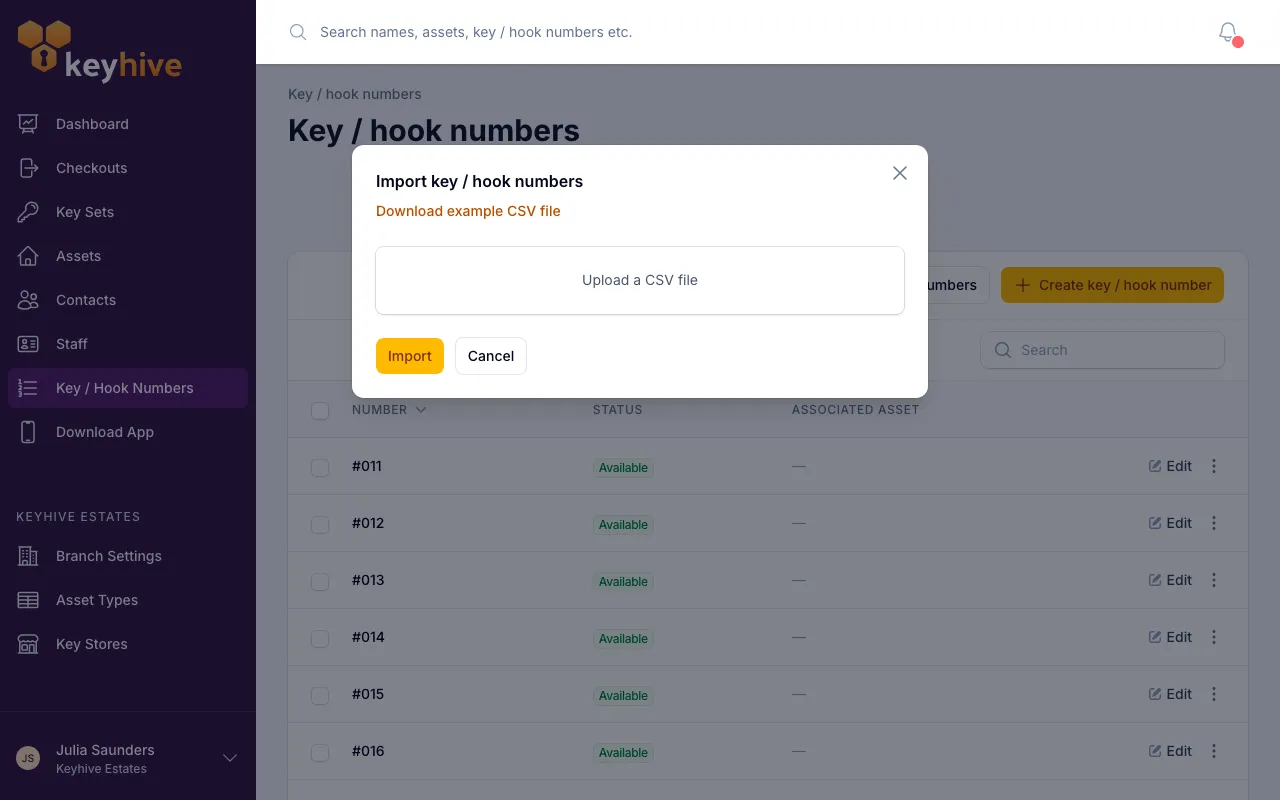
Click Import key / hook numbers at the top of the list.
-
Click Download example CSV file. It saves a small file with one column and a few example numbers in it.
-
Put your numbers in. Open the file in your spreadsheet program, delete the example rows, and put one of your numbers on each row underneath the heading. Keep the heading as it is, and save the file as a CSV. That’s the format the file already comes in, so Save is usually enough.
-
Upload it. Back in the modal, drop the file onto Upload a CSV file or click to choose it. Because you kept the heading, Keyhive matches your column up for you. Check it’s picked the right one and adjust it if not.
-
Click Import. The import runs in the background, so you can carry on working. When it finishes you’ll get a notification telling you how many numbers were added.
Good to know
- You can re-upload a longer list later. Numbers already on your list are recognised and left alone, so adding a few hooks to your original file and importing it again brings in only the new ones, no duplicates.
- Importing brings in the numbers, nothing else. They all arrive as available, ready to be attached to an asset when you’re ready.
- Adding a single number is quicker by hand. For one or two, use Create key / hook number.