

How to move a key set to another asset
In short: Open the key set in the web portal, click the ⋮ menu at the top of the page and choose Move key to other asset. Pick the asset the keys really belong to, choose a key / hook number if the new asset has one, and click Move key set.
When you’d do this: When a set of keys ended up on the wrong asset, whether the wrong result was picked when the set was created, two similar assets got mixed up, or the keys were registered against a duplicate asset you’re now tidying away.
Before you start
This is a web portal job. There’s no way to move a key set on the Hive or the mobile app.
You can’t do it from the Edit form. Once a key set belongs to an asset, the Asset field on its edit form is locked. This action is the way to change it.
The asset you’re moving to has to exist and be in everyday use. Archived assets don’t appear in the picker. If the right asset isn’t in Keyhive yet, create it first.
Move the key set
-
Open the key set. Type its name,
52A, say, into the search bar at the top of any page, or click Key Sets in the sidebar and pick it from the list. You can also open it from the Key Sets panel on its current asset’s page. -
Click the ⋮ menu next to its name, and choose Move key to other asset.
-
Search for the asset under Target Asset. Search by name. The set you’re moving is shown above, so you can check you’re on the right key set.
-
Choose a New Key / hook number. This only lists numbers that already belong to the asset you’re moving to, and Keyhive pre-selects the first one. To leave the set without a number, choose Don’t set a Key / hook number.
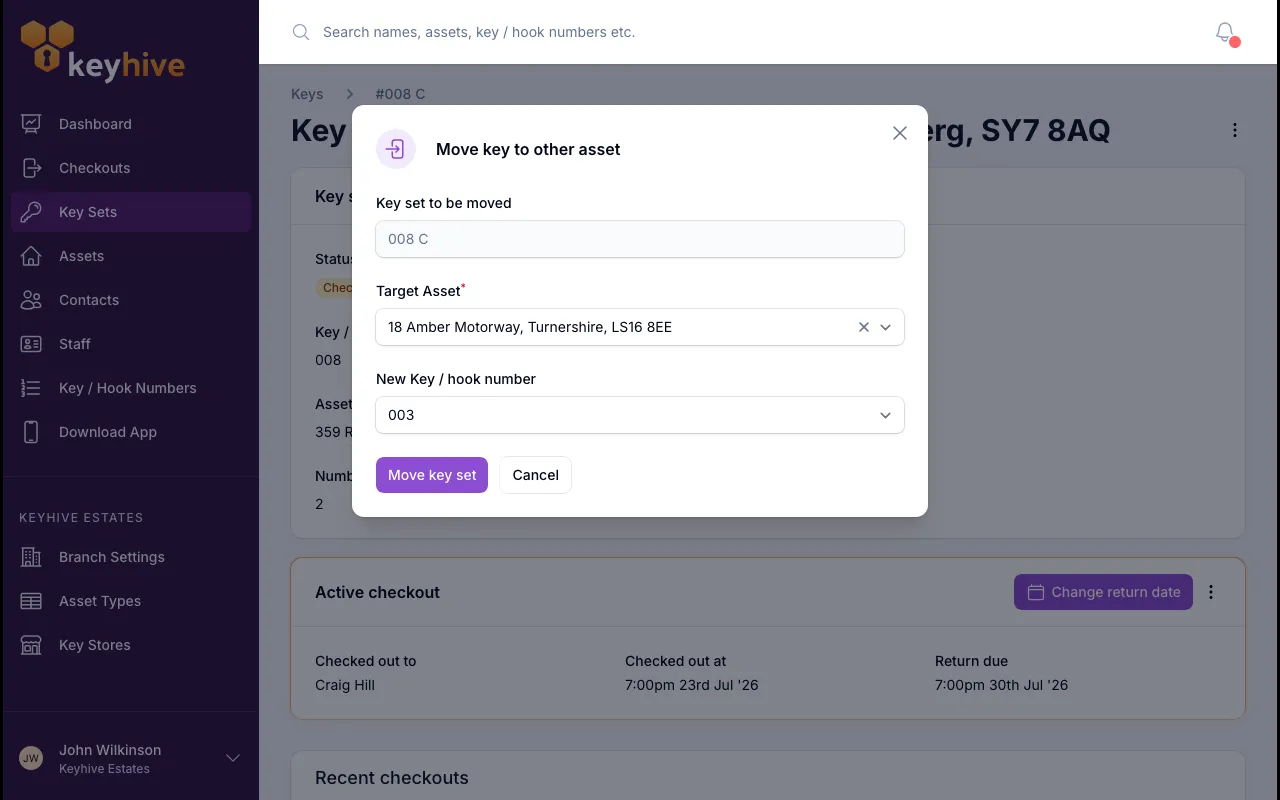
-
Click Move key set.
You land on the new asset’s page, with the key set now listed in its Key Sets panel.
⚠️ If the new asset has no key / hook number, the set loses the one it had. The picker will be empty and the move goes ahead without a number, so the set is then named after its set identifier alone. To give it one, assign a number to the new asset and then edit the key set.
What moves with it
Everything except the asset and the hook number stays exactly as it was:
- The fob stays attached. Scanning it at the Hive now brings up the new asset.
- An open checkout is unaffected. You can move a key set that’s out with someone: they stay the holder, the return date doesn’t change, and the checkout simply shows the new asset from then on.
- The photos, notes, set name and key and fob counts all come across.
- The checkout history comes across too. See below.
Good to know
- The history follows the key set. Every past checkout of these keys moves to the new asset, so they leave the old asset’s Recent checkouts panel and appear under the new one. Nothing is deleted: those checkouts are still on the Checkouts page and on the record of whoever held them, but the old asset’s page no longer shows them. See How to see the checkout history of a key set.
- The move is recorded, naming the key set, the asset it came from and the one it went to.
- Moving the last key set leaves the old asset with none. If that asset was only ever a duplicate, archive it once its keys have gone.
- Moving isn’t merging. If the same physical keys were entered twice as two separate sets, you want How to merge two key sets instead. That combines the two records rather than relocating one.
- The key / hook number picker here is stricter than the one on the edit form. The edit form also offers free numbers that no asset has claimed; this one shows only the target asset’s own numbers.
- One key set at a time. There’s no way to move a whole asset’s keys in one action. Repeat it for each set.