

How to sign a Hive in
In short: Get the Hive onto your Wi-Fi, then enter the Hive username and password from Branch Settings in the web portal and tap Log in.
When you’d do this: When a new Hive arrives and you’re setting it up, when one is moved to a site with a different network, or after someone has signed a unit out.
Before you start
Have the login details to hand. The Hive doesn’t use anyone’s personal Keyhive login. It signs in with its own username and password, shared by everyone who uses that unit. Both live in the web portal under Branch Settings, in the Update Hive password panel: the username is shown there, and the password is one an admin sets. Nobody can look an existing password up, so if it isn’t written down anywhere, set a new one before you start. See Changing your Hive’s password.
The app is already on the unit. Hives ship with Keyhive installed, so there’s nothing to download or set up first.
1. Get it on Wi-Fi
The Hive can’t sign in, or do anything else, without a network connection, so this comes first.
Tap the Wi-Fi icon in the top right of the sign-in screen. That opens the tablet’s own Wi-Fi settings, where you pick your network and enter its password. Come back to Keyhive when you’re connected.
If your network doesn’t appear, or the Hive joins it but still says there’s no internet, see How to connect the Hive to Wi-Fi.
2. Sign in
- Enter the Hive username. It’s the one shown in Branch Settings, not an email address.
- Enter the password. Tap Show beside the field to check what you’ve typed.
- Tap Log in. The button stays greyed out until both fields have something in them.
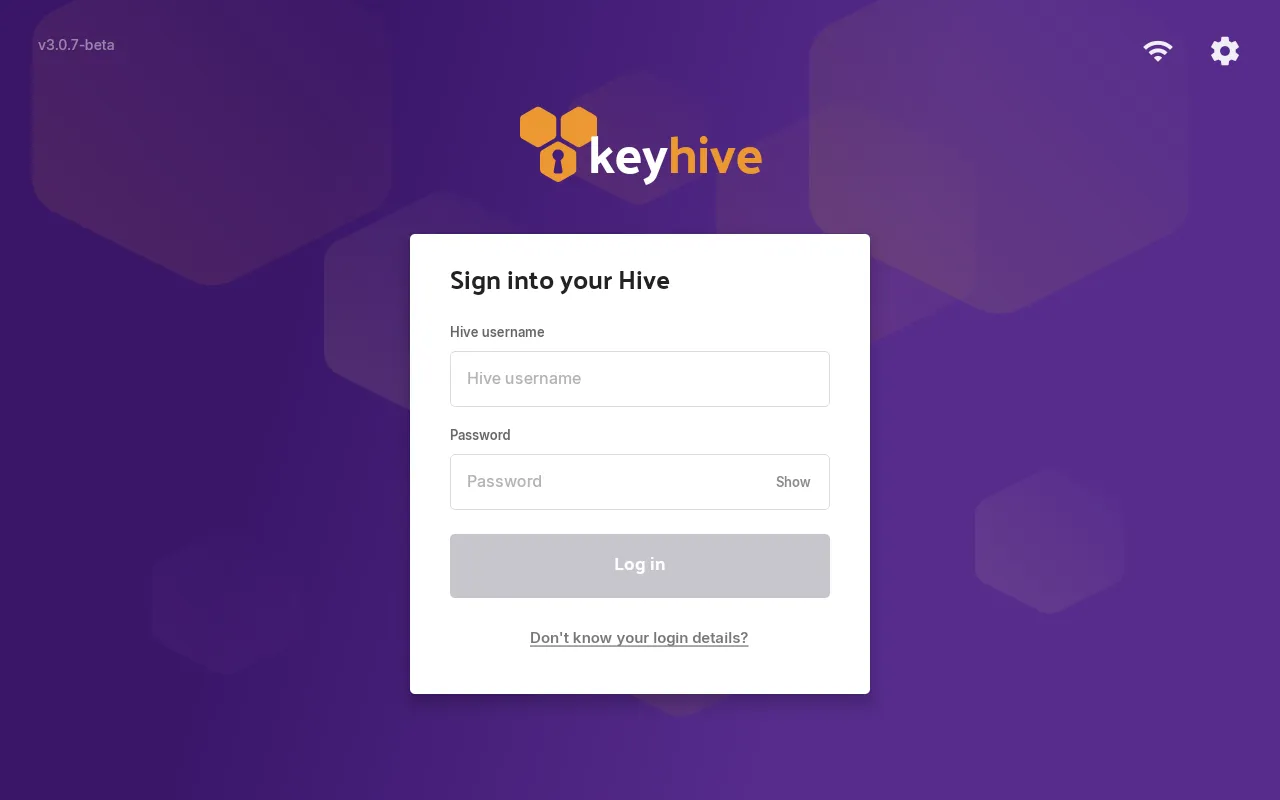
Stuck? The Don’t know your login details? link under the button points you back to Branch Settings in the portal.
3. Tell it where it is
If your account has more than one key store, the Hive asks “Where is this kiosk?” straight after you sign in. Pick the store the unit sits at: an office, a safe, a van. Everything returned or assigned at this Hive from then on is recorded at that store, so you always know where a key is.
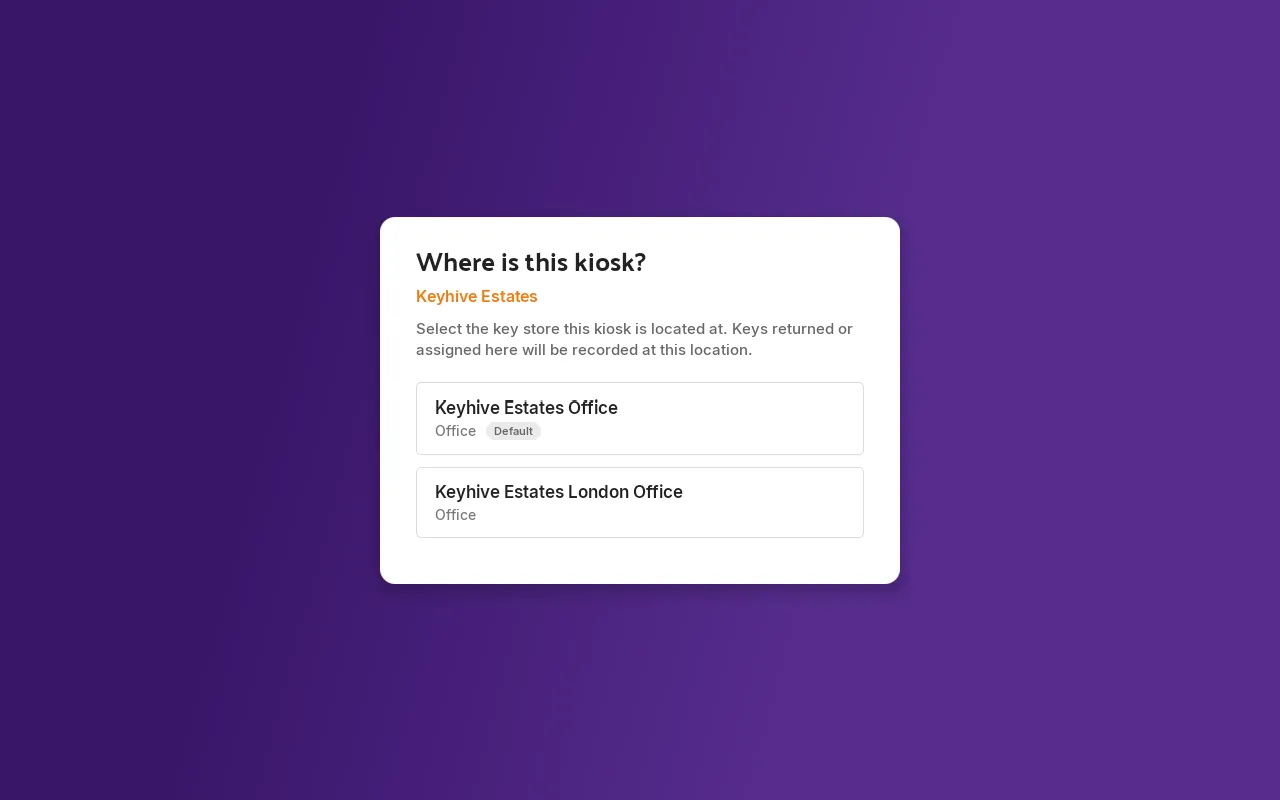
You can’t skip this step, but you can change it later: tap the gear icon on the home screen and use the Key store row. Moving a Hive to another location takes seconds and doesn’t need a fresh sign-in.
Most accounts have a single store, so this step won’t appear at all.
Good to know
- One password covers every Hive. All the units at a location sign in with the same details, so there’s nothing to set up per unit beyond signing each one in.
- It only asks once. A signed-in Hive stays signed in day to day, so you won’t be asked for the password again unless someone signs the unit out.
- The username can’t be changed in the portal. It’s shown for reference only. Get in touch if you need it changed.
- Signing in isn’t the same as identifying yourself. The record of who took keys comes from who’s chosen on screen during a checkout, not from who signed the unit in.