

How to change a checkout's return date
In short: If a key set is out longer (or coming back sooner) than you first set, you can update its return date from the web portal without returning and re-checking-out the key. Open the checkout, click Change return date, pick a new day and time, and save. The person holding the key is told about the change.
When you’d do this: Plans shift. A job overruns, a visit gets moved, or a key you expected back next week is now needed for another fortnight. Rather than chase an overdue flag that no longer reflects reality, push the return date to when the key’s actually due back.
Before you start
- This is a portal job. Changing a return date is done in the web portal, not on the Hive or mobile app, since those are for keys physically coming and going. If you’re at the kiosk, use a computer for this.
- It’s for open, short-term checkouts. You can only change the date on a checkout that’s still open and has a return date in the first place: that is, a short-term one. A long-term checkout has no return date to change, so the option won’t appear.
Changing the date
You can start from either of two places, whichever you’re already looking at:
- the checkout’s own page, or
- the key set’s page, in its Active checkout panel.
On both, look for the Change return date button (a calendar icon) next to the checkout’s actions.
-
Click Change return date. A short form opens.
-
Pick the new return date and time. The picker starts on the current return date, so you can nudge it forward or bring it earlier. You can’t set it before the key was checked out.
-
Click Save changes. The checkout keeps its new date, and the person holding the key is notified of the change.
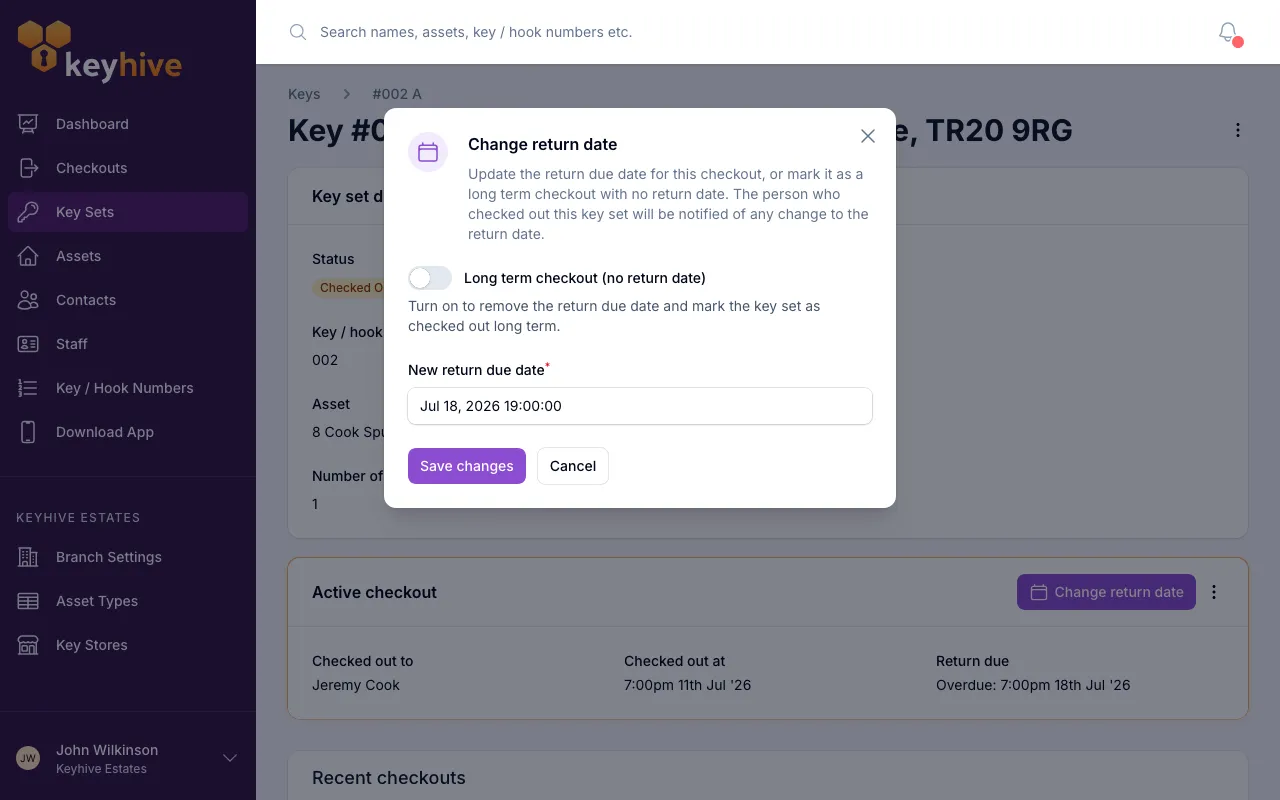
That’s it. The key stays out with the same person; only the date it’s due back has moved.
Switching to long-term instead
The same form has a toggle, Long term checkout (no return date), that turns the checkout into a long-term one. Turning it on removes the return date entirely and, because long-term keys carry no fob, frees the fob for reuse. From then on the key set is treated as out for the foreseeable future.
Use this only when the arrangement has genuinely become open-ended: the key’s been handed over indefinitely and there’s no day you expect it back. Don’t flip a key to long-term just to stop it nagging as overdue. If a key really is due back, keep it short-term and move the date to when you expect it. That keeps the overdue safety net working for you. See Short-term vs long-term checkouts if you’re weighing the two.
Unlike changing the date, switching to long-term doesn’t notify the key holder, and it can’t be undone from this form, because there’s no longer a return date to edit. To bring a long-term key back you assign it a fob again.
Good to know
- The holder is told. When you change the return date, Keyhive lets the person holding the key know, by email and in-app, so a new due date never comes as a surprise.
- It clears a stale overdue flag. If the key had already tipped into overdue and you move the date forward, the old overdue prompt is cleared: the checkout is judged against its new date from now on.
- No need to return and re-check-out. Changing the date leaves the key with the same person and keeps the checkout’s history intact. It’s quicker and tidier than returning the key just to hand it straight back out.