

How to create a key set
In short: The usual way is on the Hive: put a Keyhive fob on the keys, tap it on the reader, find the asset the keys belong to and tap New key set. The key set is created and the fob is attached to it in one go. You can do the same on the mobile app, or create a key set on its own in the portal.
When you’d do this: When a new set of keys comes in, or when you’re first putting your existing keys into Keyhive. Creating the key set as you fob it up is the quickest way to work through a board of keys. Each set is registered and ready to check out by the time you hang it back.
Before you start
The asset has to exist first. A key set always belongs to something the keys open, so create the asset before the keys. See How to create an asset. Assets can only be created in the portal, so if you’re working through a pile of keys at the Hive, get the assets in first.
Have your Keyhive fobs to hand. On the Hive and the mobile app you create a key set while attaching a fob to it, so the two jobs happen together.
On the Hive
-
Attach a Keyhive fob to the keys, then tap it on the reader (the stickered spot on the unit). The Hive recognises it as a new fob (“Unassigned fob scanned!”) and starts the Assign fob flow.
-
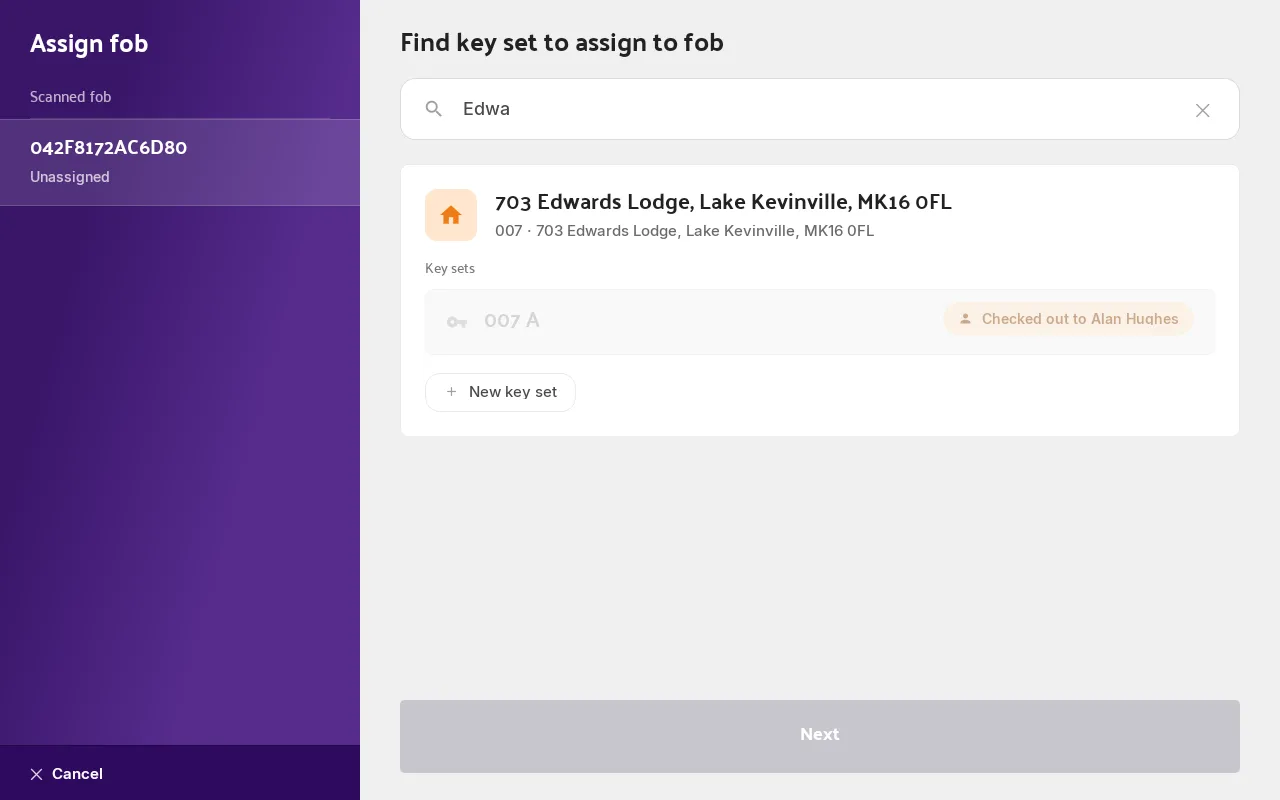
Search for the asset these keys belong to. Search by name, or by key / hook number if you use them. If nothing comes back, the asset hasn’t been added yet. Add it in the portal and search again.
-
Tap New key set on the asset’s card. Any key sets that asset already has are listed above the button, so you can see what’s there before you add another.
-
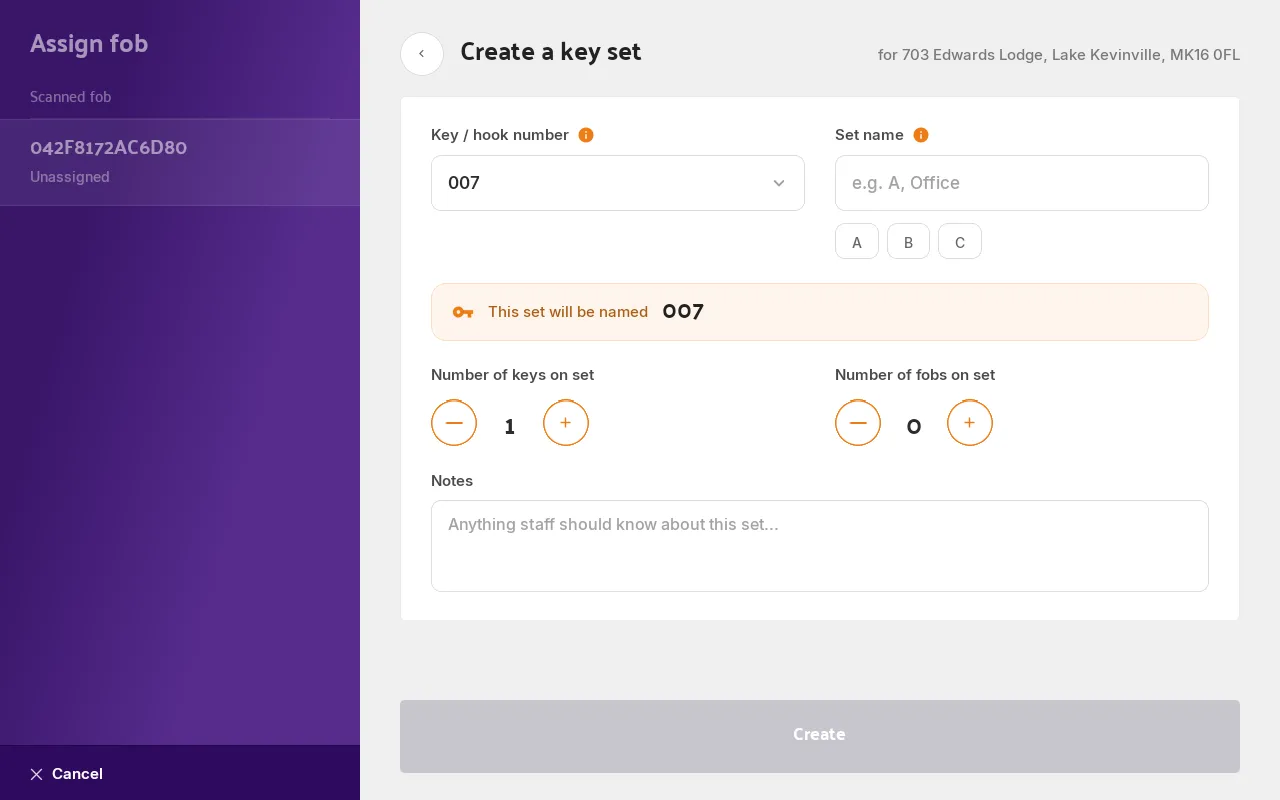
Name the set and tap Create. Set name is the only thing you have to fill in: the hook number, the number of keys and fobs on the ring, and any notes are all optional. As you type, the Hive shows what the set will be called, and warns you if the asset already has one by that name.
-
Tap Assign fob on the confirmation screen to finish. The fob is now attached to the new key set, and the set is available to check out.
On the mobile app
Same job, away from the Hive.
- Attach the fob to the keys, then scan it from the home screen. The app opens the Assign fob to key set step.
- Search for the asset and tap Create new key set on its card.
- Fill in the details and tap Create Key. You need a Set Name and at least one key or fob on the set; the hook number and notes are optional.
- Tap Finish on the confirmation screen. The fob is attached and the key set is ready.
In the portal
Use the portal when you want the key set on the system before you’ve got the keys in your hand. It doesn’t need a fob, so the set sits there untagged until someone assigns one.
-
Click Key Sets in the sidebar, then Create key set at the top of the list. You can also do this from an asset’s own page, in the Key Sets panel, so the asset is filled in for you.
-
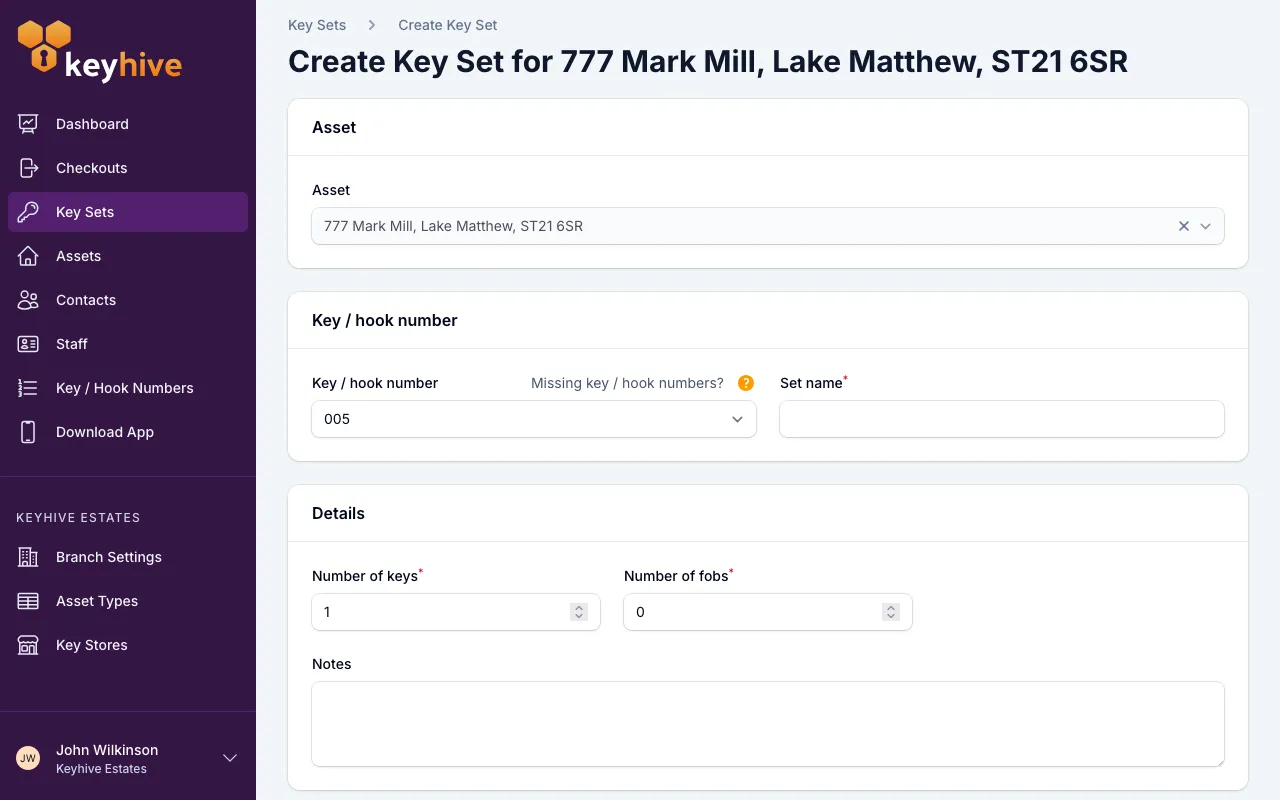
Fill in the form. Only the Asset and the Set name are required; the number of keys and fobs are already filled in and can be left as they are.
If your account has more than one key store, you’ll also pick a Current location: where the keys will physically live.
-
Click Save.
You land on the new key set’s page. It can’t be checked out until it has a fob. See How to assign a fob to a key set.
Good to know
- A key set created in the portal has no fob yet. It shows as untagged until one is assigned, and can’t be checked out until then. Sets created on the Hive or the mobile app get their fob as part of the same job.
- “Number of fobs” isn’t the Keyhive fob. It’s a count of any fobs already on the ring (car park fobs, door entry fobs, and so on), so people know what they’re being handed. The Keyhive fob you scan isn’t counted here.
- An asset can have as many key sets as you need. A set each for the office, the tenant and the contractor is normal, which is what the set name is for.
- Naming them well pays off, because the name is what people see at the Hive and in searches. See How to label and organise your keys.
- Key / hook numbers are optional. If you use them, picking an available number here also assigns it to the asset. See Understanding key / hook numbers. If the number you want isn’t listed, it either hasn’t been added yet or another asset is using it.
- You can change all of it later. Open the key set and choose Edit from the ⋮ menu next to its name, to change the name, the counts, the notes or the hook number. See How to view and edit a key set.