

How to create an asset
In short: In the portal, click Assets in the sidebar, then Create Asset. Give it a type, a name and (if you use them) a key / hook number, then click Save.
When you’d do this: When something new comes in that has keys, such as a property, a vehicle, a cabinet or a site. The asset is what the keys open, so it has to exist before you can add key sets to it.
Before you start
This article covers assets you create yourself. If Keyhive is connected to an outside system such as a CRM, your assets arrive from there automatically and you don’t need to create them by hand. See Connecting an outside system and Assets that sync from an outside system. Anything you create here stays in Keyhive and is never sent back to that system; the create form tells you so when you have a connection set up.
Adding a lot at once? Import them from a spreadsheet instead of typing each one. See How to import assets from a spreadsheet.
Assets are created in the portal. There’s no way to add one on the Hive or the mobile app.
Steps
-
Click Assets in the sidebar.
-
Click Create Asset at the top of the list.
-
Choose the Asset Type. This is the category the asset falls into: properties, vehicles and a few other typical ones are already set up for you.
If the type you want isn’t listed, you can add your own. See How to manage asset types. It’s worth doing before you create the asset, so you don’t have to come back and change it.
-
Type the Name. This is how the asset shows up everywhere in Keyhive: in searches, on checkouts, and on the Hive when someone scans a fob. Use whatever your team would say out loud to identify it: an address, a registration, a room or unit name.
-
Pick a Key / hook number(s), if you use them. Start typing to search, and pick the hook, drawer or slot where this asset’s keys will hang. You can pick more than one. Only free numbers appear here. See How to assign a key / hook number to an asset if the one you want is missing, and skip this field entirely if you don’t number your hooks.
-
Add a Description, if it helps. Anything that tells people they’ve got the right one: a door code, a floor, a colour, an owner’s name.
-
Click Save.
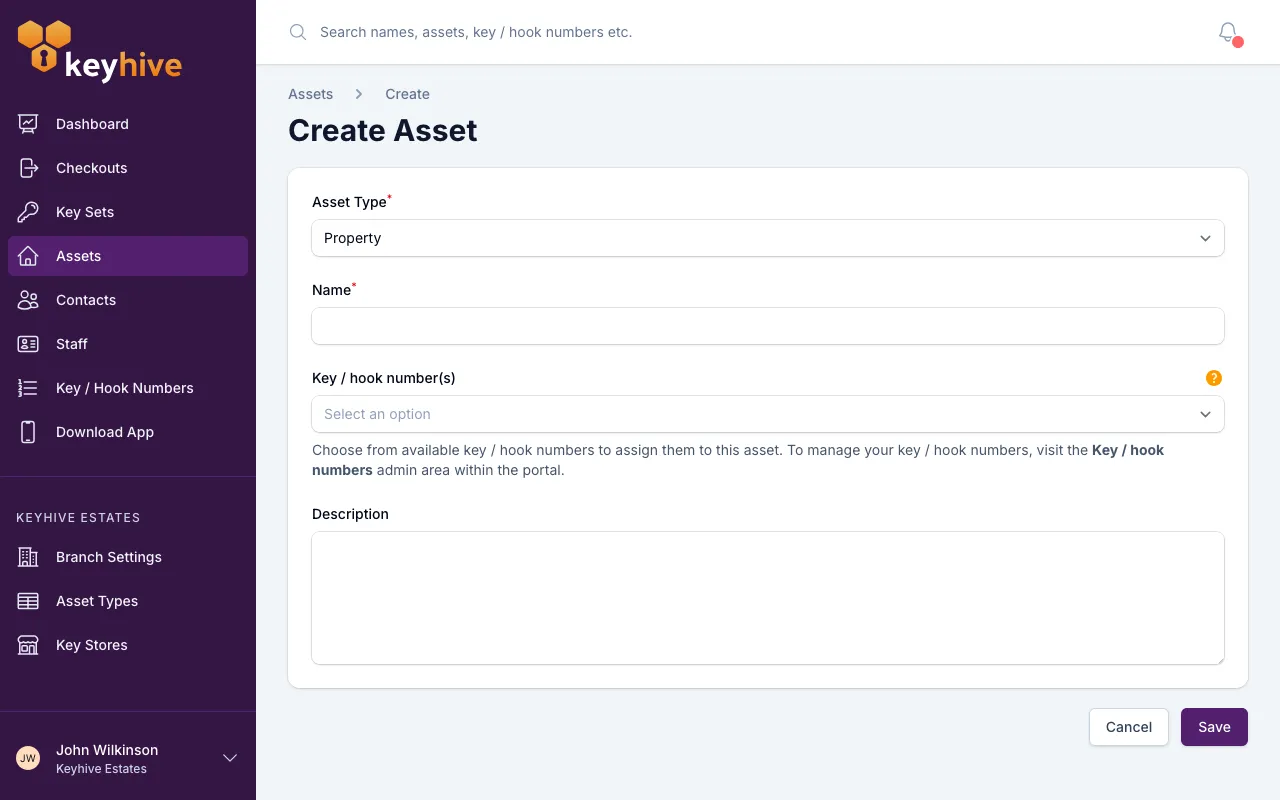
You land on the new asset’s page.
Good to know
- The name is what people search for. Anyone looking for these keys will search the asset name, so name it the way your team refers to it rather than the way it’s written on paperwork.
- Keyhive doesn’t stop you creating the same asset twice. Two assets can have the same name, so search before you create if you’re not sure it’s already there.
- You can change it all later. Open the asset and choose Edit from the ⋮ menu next to its name, to change its name, type, description or numbers. The exception is an asset that came from a connected outside system, since those are managed there, not in Keyhive.
- An asset with no key sets is fine. It sits in your list until you add keys to it.
- Finished with an asset? Archive it rather than creating a replacement: archiving hides it, keeps its history, and frees its key / hook numbers for the next one. See How to archive and restore an asset.