

How to view, edit and delete a contact
In short: Type the contact’s name into the search bar at the top of any page and click them in the results. Their page shows their details, any keys they’re currently holding, and every checkout they’ve ever had. The ⋮ menu next to their name holds Edit, for changing their details, and Delete.
When you’d do this: When someone’s phone number or email has changed, when you need to know whether they still have keys of yours, or when you’re checking what they’ve had out in the past.
Before you start
This is a web portal job. The Hive and the mobile app let you pick a contact when you’re handing keys over, and add a new one, but their details and history are only in the portal.
If there’s no Edit in the ⋮ menu, the contact isn’t yours to change. Contacts that arrive from a connected outside system are managed there, so Keyhive won’t let you edit them. Change their details in that system and the update comes across.
Find the contact
The quickest way is the search bar at the top of every page. Type any of these and results appear as you go:
- Their name, or part of it.
- Their email address.
- Their phone number.
- The company they’re with.
Contacts appear in the results with their company underneath. Click one to open their page.
Or browse the Contacts list
Click Contacts in the sidebar for the full list. It’s better when you’re not sure of the spelling, or want to see who’s holding what. Click any row to open it.
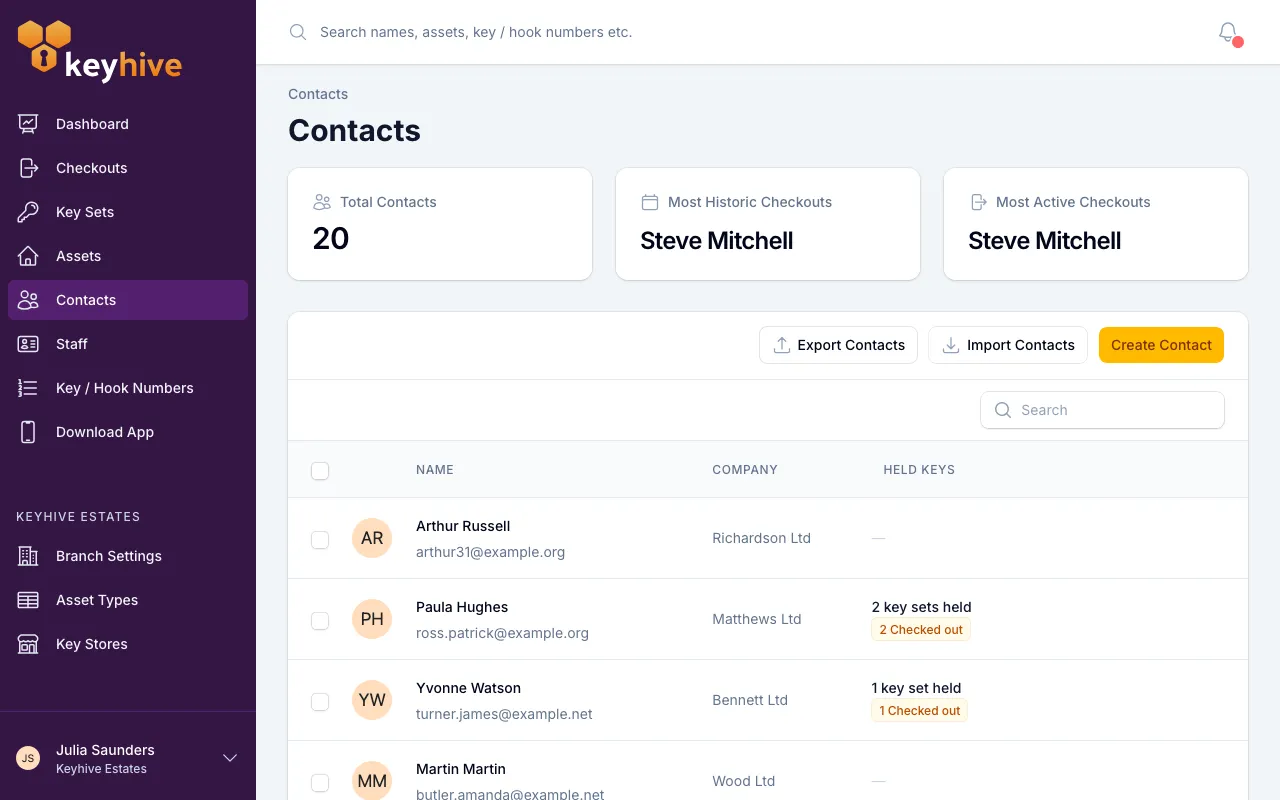
Each row shows the contact’s name with their email underneath, their company, and how many key sets they’re holding right now, or a dash if they have none. The list’s own search box matches the same things the top search bar does.
If Keyhive is connected to an outside system, you’ll also see a Sync status column telling you where each contact came from, and a matching filter for narrowing to one or the other.
What’s on the contact’s page
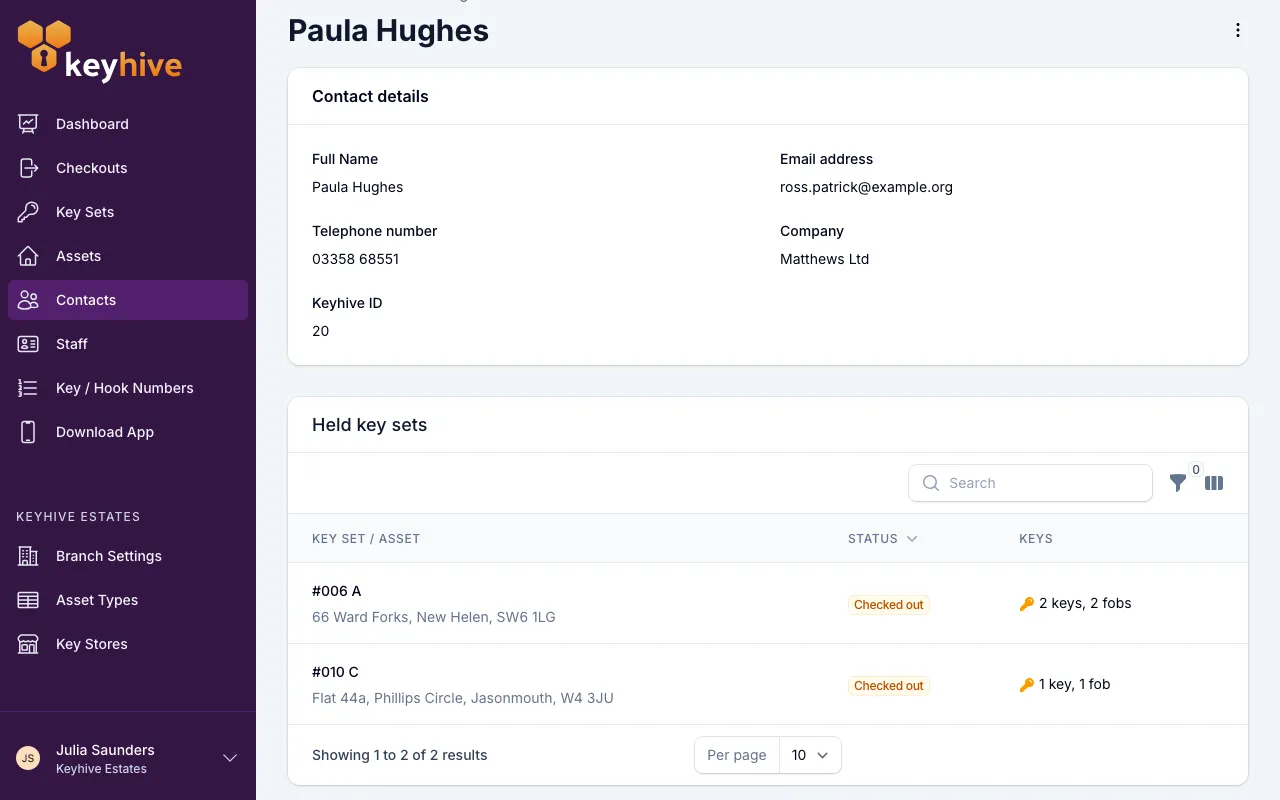
Contact details at the top holds their full name, email address, telephone number and company, with a dash where you haven’t filled something in.
Held key sets lists the keys they have out right now, and only appears if they’re holding something. Each row gives you the key set and the asset it belongs to, its current state, and how many keys and fobs are on it. Click a row to open that key set: that’s where you’d return it or change its return date.
Checkout history is every checkout they’ve ever had, newest first, whether it’s still open or long closed. Each row shows the asset and key set, when it went out, and how it ended: Return due, a red Overdue with the date it was expected, Long term checkout, or how it was closed. Click a row to open that checkout in full. Keys for archived assets stay in this list, so the record doesn’t develop gaps.
Notification history appears above the keys if Keyhive has ever emailed or texted them: the overdue chases and return-date changes sent to this contact. See How to see a contact’s notification history.
Edit their details
- Click the ⋮ menu next to their name, and choose Edit.
- Change what you need and click Save. Each contact needs their own email address: if it’s already on someone else, Keyhive won’t let you save until you change it.
You land back on the contact’s page with the changes applied.
If you clear both the email and the phone number, Keyhive checks you meant to: “No contact details entered… You haven’t added an email or mobile for [name].” Click Yes, continue to save anyway, or close the message and put one back.
Delete a contact
Deleting removes the person from your Contacts list for good. Their checkout history is kept, so the record of who had which keys stays intact. You just can’t hand them anything new, and they won’t turn up in a search.
Deleting needs Manager or Admin access. Anyone can create and edit a contact; only those roles see Delete in the ⋮ menu.
- Open the contact and click the ⋮ menu next to their name.
- Click Delete, then Delete again to confirm.
⚠️ This can’t be undone. There’s no archive for contacts and no way to restore one. If you delete someone who comes back later, you’ll be creating them again from scratch. If you’re not sure, leave them be; a contact you never use costs you nothing.
If they’re still holding keys, Keyhive won’t delete them. You’ll be told “This contact is still holding a key”, with a link straight to the checkout. Return the key, or close it as one that won’t come back, and then delete them.
To delete several at once, tick them in the Contacts list and use the Delete action in the toolbar. Anyone in the selection who’s holding a key is skipped rather than stopping the rest.
A contact that came from a connected outside system can be deleted from Keyhive, and the confirmation tells you which system it’s linked to. The record in that system isn’t touched, and if the two are still connected, it may well arrive back the next time they sync.
Good to know
- Editing a contact never moves any keys. Their checkouts, what they’re holding and their history are untouched, whatever you change here.
- Changing an email changes where the chasing goes. Overdue reminders and notice of a changed return date go to whatever address is on the contact at the time, so fix it here rather than working around it.
- Two contacts can share a name. If you find yourself looking at a thin history for someone you know has had plenty of keys, check whether there’s a second record of them and use the email address to tell them apart.
- A renamed contact keeps their history. Their past checkouts follow the record, not the name, so correcting a spelling loses nothing.
- Anyone can edit a contact. Deleting one is a Manager or Admin job. See staff roles.