

How to install and sign in to the mobile app
In short: Search for Keyhive in the App Store or Google Play, install it, then sign in with the same email address and password you use for the web portal.
When you’d do this: When you’re setting your phone up for the first time, so you can hand keys over, take them out and bring them back while you’re away from the Hive.
Before you start
You need a Keyhive login. The app uses your own personal login, the same one as the web portal. If you’ve just been invited, open the invite email first and use its link to set a password. Then come back and sign in on your phone with that email address and password. See How to invite a staff member.
Your phone needs NFC. That’s what reads the fob on a key set. Most phones have it, and the app tells you if yours doesn’t, in which case use the Hive or the web portal instead.
1. Install the app
Open the App Store on an iPhone or Google Play on an Android phone, search for Keyhive, and install it. It’s free. There’s nothing to buy or unlock, and no code to enter.
2. Sign in
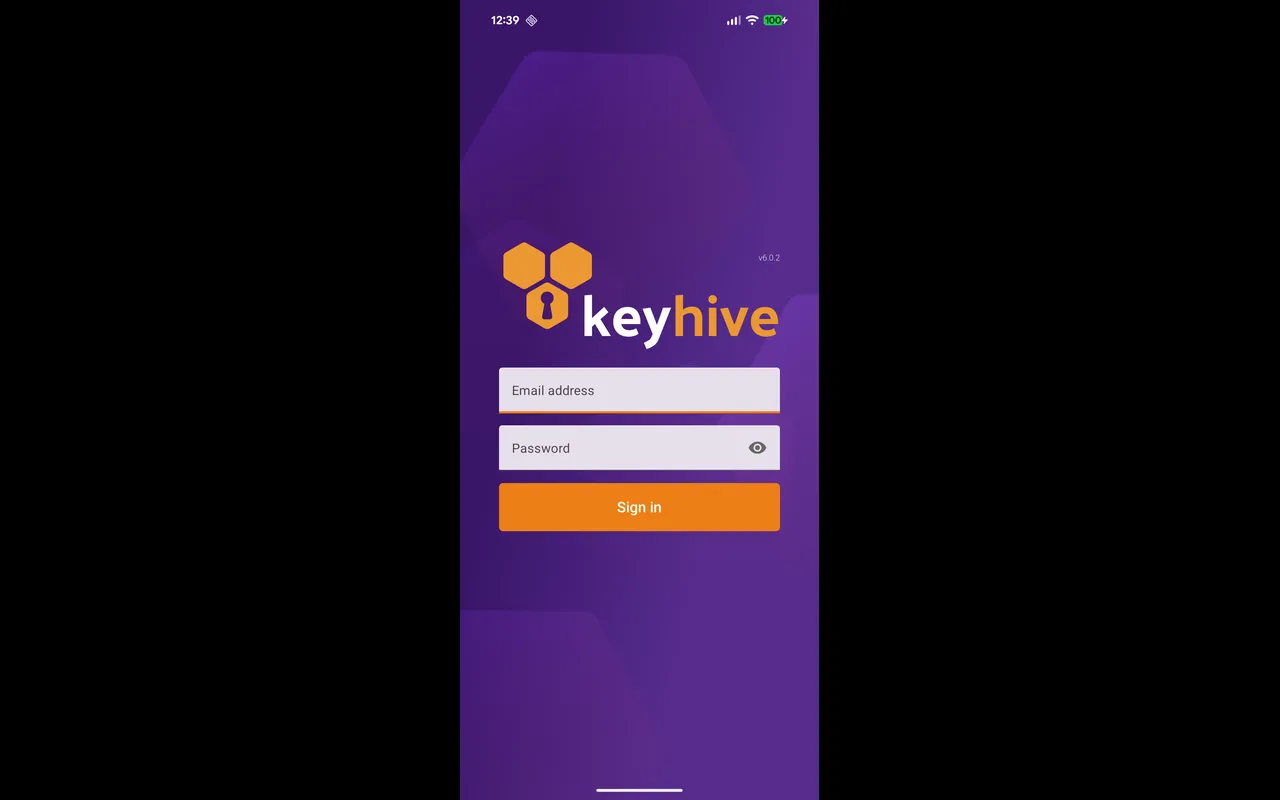
- Open the app. You land straight on the sign-in screen.
- Enter your email address and password: your own, the same as the portal’s. Tap the eye icon beside the password to check what you’ve typed.
- Tap Sign in.
You land on the home screen, with the orange scan button at the bottom. Hold the phone against a fob to start. See How to check out a key.
“The provided credentials are incorrect.” Either the address or the password is wrong. There’s no password reset in the app. Do it in the web portal and sign in here with the new password. See How to reset your password.
3. Turn NFC on
The app can’t read a fob without NFC switched on. If it’s off, you’ll see NFC not enabled the first time you try to scan:
- On Android, tap Open Settings in that message and switch NFC on.
- On an iPhone, it’s always on: nothing to do.
If you see your device is not compatible with Keyhive at this time, the phone has no NFC reader at all. Everything else in the app still works, but you won’t be able to scan.
Good to know
- It only asks once. You stay signed in day to day. Use Sign Out in the menu (tap the icon in the top left) if you’re handing the phone on, and sign in again when you get it back.
- Sign in on as many phones as you like. Your login isn’t tied to one device.
- It’s your login, not the Hive’s. The Hive has its own shared username and password; don’t use those here. See How to sign a Hive in.
- Whoever’s signed in is who Keyhive records as handing keys over. The person taking the keys is chosen on screen during a handover, and they sign for them there.
- If you work across more than one branch, the app opens on one at a time and the menu has a Switch Branch option. See Working across more than one branch.
- The menu has a shortcut to the portal. Admin Portal opens the web portal on your phone, already signed in. My Checked Out Keys shows what you’re personally holding.
- Nobody can sign in once they’ve been disabled. If someone leaves, disabling them locks them out of the app as well as the portal. See How to disable or remove a staff member.