

How to add a photo of a key set
In short: On the Hive and the mobile app you can take a photo of a key set at any point in a job: checking out, returning, transferring or assigning a fob. Open that key set’s options, tap Add photo, take the shot, and it’s saved against the key set when you finish. Photos are taken in the apps only; the portal shows them but can’t take them.
When you’d do this: To record what a set actually looks like, including how many keys are on the ring, a tag or label, and the condition it’s in. It settles later questions about what was handed over and what came back.
Before you start
You need the Hive or the mobile app. Both use the device’s camera, so the first time you take a photo the device asks permission to use it.
A photo belongs to a key set, not to a person or a job. If you’re handing over several key sets at once, you photograph each one separately.
On the Hive
You can do this in any flow, including checking out, returning, transferring or assigning a fob, and the steps are the same each time.
-
Scan the fob as usual to start the job. The key set appears in the panel on the left.
-
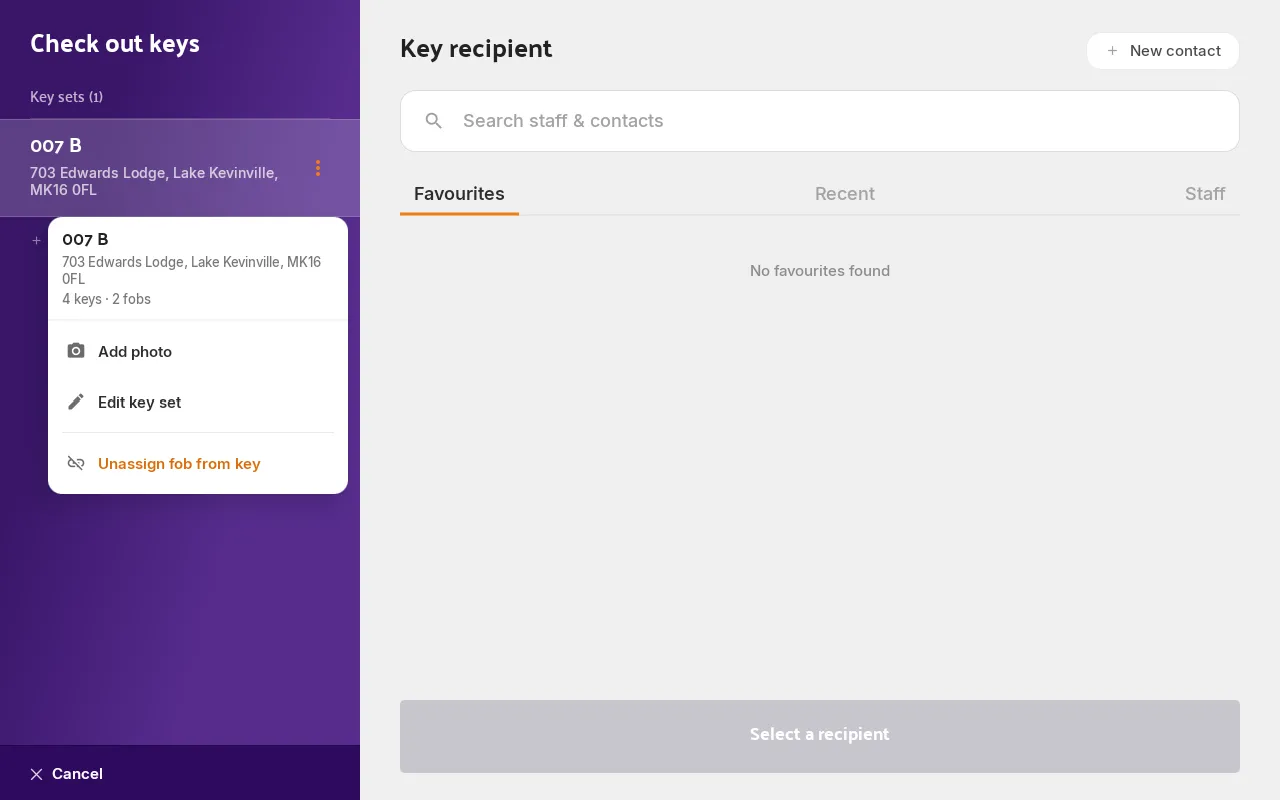
Tap the key set in the left panel to open its options.
-
Tap Add photo. The camera fills the screen.
-
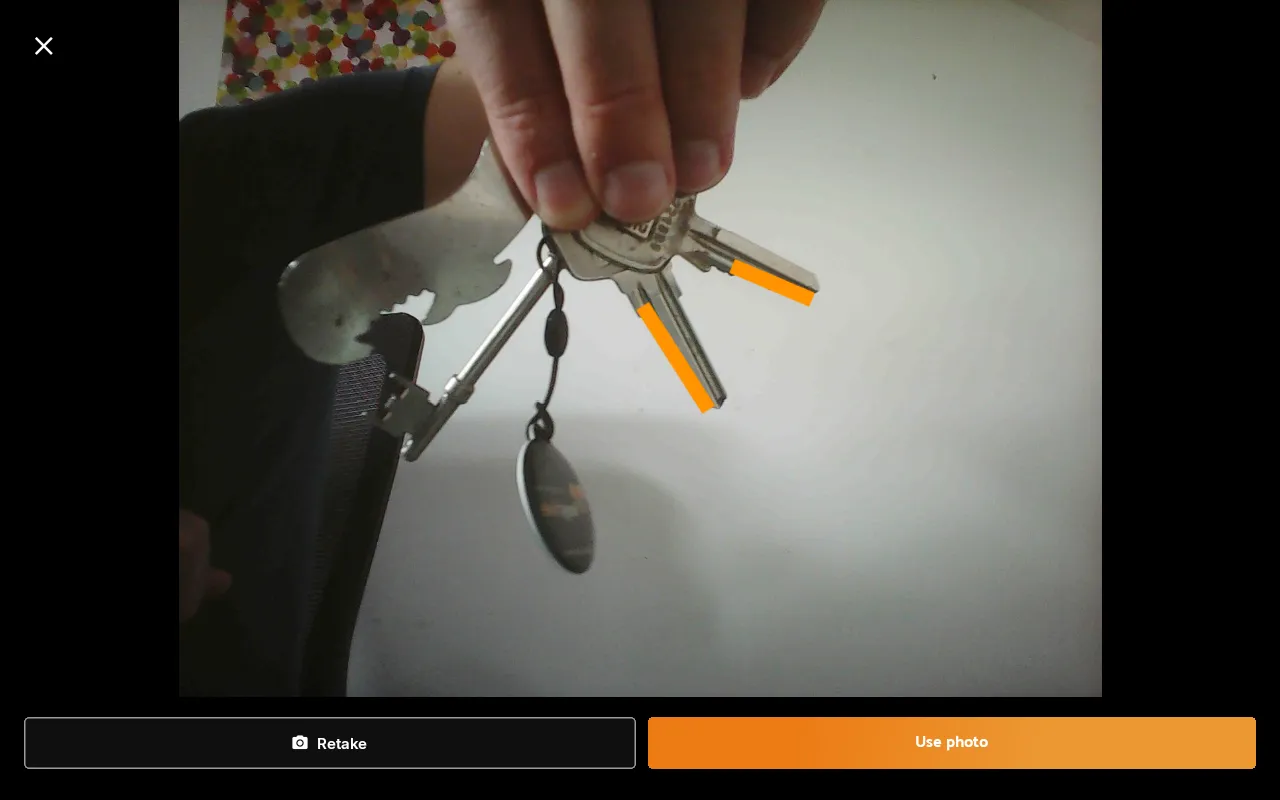
Take the shot, then tap Use photo to keep it or Retake to try again.
-
Carry on and finish the job. The key set now reads Photo added in the left panel. The photo is saved when you complete the checkout, return, transfer or fob assignment.
To look at it again before you finish, tap the key set and choose View photo. Taking another photo replaces it. A key set carries one photo per job.
When you’re assigning a fob, you’ll also find Add photo on the confirmation screen, next to Assign fob.
On the mobile app
- Scan the fob to start the job, exactly as usual.
- Find the key set in the list on screen: the basket of key sets you’ve scanned.
- Tap Add photo on that key set, take the shot, and tap Save photo.
- Finish the job as normal. The photo is saved with it.
Once taken, the photo shows as a thumbnail on the key set. Tap the pencil icon on it to take a different one, or the bin icon to drop it.
Photos on long-term checkouts
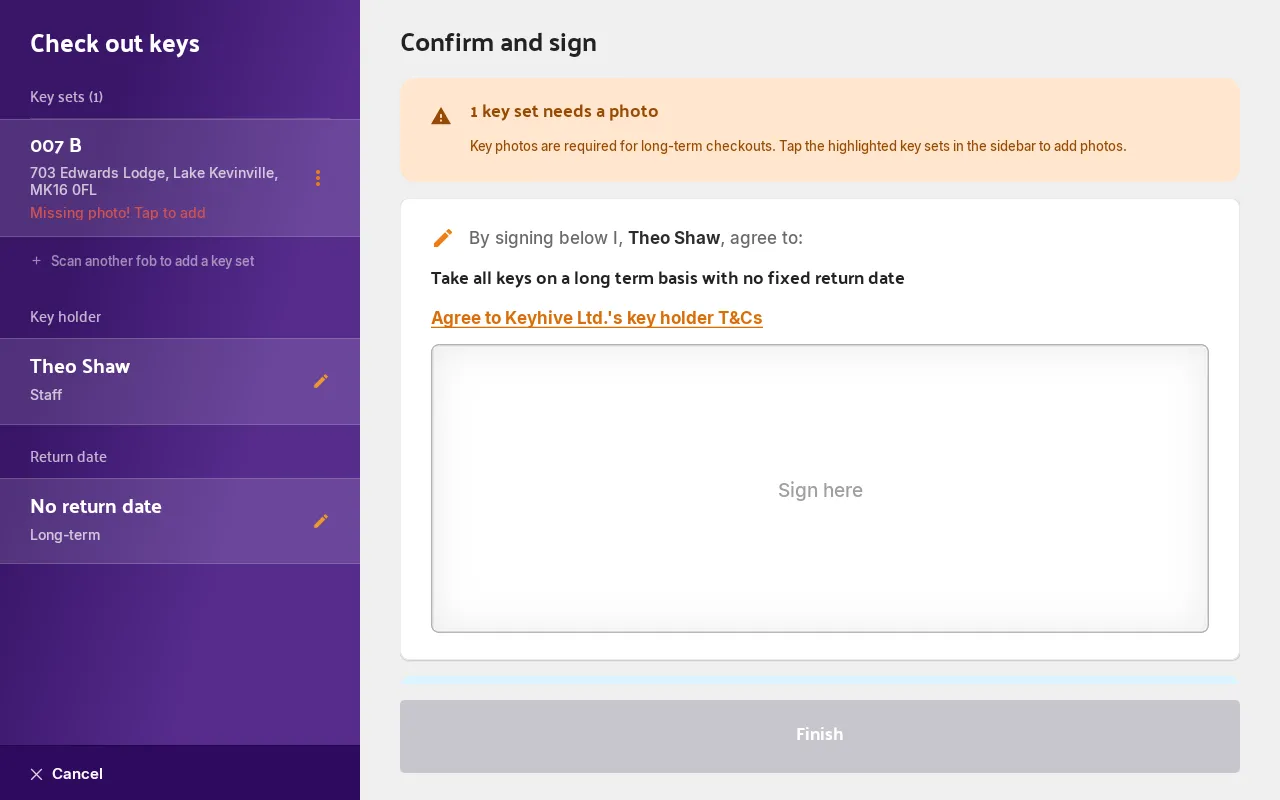
A long-term checkout sends keys out for the foreseeable future and removes the fob, so Keyhive asks for a photo of each key set before it lets you finish. It’s the last record of what went out.
If a key set still needs one, the apps won’t complete the checkout and point you at what’s missing: the Hive marks the key set Missing photo! Tap to add in the left panel and won’t let you finish until every set has one.
Managers and admins can turn this off. In the portal, go to your branch settings, find Checkout Settings, and switch off Require a photo for long-term checkouts. It’s on to begin with. With it off, photos still work everywhere; you’re just never made to take one. See Changing the default checkout lengths, which covers the same settings panel.
Where the photo goes
Photos build up on the key set’s page in the portal, newest alongside oldest, each showing who took it and when. A photo taken during a checkout or a return is also shown on that checkout’s own page, so you can put the two side by side.
See How to view a key set’s photos.
Good to know
- Photos are taken in the apps, not the portal. The portal displays them but has no camera and no upload.
- One photo per key set, per job. You can retake or remove it while you’re still in the flow; once you finish, it’s part of the record. The next job on that key set can take another.
- Nothing is saved until you finish. Abandon or cancel a job and any photos you took in it go with it.
- Photos are kept, so a key set that’s photographed often builds up a history you can scroll back through.
- Long-term checkouts ask for one by default. See Photos on long-term checkouts above.