

How to view and edit a key set
In short: Type the key set’s name (52A, for
example) into the search bar at the top of any page and click it in the results. The page that
opens shows what the set is, where it is, who’s got it and everything it’s ever
done. The ⋮ menu next to its name holds Edit, for changing its name, its
counts, its notes or its
key / hook number.
When you’d do this: When you need to know where a set of keys is right now, or when the record doesn’t match the keys in front of you, such as a set that’s been renamed, keys added to or taken off the ring, or a note that needs adding.
Before you start
The full record is in the web portal. The Hive and the mobile app both let you correct a key set’s details while you’re handing keys over, and there are sections for each below, but its history, its photos and its current holder are only shown in the portal.
Find the key set
The quickest way is the search bar at the top of every page. Type any of these and results appear as you go:
- The key set’s name, such as
52A. - The asset’s name: its key sets are listed underneath it, each showing its status and, if it’s out, who’s holding it.
- A key / hook number, if you use them.
Click the key set to open it.
Or browse the Key Sets list
Click Key Sets in the sidebar for the full list. It’s better when you’re working through several sets, or want to filter rather than search. Click any row to open it.
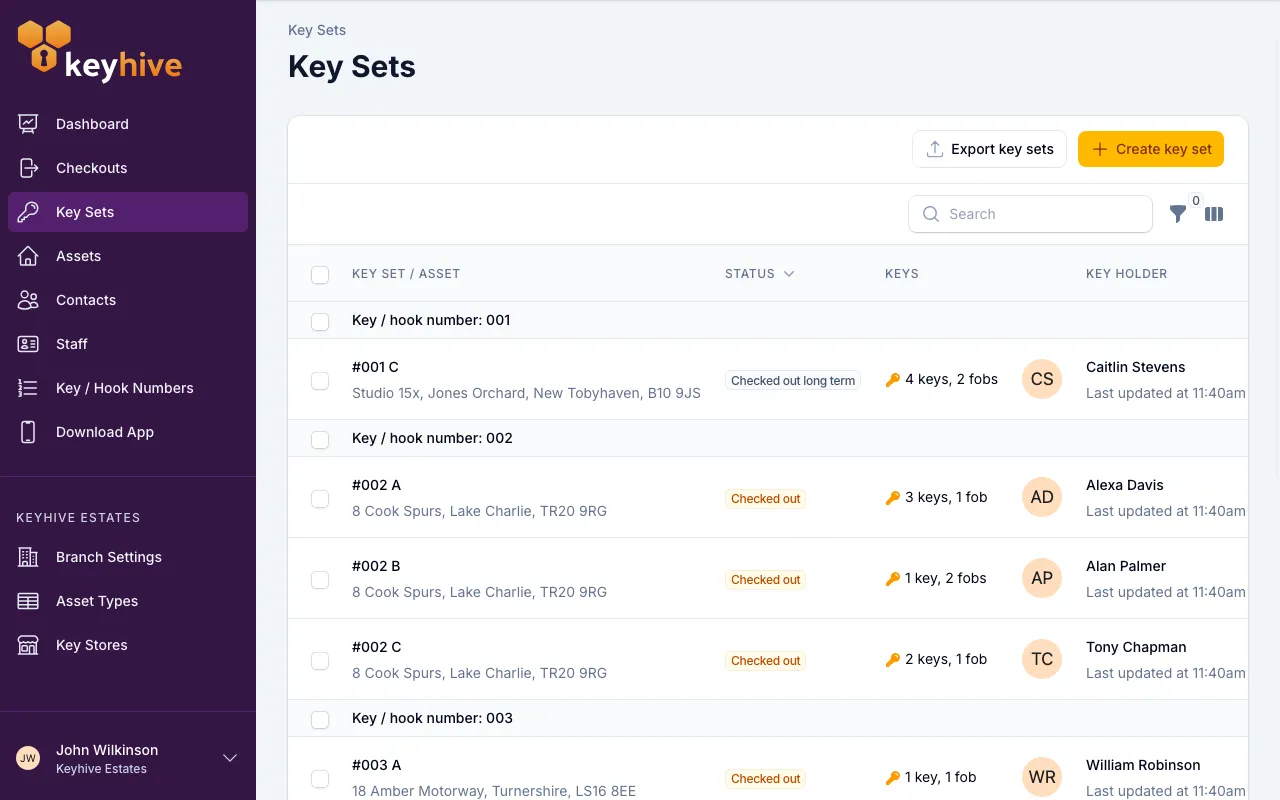
Each row shows the set’s name with its asset underneath, its status, how many keys and fobs are on the ring, and who’s holding it with when it last moved. If you use key / hook numbers, the list is grouped by number, so everything on one hook sits together.
Filter cuts the list down two ways:
- Status: available, checked out, out long-term, or untagged. Untagged is the useful one: it’s every set with no fob on it yet.
- Key holder: narrow to sets held by staff or by contacts.
What’s on the key set’s page
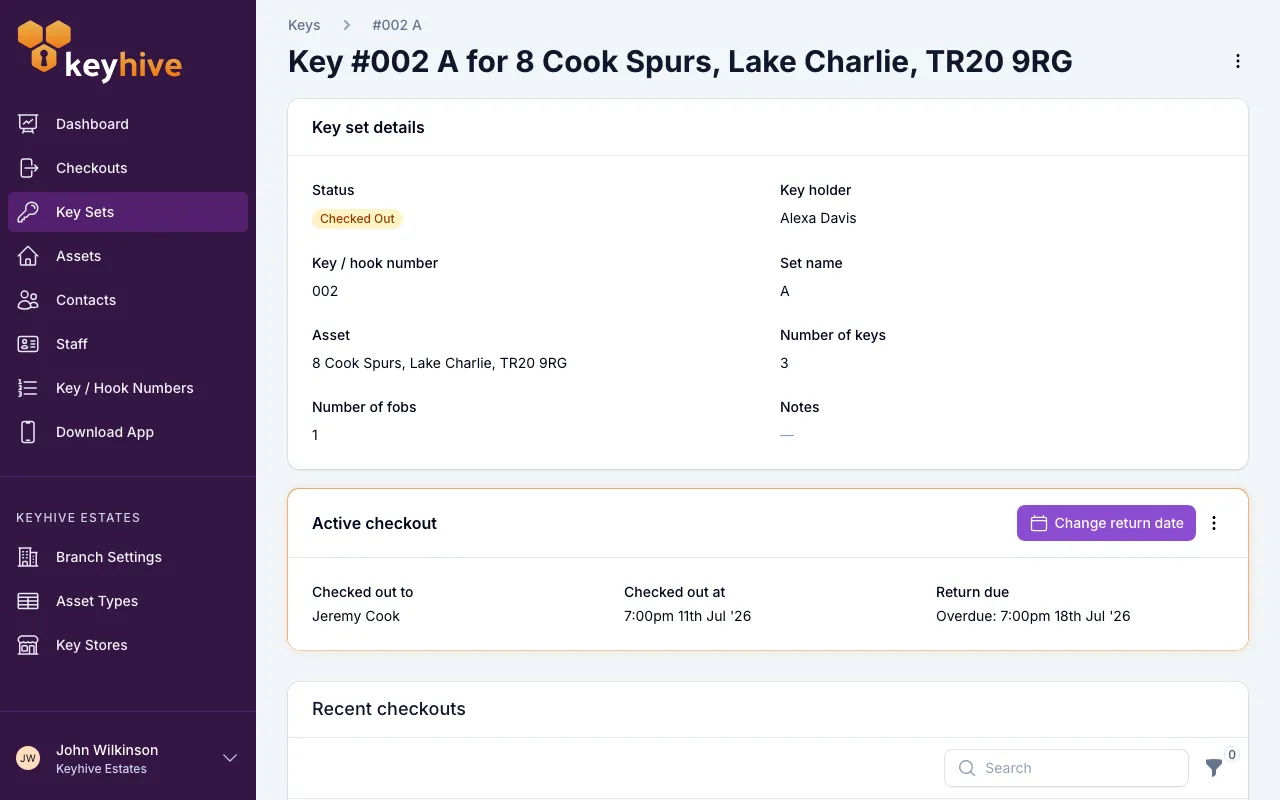
Key set details at the top holds its status, who’s holding it, its key / hook number, its set name, the asset it belongs to, how many keys and fobs are on the ring, and any notes. The key holder and the asset are both links, so you can go straight to the person or the thing the keys open.
Active checkout appears only while the set is out, and gives you who has it, when it went, and when it’s due back. Its buttons are how you deal with it: change the return date, mark it returned, or close it as one that won’t come back.
Key set gallery collects the photos taken of these keys, and appears once there’s at least one. See How to view a key set’s photos.
Recent checkouts at the bottom is every time this set has gone out and how each one ended. See How to see the checkout history of a key set.
The ⋮ menu
Alongside Edit, the ⋮ menu next to the key set’s name holds everything else you can do to it. Each has its own article:
- Unassign fob: take the fob off, freeing it for another set. See How to unassign a fob.
- Merge keys: combine two records of the same physical keys. See How to merge two key sets.
- Move key to other asset: the keys are registered against the wrong thing. See How to move a key set to another asset.
- Transfer key set: move it to another key store. Only on accounts with more than one. See How to transfer a key to another key store.
- Delete key set, on its own at the bottom, for a set that no longer exists. Its checkout history is kept, but the set itself can’t be brought back. Manager or Admin access only. See Archiving vs deleting.
Some of these only appear when they apply: there’s no Unassign fob on a set that hasn’t got one, or on one that’s currently checked out.
Edit the key set
-
Click the ⋮ menu next to the key set’s name, and choose Edit.
-
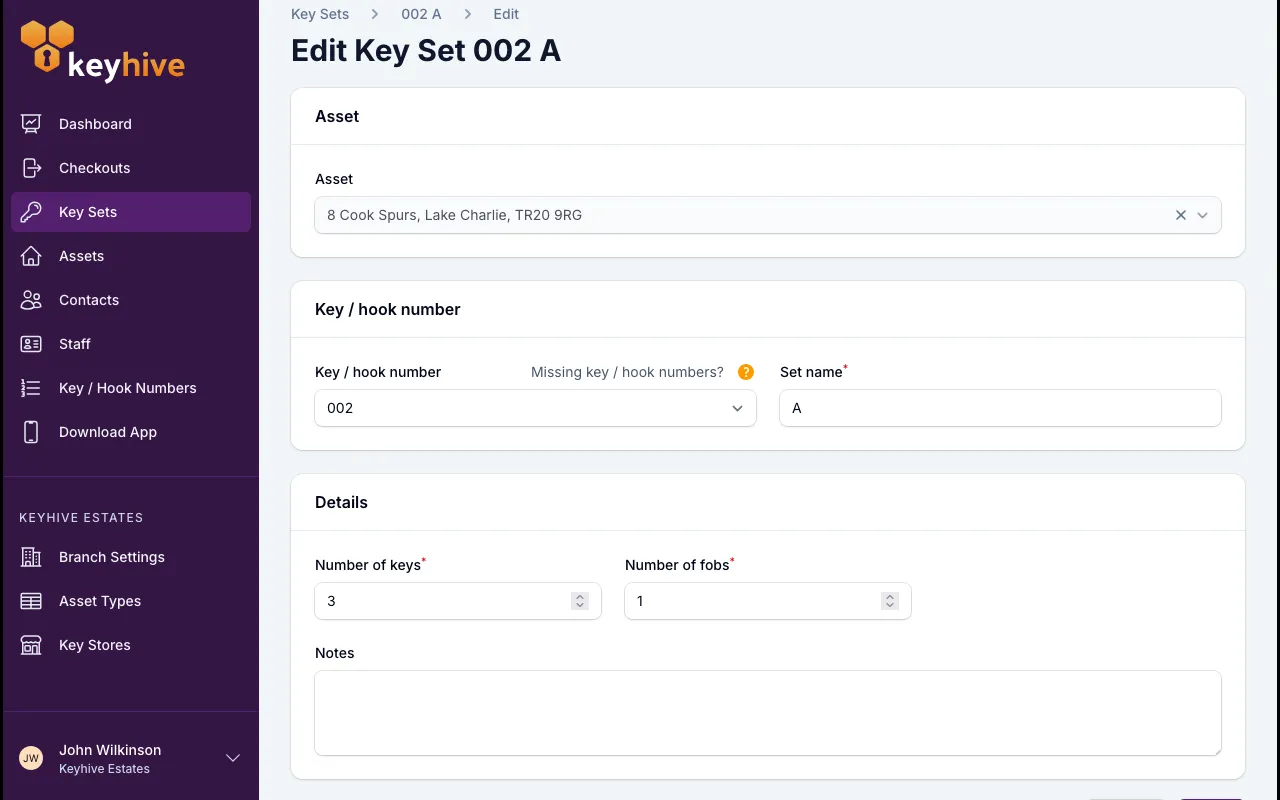
Change what you need and click Save. You can change the key / hook number, the set name, the number of keys and fobs on the ring, and the notes.
-
You land back on the key set’s page with the changes applied.
The Asset field is locked. A key set stays with the thing its keys open; if it’s on the wrong one, use Move key to other asset in the ⋮ menu instead. See How to move a key set to another asset.
If the key / hook number you want isn’t listed, it either hasn’t been added to Keyhive yet or another asset is using it. See How to create a key / hook number.
On the Hive
You can correct a key set’s details in the middle of any job: checking out, returning or transferring.
-
Scan the fob as usual. The key set appears in the panel on the left.
-
Tap the key set in the left panel, then tap Edit key set.
-
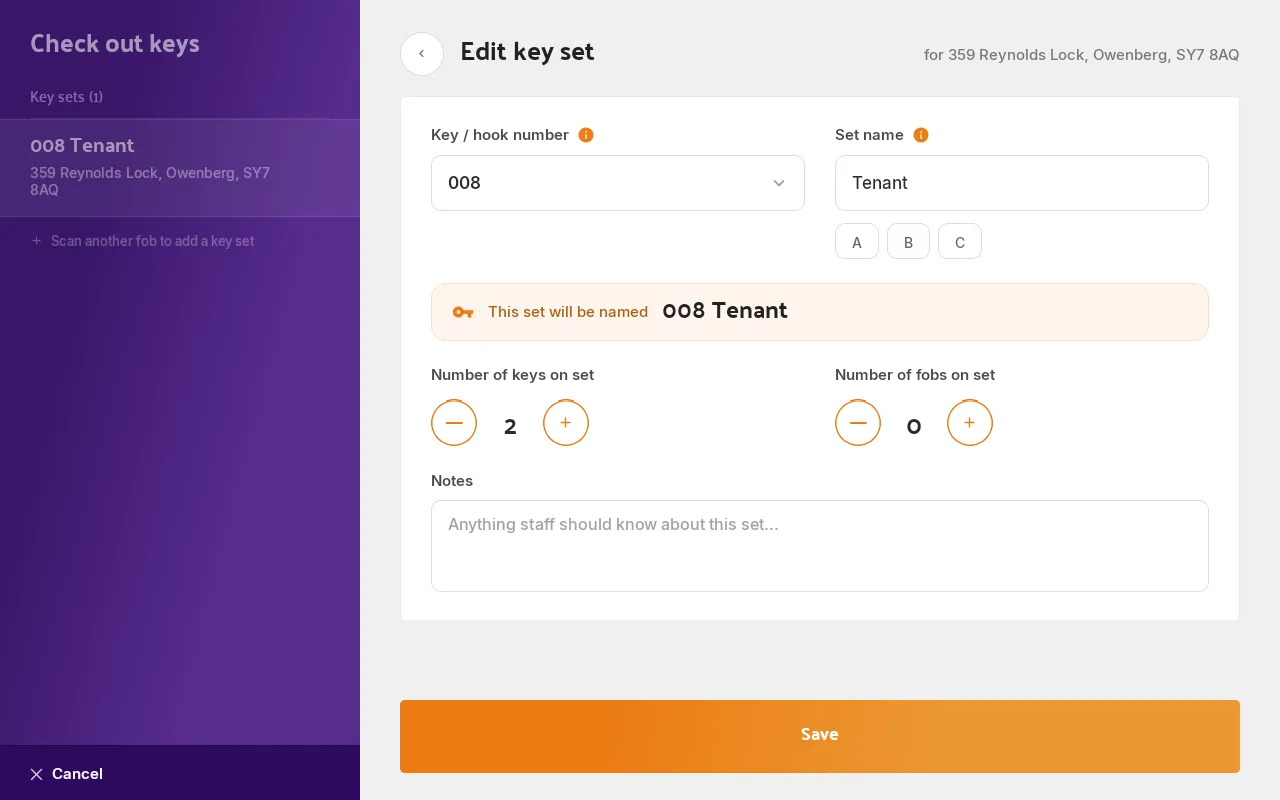
Change what you need and tap Save. You get the same fields as the portal: the key / hook number, the set name, the number of keys and fobs, and notes. As you type, the Hive shows what the set will be called.
-
Carry on with the job. You’re put back where you were.
The change is saved as soon as you tap Save, so it stands even if you cancel the job afterwards. The back arrow leaves the form without saving.
On the mobile app
-
Scan the fob to start a job, so the key set is on screen.
-
Tap the ⋯ on the key set, then Change key details.
-
Change what you need and tap Update Key.
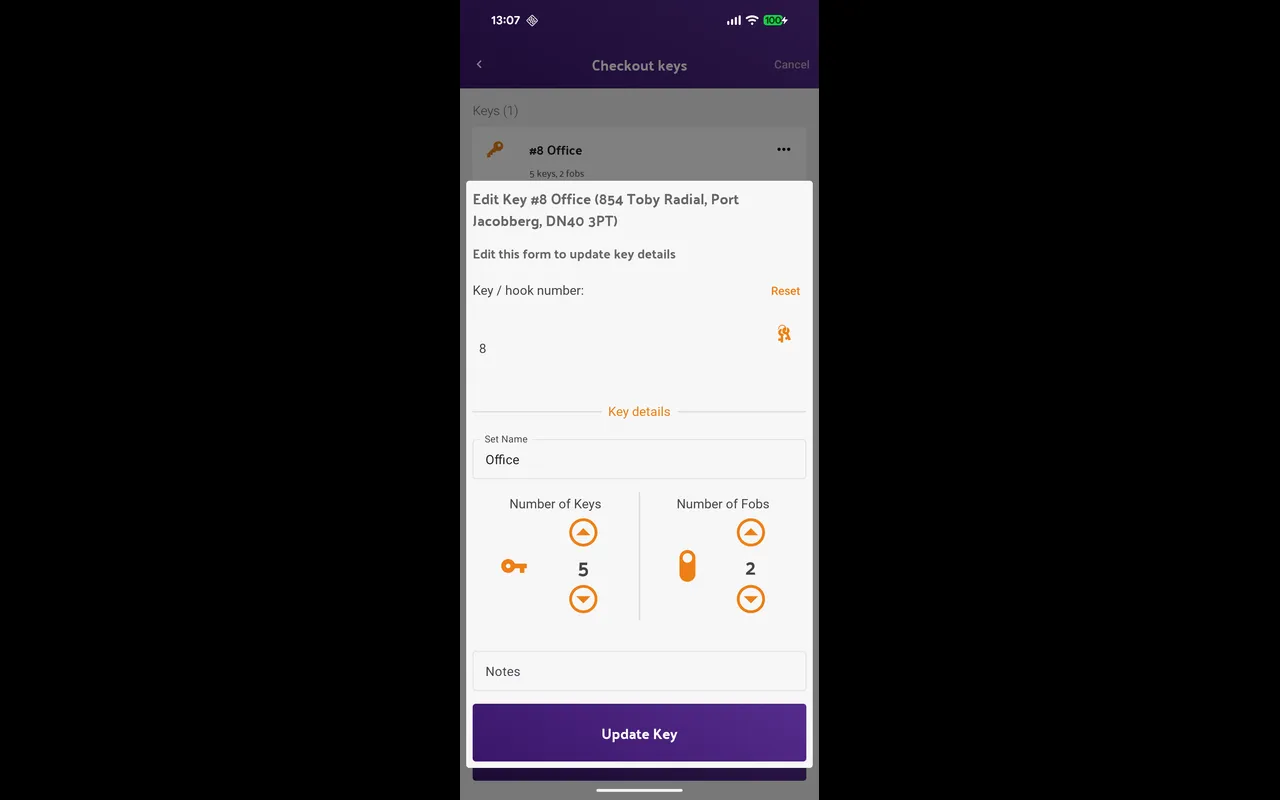
As on the Hive, the change is saved straight away rather than when you finish the job.
Good to know
- Editing a key set never moves any keys. Its checkout, who’s holding it and its history are untouched, whatever you change here.
- Picking a free key / hook number gives it to the asset too. The picker offers the numbers the asset already has and any that no asset has claimed. Choose one of the free ones and it’s assigned to the asset, so the asset’s other key sets can use it as well. See How to assign a key / hook number to an asset.
- Renaming a set changes what people see when they scan it. The name is what comes up at the Hive and in searches, so a set renamed today reads differently in tomorrow’s checkout. The history stays with the record either way.
- “Number of fobs” isn’t the Keyhive fob. It’s a count of any fobs already on the ring, such as car park fobs or door entry fobs, so people know what they’re being handed.
- A key set that’s out can still be edited. Its details and the person holding it are separate things.
- Notes are hidden in the list. They show on the key set’s page, and you can turn the column on above the Key Sets list with the column toggle.