

How to view and edit an asset
In short: Type the asset’s name into the search bar at the top of any page and click it in the results. The page that opens shows its details, its key sets and its recent checkouts. The ⋮ menu next to its name holds Edit, for changing anything.
When you’d do this: When you need to know where an asset’s keys are and who’s had them, or when something about the asset itself has changed and the record needs correcting.
Before you start
If there’s no Edit in the ⋮ menu, the asset isn’t yours to change. Assets that arrive from a connected outside system are managed there, so Keyhive won’t let you edit them. See Assets that sync from an outside system. An archived asset can’t be edited either; restore it first.
Find the asset
The quickest way is the search bar at the top of every page. You don’t need to be on the Assets list, or anywhere in particular, to use it.
Type any of these and results appear as you go:
- The asset’s name, or part of it.
- Anything in its description.
- A key / hook number, useful when you’re looking at a hook and want to know what belongs on it.
- A key set’s name, such as
52A.
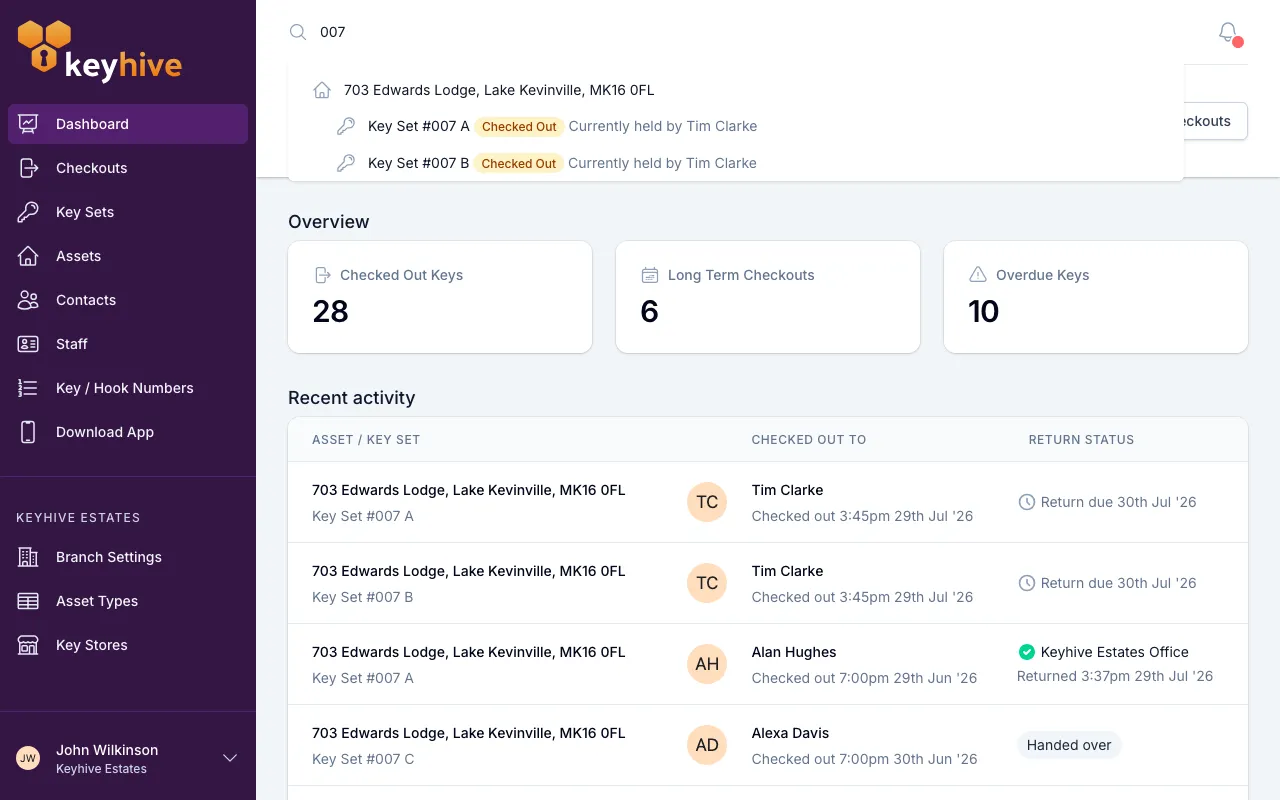
Each matching asset appears with its key sets listed underneath it, and each key set shows its status and, if it’s out, who’s holding it, so “where are the keys for X?” is often answered without opening anything.
- Click the asset’s name to open its page.
- Click a key set to go straight to that set of keys instead.
The search also returns matching contacts and staff, and it shows the closest ten matches. If what you want isn’t among them, type a bit more, or use the Assets list below.
Or browse the Assets list
Click Assets in the sidebar for the full list. It’s better when you’re working through several assets, or want to filter rather than search. Click any row to open it. The list has its own search box, which matches the same things the top search bar does but returns only assets.
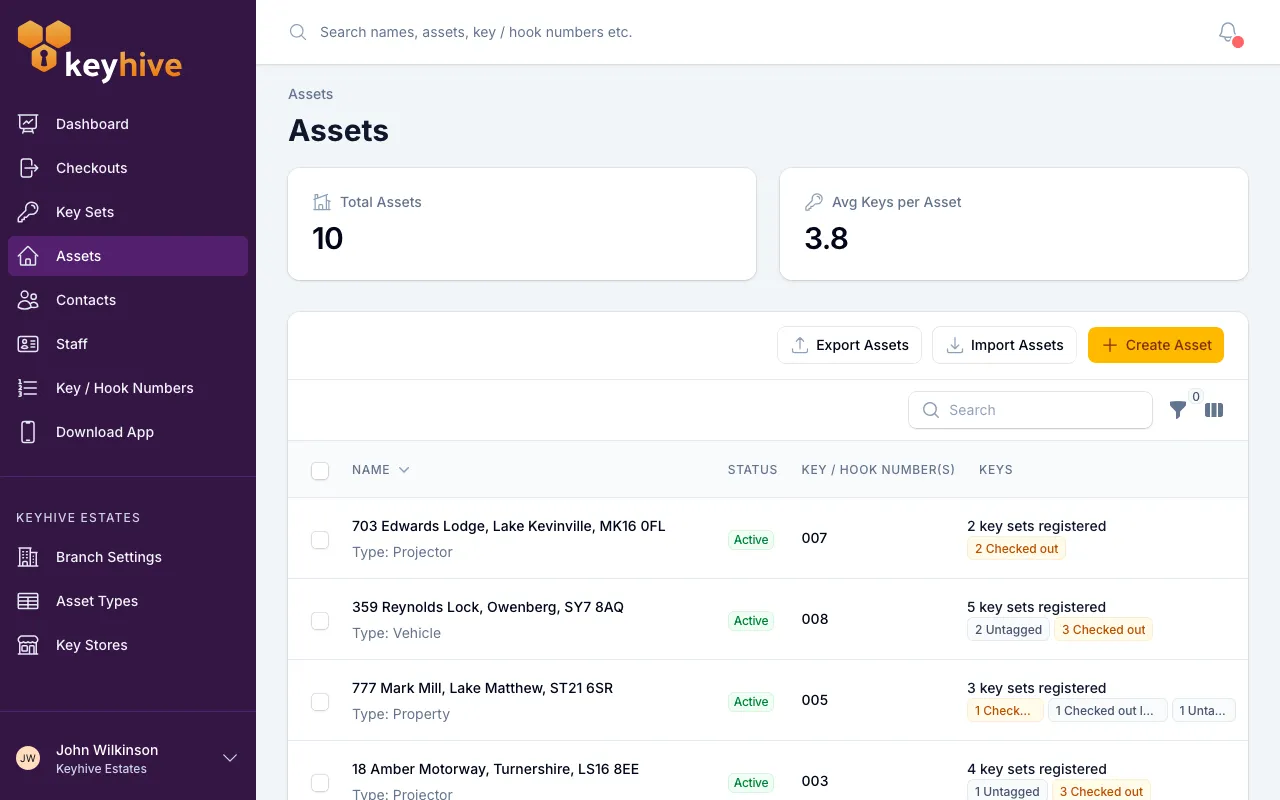
Each row tells you a fair amount before you even open it:
- The name, with the asset’s type underneath.
- Status: whether it’s in everyday use or archived.
- Key / hook number(s): the hook, drawer or slot its keys hang on, if you use them.
- How many key sets it has, and what state they’re in: how many are back in a key store, how many are out, how many have no fob yet.
Narrowing the list
Click Filter to cut the list down:
- Key set status: find assets whose keys are all out, all back, or where at least one set is currently with someone. Useful for a stock-take of what’s actually on the board.
- Archived: archived assets are hidden by default. Switch to Include archived to search across everything, or Only archived to see just the ones you’ve put away.
What’s on the asset’s page
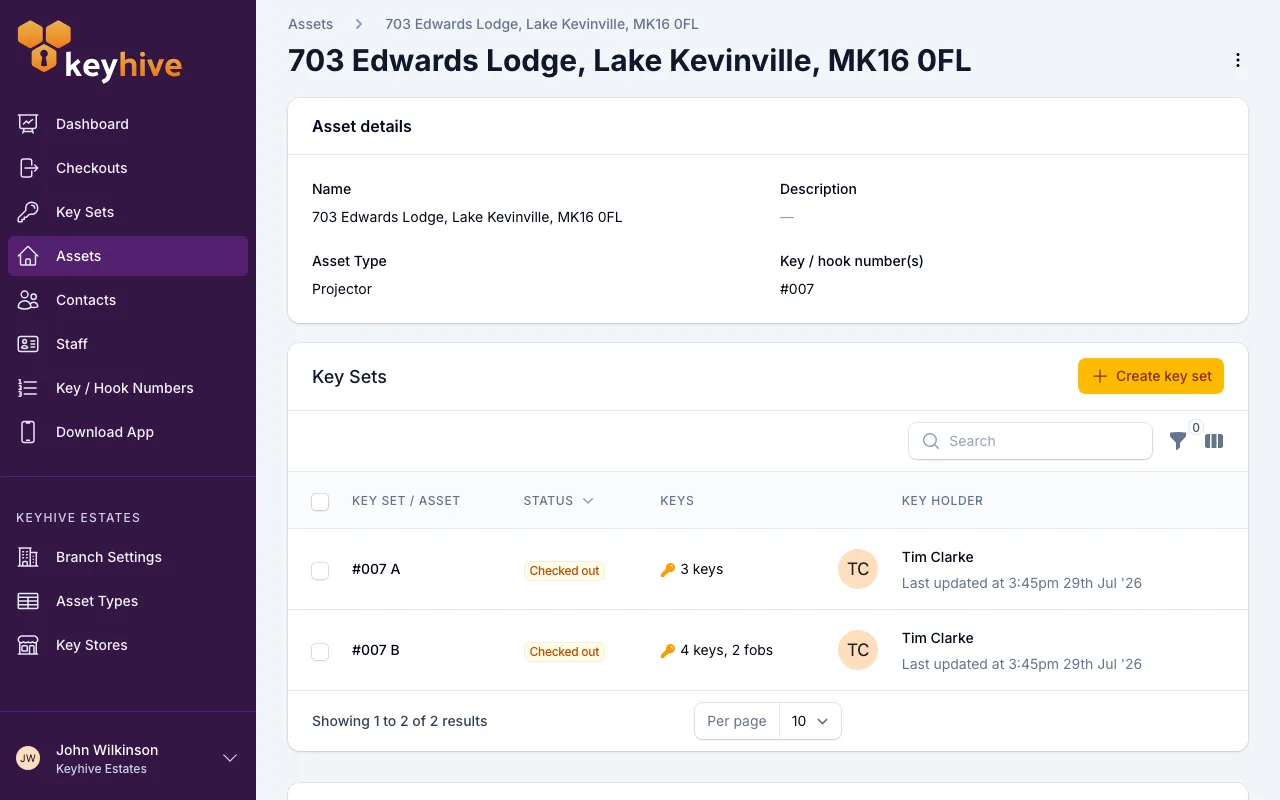
Asset details at the top holds the name, description, type and any key / hook numbers, or None assigned if you haven’t given it one.
Key Sets lists every set of keys for this asset and what each one’s doing right now. Open a key set from here to check it out, look at its photos, or change it. See How to check out a key.
Recent checkouts is the history: who has taken these keys, when, and whether they came back, for every key set on the asset, in one list. For one set on its own, see How to see the checkout history of a key set, or How to view overdue checkouts if something’s late.
The ⋮ menu next to the asset’s name is also where you archive the asset, or restore it if it’s already archived. Both need Manager or Admin access, so those options are only there for some people.
Edit the asset
- Click the ⋮ menu next to the asset’s name, and choose Edit.
- Change what you need, such as its name, type, description or key / hook numbers, and click Save.
You land back on the asset’s page with the changes applied.
⚠️ Removing a key / hook number here also takes it off any key sets using it, and they’ll need a number of their own. See How to assign a key / hook number to an asset.
Good to know
- Renaming an asset doesn’t rename its key sets. A key set is named after its key / hook number and its own set identifier, such as “52A”, so it reads the same after a rename.
- Renaming breaks an old spreadsheet. A spreadsheet import matches assets on their name exactly, so a file written before the rename will create a second asset rather than updating this one. Update the name in your file too.
- Editing an asset never moves any keys. Checkouts, returns and who’s holding what are untouched, whatever you change here.
- Archived assets still turn up in the search. They’re marked Archived in the results, so you can find one and restore it without hunting through the list. In the Assets list they’re hidden until you change the Archived filter.
- The description is hidden in the list. You’ll see it on the asset’s page, and you can search on it, but it isn’t shown as a column by default. Turn it on with the column toggle above the list if you want it there.
- Finished with an asset? Archive it rather than editing it into something else. Archiving keeps its history and frees its key / hook numbers for the next one.