

Working across more than one branch
In short: Keyhive shows you one branch at a time. Switching branch swaps everything you’re looking at: assets, key sets, contacts, staff and checkouts are all the ones belonging to the branch you’re in. You switch from the menu under your name in the portal, or from the menu in the mobile app.
When it matters: When you have access to more than one branch, covering another team, moving between sites, or running several of them. One login gets you into all of them, but never two at once.
What belongs to a branch
Each branch keeps its own:
- Assets and key sets, and with them its own checkouts, key / hook numbers and key set photos.
- Contacts.
- Staff. The Staff list shows the people who can work in that branch. Anyone with access to three branches appears in all three lists.
- Key stores.
- Settings: default checkout lengths, the Hive password, asset types, and which notifications go out.
None of it is shared, and nothing is merged into a combined view. There’s no screen that shows you every branch at once.
Switching branch
In the portal
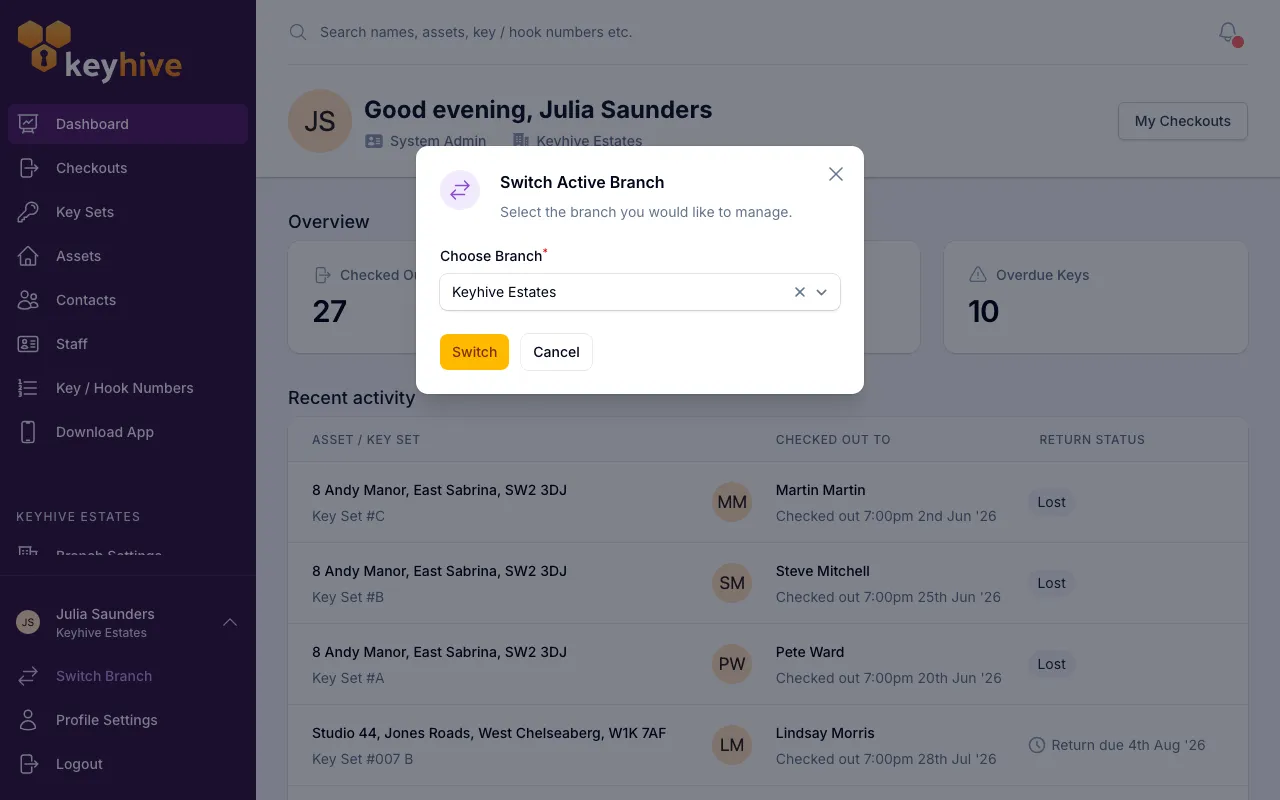
- Click your name at the bottom of the sidebar.
- Click Switch Branch.
- Choose the branch and click Switch.
You land back on the page you were on, now showing that branch. The branch you’re in is named under your name in the sidebar, wherever you are.
On the mobile app
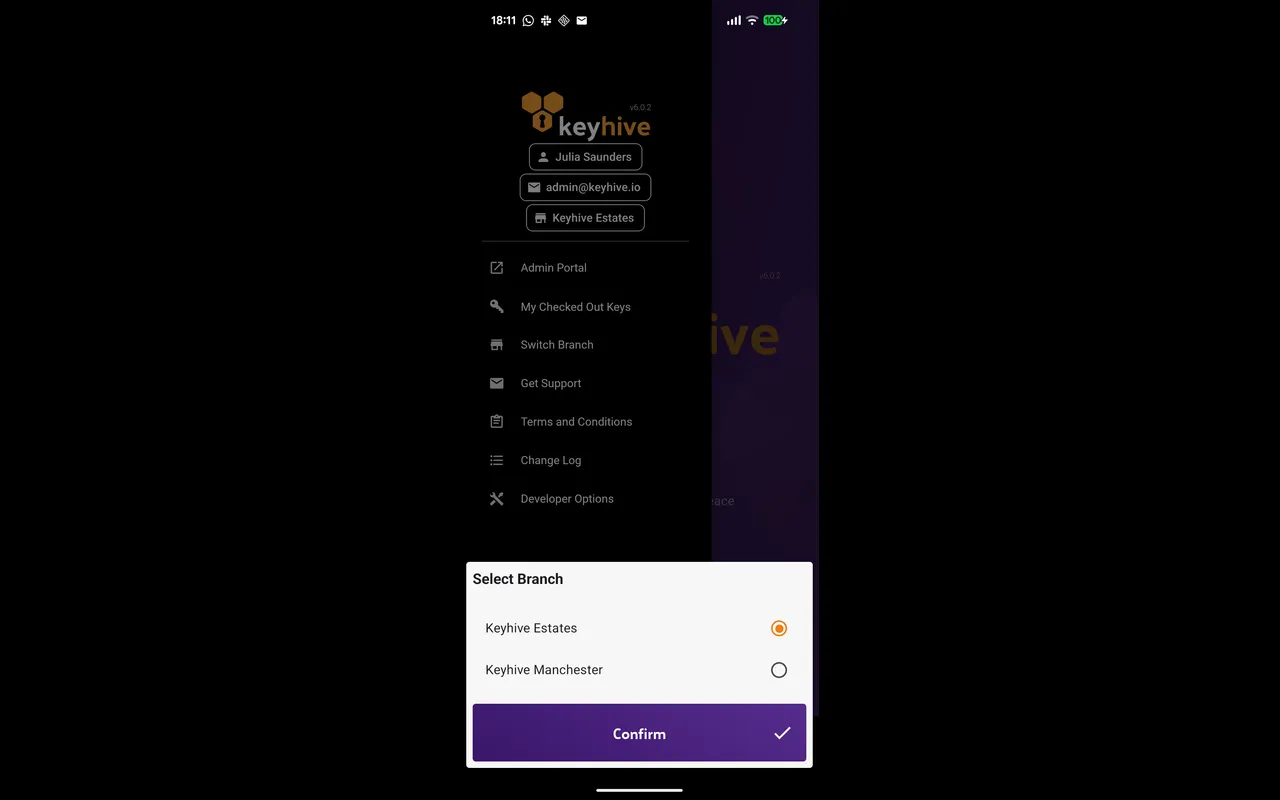
Open the menu, tap Switch Branch, choose a branch and tap Confirm. The branch you’re in is shown as a chip at the top of the menu. There’s no confirmation message, so that chip changing is how you know it worked.
The Hive doesn’t switch
Each Hive signs in with its own branch’s Hive username and password, so it always works in the branch it belongs to, whoever’s standing in front of it. Its branch name is on the home screen under the logo. To move a Hive to another branch, sign it out and sign it back in with that branch’s details. See How to sign a Hive in.
No Switch Branch option? You have access to one branch, so there’s nothing to switch between. A manager or admin at that branch can add you. See Giving a staff member access to more than one branch.
What to watch out for
You see one branch at a time. That includes the search bar at the top of the page: it finds assets, key sets, contacts and staff in the branch you’re in, and nothing from anywhere else. To answer a question about the whole business, such as what’s out or what’s overdue, switch and look at each branch in turn.
What a colleague is holding is per branch. A staff member’s page lists the key sets they have out in the branch you’re in, so someone who’s taken keys at two branches shows up differently depending on which one you’re looking at. Switch to the other branch to see the rest. The held-keys count on the Staff list works the same way, as does My Checked Out Keys in the mobile app. See How to see what a staff member is holding.
Settings are per branch. Changing the default checkout lengths in one branch leaves the others exactly as they were. The same goes for the Hive password, asset types, key stores and notification settings. Each branch is set up on its own.
Good to know
- One login, one role. Your role is the same in every branch you can reach. Someone can’t be an admin at one and an everyday user at another.
- Switching moves nothing. Keys stay checked out to whoever has them, and open checkouts carry on as normal. Switching only changes what you’re looking at.
- A key set belongs to one branch. There’s no way to move an asset or a key set from one branch to another. If keys need to travel between your locations, check them out to whoever’s carrying them.
- Branches are fully separate. If your locations share the same keys, contacts and people day to day, key stores may suit you better than separate branches. Get in touch and we’ll talk it through.