

Changing your Hive's password
In short: In the web portal, open Branch Settings, find the Update Hive password panel, type the new password twice and click Save.
When you’d do this: Most often when you’re setting Keyhive up and signing a Hive in for the first time, since the password it ships with isn’t one you chose. After that, change it whenever someone who knew it has left, or it’s been passed around more widely than you’d like.
Before you start
This is an admin job. You need Manager or Admin access. If you don’t see Branch Settings in the menu, ask someone who has it.
It’s a portal job. You can’t change it on the Hive itself.
This isn’t your own password. The Hive signs in with its own username and password, shared by everyone who uses it. Changing it doesn’t affect how you sign into the portal or the mobile app, and resetting your own password doesn’t change the Hive’s.
Change it
- Check you’re on the right branch. The password belongs to the branch you’re currently working in, and one password covers every Hive at that branch. If you look after more than one, use Switch Branch in the sidebar first. See Giving a staff member access to more than one branch.
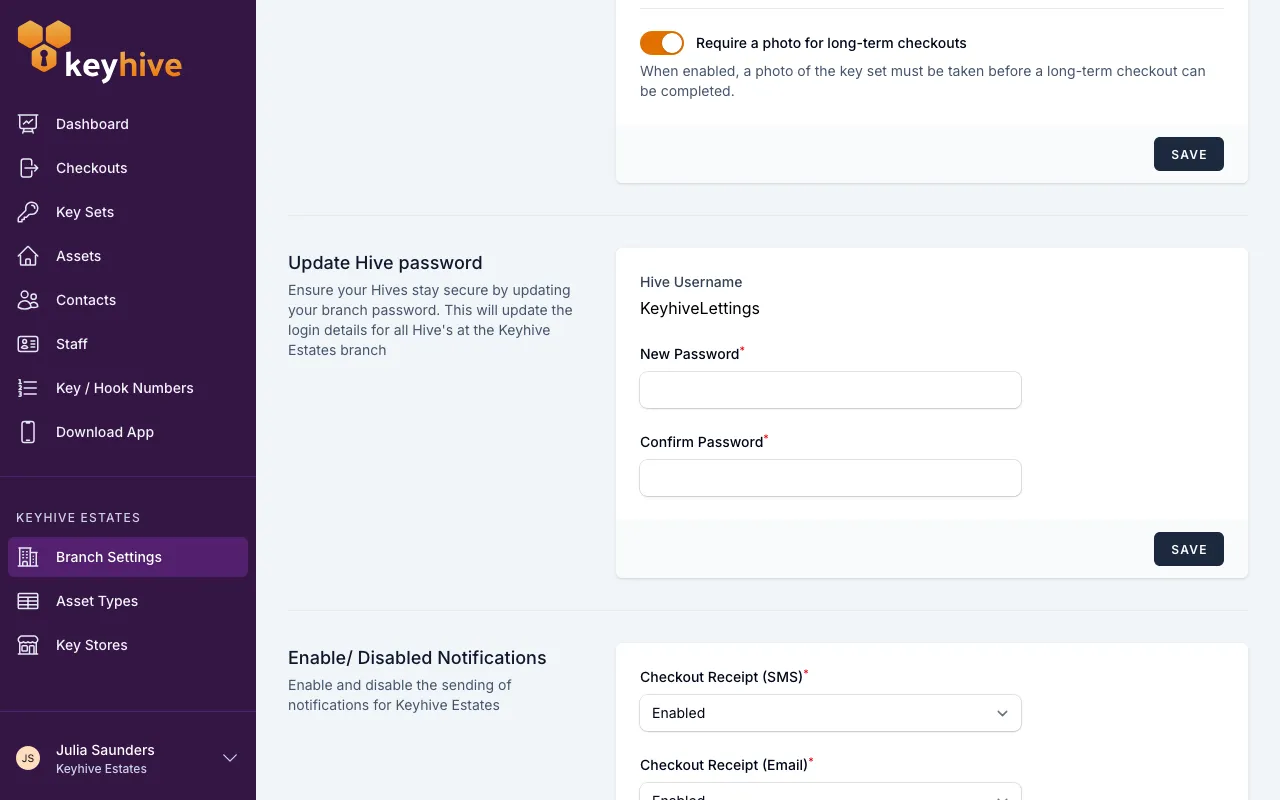
- Open Branch Settings. In the left-hand menu, look for the section headed with your branch name: Branch Settings is the first item.
- Find the Update Hive password panel, below the checkout settings. It names the branch the change applies to, and shows the Hive Username above the password fields so you have both halves to hand.
- Type the new password twice: once in New Password, once in Confirm Password.
- Click Save. You’ll get a Hive password updated confirmation.
Then sign your Hives in
On the Hive, the sign-in screen asks for the Hive username and password shown in that panel. Tap Show beside the password field if you want to check what you’ve typed. If it won’t accept them, you’ll see Sign-in failed. Please check your credentials or network. Check the username against the portal and try the password again. If the unit isn’t on a network, see How to connect the Hive to Wi-Fi.
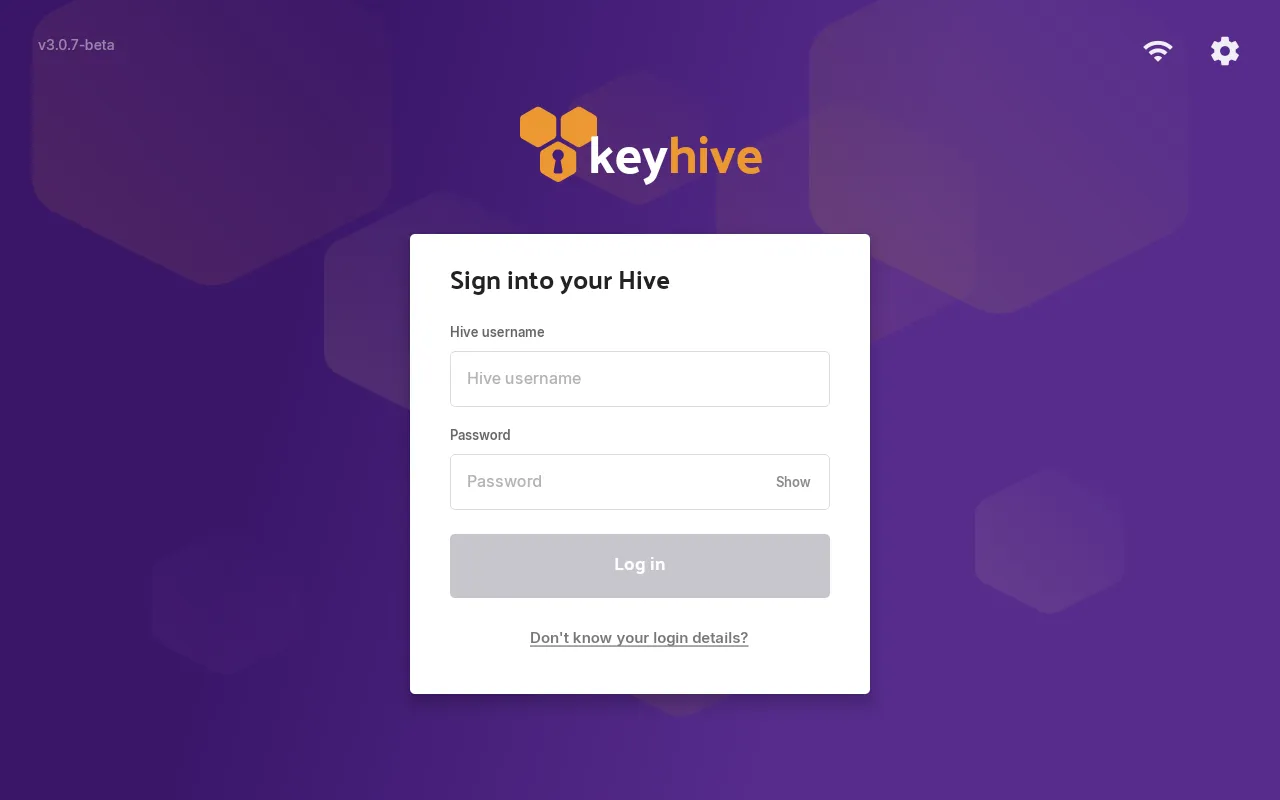
See How to sign a Hive in for the full first-time setup.
Good to know
- Everyone who uses that Hive uses the same password. It isn’t personal, so don’t hand it out as though it were. The record of who took keys comes from who’s chosen on screen during a checkout, not from who signed the unit in.
- The username can’t be changed here. It’s fixed, and shown for reference only. Get in touch if you need it changed.
- Write it somewhere your team can get at it. Nobody can look the password up afterwards, since the portal shows the username, never the password. If it’s forgotten, set a new one from the same panel.
- Several Hives, one password. Every Hive at the branch signs in with the same details, so there’s nothing to do per unit beyond signing each one in.
- A signed-in Hive doesn’t ask again. It stays signed in day to day; the password is only needed when a unit is set up, or after someone signs it out.