

How to change your own details and password
In short: In the web portal, find the section headed with your name in the left-hand menu and click Profile Settings. The Profile Information panel holds your name and email address; the Update Password panel changes your password.
When you’d do this: When your name changes, when you want to sign in with a different email address, or when you want a new password and you still know your current one. If you’ve forgotten it, use How to reset your password instead.
Before you start
It’s a portal job. There’s no profile screen on the Hive or in the mobile app.
This is your own account only. Everyone has Profile Settings, whatever their role. Changing someone else’s details is an admin job. See How to change a staff member’s details or role.
Change your name or email address
-
Open Profile Settings. In the left-hand menu, find the section headed with your name and click Profile Settings.
-
Edit the Profile Information panel and click Save. You’ll get a Saved. confirmation beside the button.
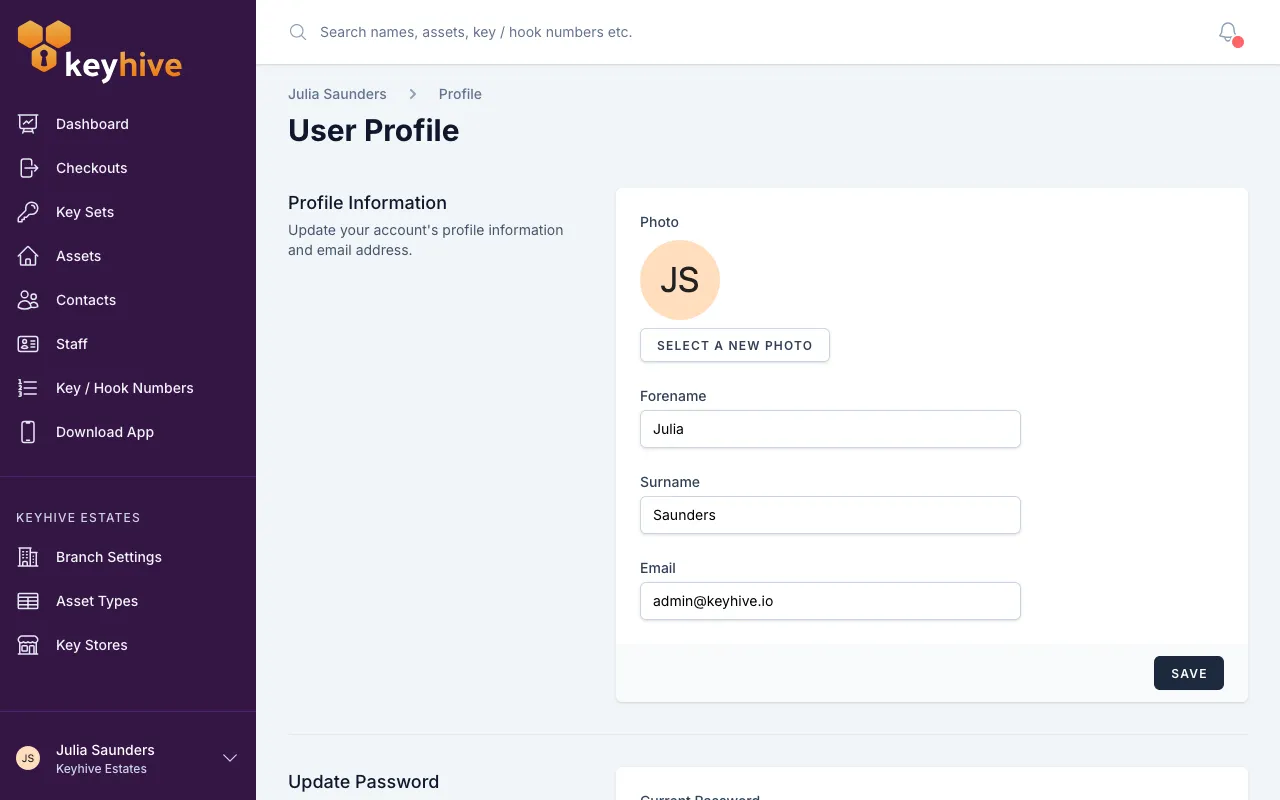
Your new email address is what you sign in with, straight away. There’s no confirmation email and no second step: the old address stops working the moment you save, for signing in and for password resets. Check it before you save.
An email address can only belong to one person in Keyhive. If someone else already has it, you’ll be told and nothing will change. This panel is also the only place an address can be changed: an admin editing you from the Staff list can’t touch it.
You can also set a photo here. It appears next to your name in the menu and wherever you show up as the person holding keys.
Change your password
-
Find the Update Password panel, below Profile Information.
-
Enter your current password, then the new one twice, and click Save.
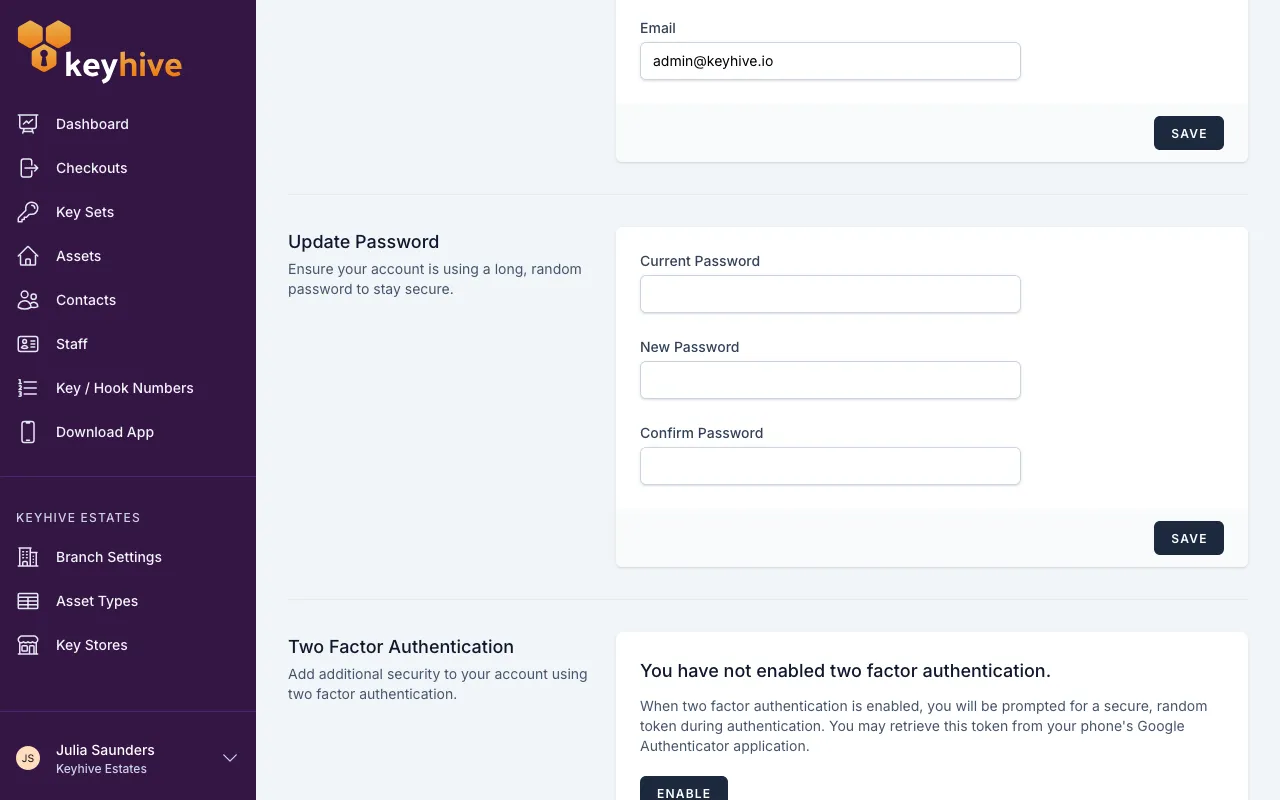
Your new password needs at least 8 characters, with an upper-case and a lower-case letter, a number and a symbol. If it’s short of any of those, you’ll be told when you save.
You stay signed in where you are. Anywhere else you’re signed in, the mobile app, another computer, keeps working until it next asks you to sign in.
Good to know
- Your mobile number isn’t here. It’s set when you’re invited, and only a manager or admin can change it, from the Staff list. Same for your role and which branches you can work in, and nobody can change their own role, so that’s a colleague’s job even if you’re an admin.
- There’s no way to delete your own account. Ask a manager to remove you from the Staff list instead. See How to disable or remove a staff member.
- Your password isn’t the Hive’s password. The Hive signs in with its own shared username and password; changing yours doesn’t affect it. See Changing your Hive’s password.
- One password covers everything. The portal and the mobile app use the same login, so a new password applies to both.
- Your history stays yours. Changing your name or email doesn’t rewrite past checkouts; they stay attached to you, and now show your new name.
- Want a second step at sign-in? Two-factor authentication is set up from the same page. See How to turn on two-factor authentication.