

How to manage key stores
In short: In the portal, click Key Stores in the sidebar. Create key store adds one, Edit renames it or changes its type, and the ⋯ menu deletes one that’s empty.
When you’d do this: When you start keeping keys somewhere new, such as a second office, a safe, or a vehicle that works a patch, and you want Keyhive to tell you which of those a key is sitting in.
Before you start
Key stores aren’t switched on for every account. They’re for businesses that really do keep keys in more than one place. If you don’t see Key Stores in the sidebar, they’re not turned on for you. Get in touch if you think you need them.
This is an admin job. You need Manager or Admin access.
New to key stores? Understanding key stores explains what they are and when they’re worth having.
Where to find your key stores
In the sidebar, in the section headed with your branch name, click Key Stores. The list shows every store you have, and against each one:
- Its name, with Default store underneath if it’s the one you started with.
- Its type: office, safe, vehicle or other.
- How many key sets it holds right now: the keys sitting in it, not counting any that are out with someone.
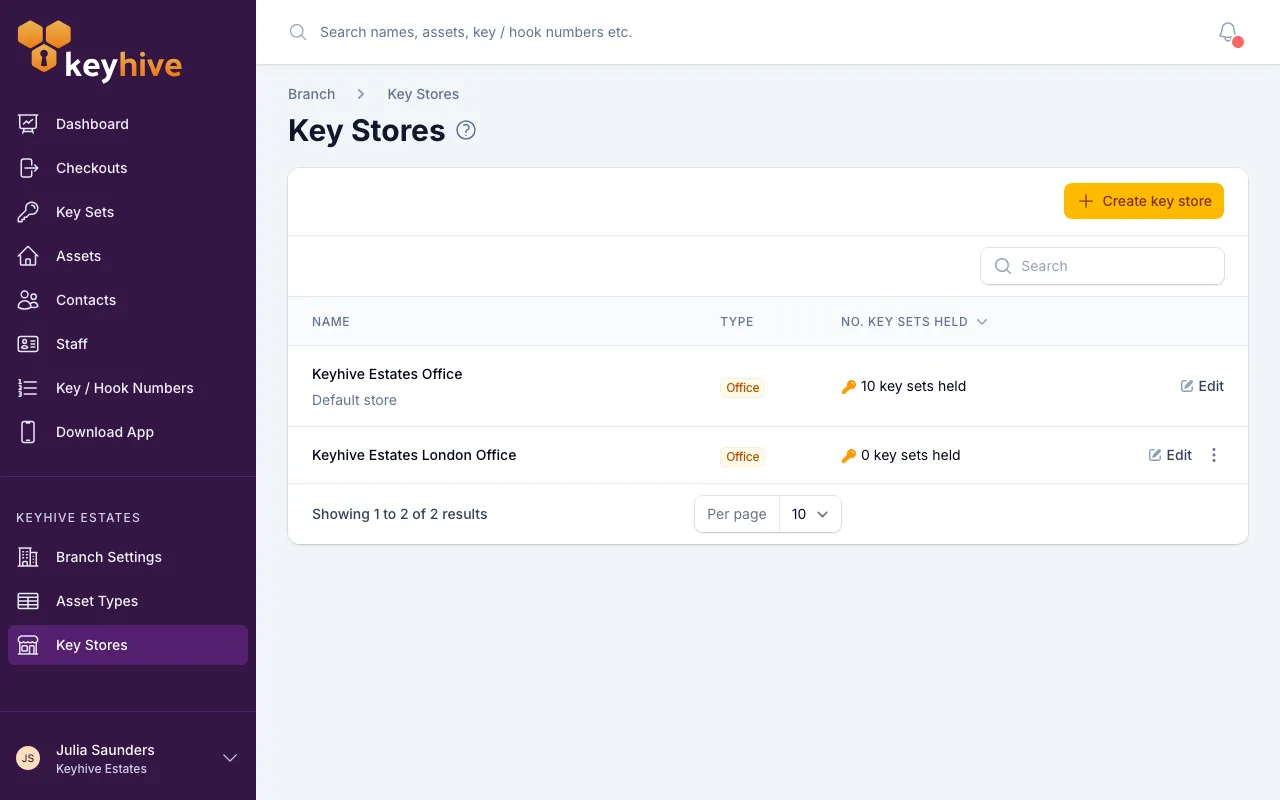
To add a key store
-
Click Create key store at the top of the list.
-
Type the Name. Something your team would say out loud:
Front office,Reception safe,Van 2,Riverside branch. Two stores can’t share a name. -
Choose the Type: Office, Safe, Vehicle or Other. It’s a label to keep the list readable; nothing behaves differently because of it.
-
Click Create.
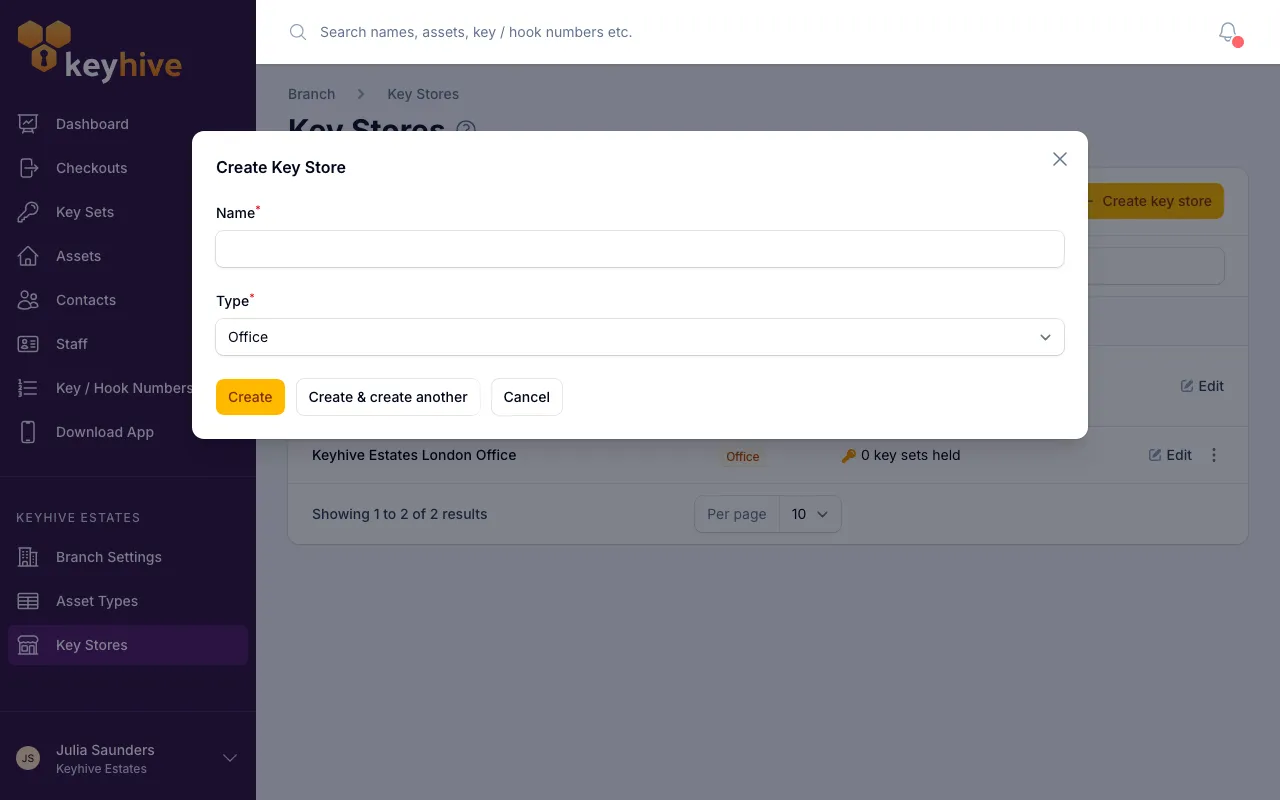
The store is available straight away, and it’s empty. Creating it doesn’t move any keys. Put keys into it by transferring them there, or by returning keys to it.
To rename a store or change its type
Click Edit on the row, change the Name or Type, and save.
The keys in it stay where they are; you’ve only changed what the place is called. This is also how you rename the store you started with, if the name Keyhive gave it isn’t what your team calls it.
Tell your devices where they are
Once you have more than one store, the Hive and the mobile app need to know which one they’re working in. Neither asks while you only have a single store.
On the Hive, signing in asks “Where is this kiosk?” Pick the store the unit sits in. Everything returned or assigned at that Hive is then recorded in that store, so a Hive in the office and a Hive in a second location each keep their own keys straight.
If a Hive moves, you don’t need to sign in again: open its settings, and the Key store row shows where it currently thinks it is. Tap it and pick the new one.
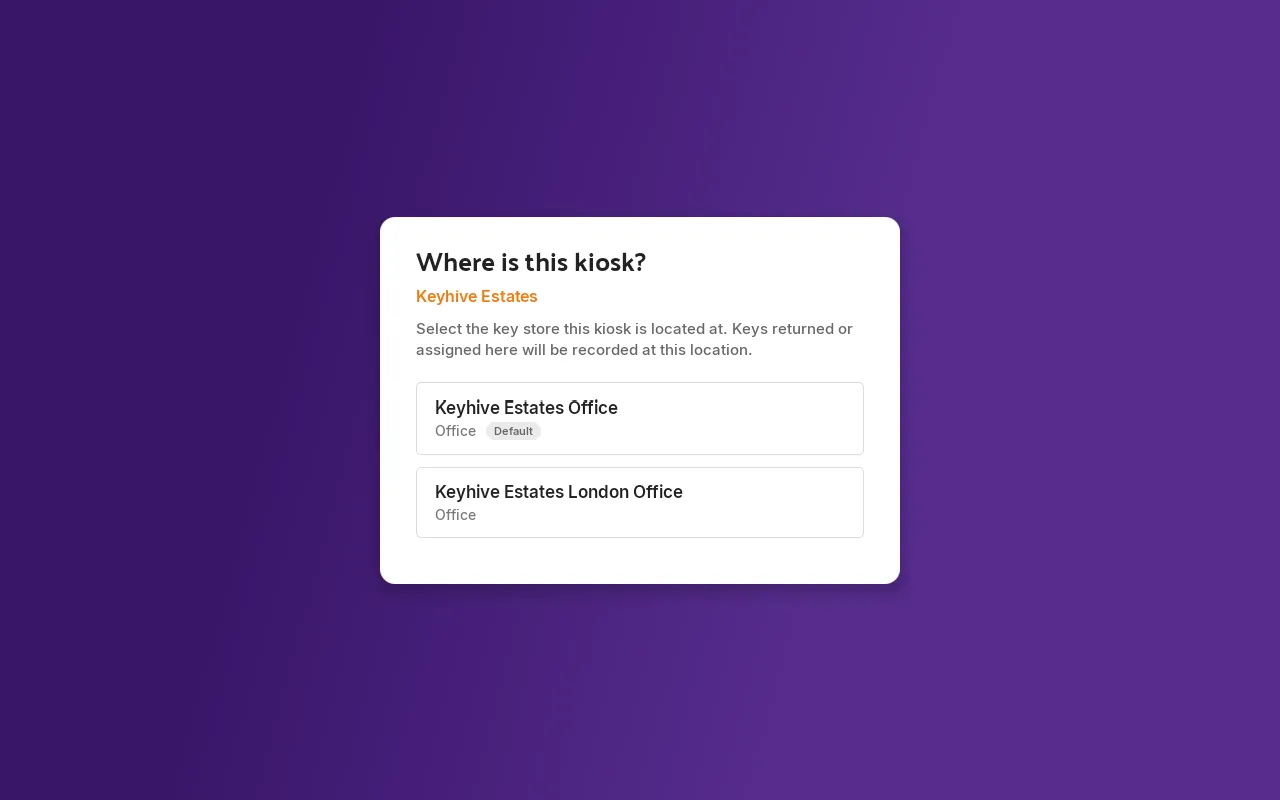
On the mobile app, you’re asked where you’re returning keys to at the start of a return, and the confirm button names the store so you can see it’s right before you finish.
To delete a key store
Click the ⋯ menu at the end of the row, click Delete, and confirm.
Two stores can’t be deleted:
- A store that still holds key sets. Keyhive refuses and tells you to move its keys first: transfer them to another store, then come back and delete this one.
- Your default store. There’s no Delete on that row at all.
Deleting a store doesn’t touch any history. Checkouts, returns and transfers that mention it are all still there.
Good to know
- You already have one. Every account starts with a default store named after your office, and it’s used automatically, so keys always have somewhere to be even if you never add another. Rename it if you like.
- The key set count is a stock-take. It tells you what a van or a safe should hold, so you can check it against what’s actually there.
- Adding a store doesn’t move any keys. Keys only change store when someone transfers one, or returns one to it.
- A store is never a person. You can’t check a key out to a store: stores don’t appear when you’re choosing who’s taking keys. See Understanding key stores.
- Everyone sees every store. There’s nothing to set up per person; any store you create is available to your whole team.