

How to see what a staff member is holding
In short: Type the staff member’s name into the search bar at the top of any page and click them in the results. Their page lists the key sets they have out right now under Held key sets, and everything they’ve ever had under Checkout history.
When you’d do this: Before someone goes on leave or leaves the business, when you’re chasing a key set and want to know who’s sitting on it, or when you’re working out who to ask about a set that hasn’t come back.
Before you start
This is a web portal job. The Hive and the mobile app move keys but don’t show what a colleague is holding.
Find the staff member
The quickest way is the search bar at the top of every page. Type their name or their email address and they appear in the results with their email underneath. Click them to open their page.
Or click Staff in the sidebar and click their row.
What they’re holding right now
Held key sets lists everything they have out at this moment. Each row gives you:
- the key set and the asset it belongs to,
- its status: Checked out, or Checked out long term for a set out indefinitely,
- and how many keys and fobs are on the set.
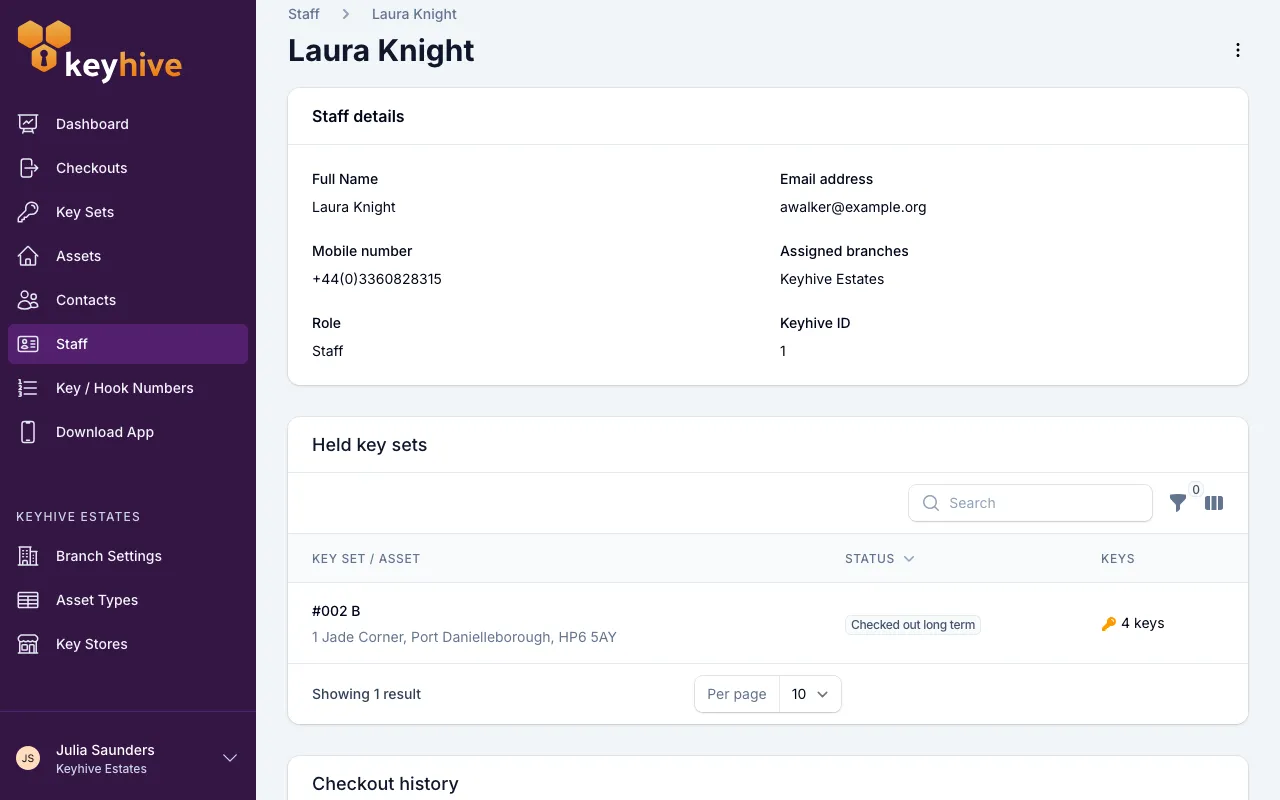
If there’s no Held key sets panel, they’re not holding anything. The panel only appears when they have at least one set out.
Click any row to open that key set, which is where you’d return it or change its return date.
Everything they’ve ever had
Checkout history, at the bottom of the page, is every checkout in their name, newest first, whether it’s still open or long since closed. Each row shows the asset and key set, when it went out, and how it ended:
- a green tick and Returned with the date;
- Return due 3rd Jul ‘25 for a set that’s still out and not yet late;
- a red Overdue: Expected 3rd Jul ‘25 for one that’s late;
- Long term checkout for a set out indefinitely;
- or a grey badge, Lost, Handed over, Decommissioned or Other, where the checkout was closed because the keys weren’t coming back.
Click a row to open that checkout in full. Keys for archived assets stay in this list, so the record doesn’t develop gaps.
Search and filter if the list is long: the search box matches the asset and key set, and Filter gives you checked out after / before and returned after / before.
Notification history appears higher up the page if Keyhive has ever emailed or texted them about a key: the overdue chases and return-date changes. See How to see a contact’s notification history, which works the same way.
Or see the whole team at once
Click Staff in the sidebar. The last column on each row tells you how many key sets that person is holding, with a badge per status, such as 2 Checked out or 1 Checked out long term, and a dash for anyone holding nothing.
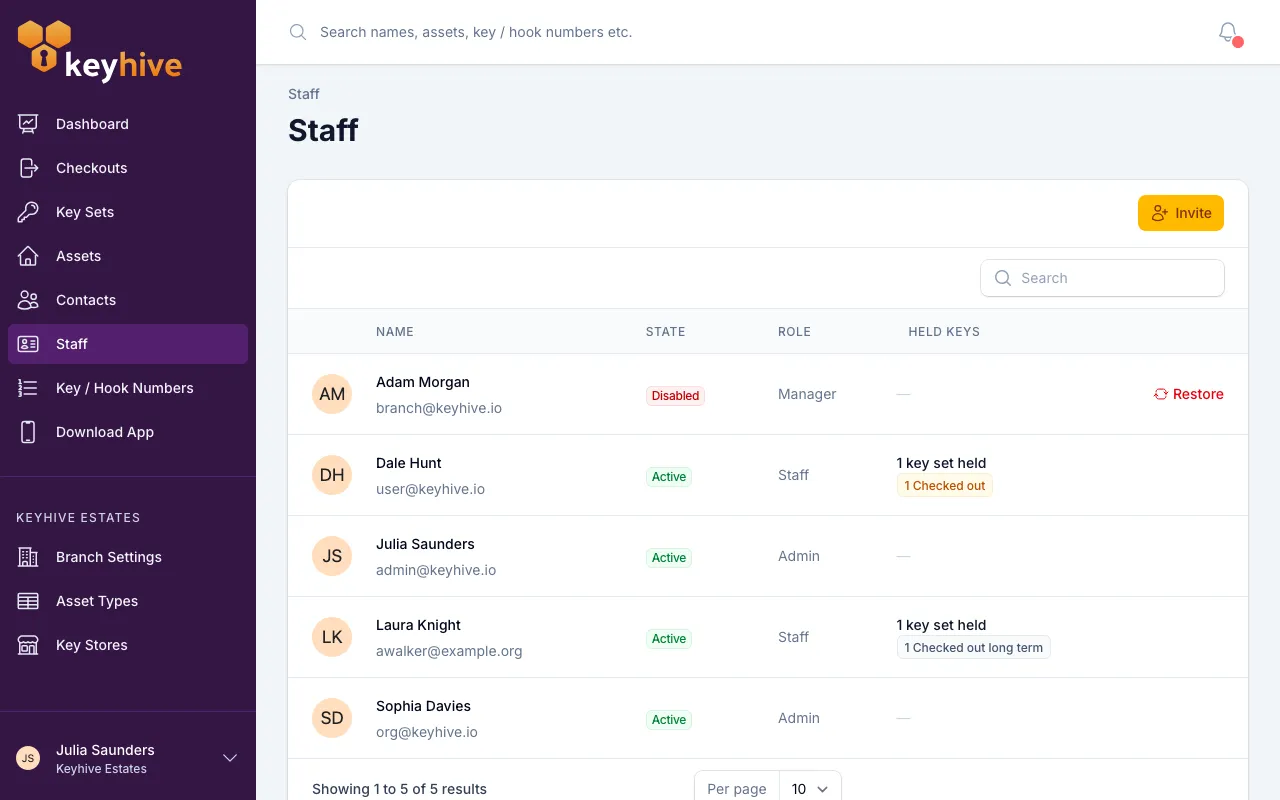
It’s the fastest way to answer “who’s got keys out?” across the team, and to spot someone sitting on more than you’d expect.
Good to know
- People can check their own keys on the phone. The mobile app’s drawer has My Checked Out Keys, listing what the person signed in is holding, with return dates. Handy when you’re asking someone to bring things back, so they can see the list themselves.
- Held key sets is now; Checkout history is everything. A set that’s back drops off the first list and stays in the second.
- Their history follows them, not their name. Correcting a spelling or changing their email loses nothing.
- Disabling someone doesn’t hide any of this. Their page and both lists stay exactly as they were, which is why you’re asked to get their keys back first. See How to disable or remove a staff member.
- Contacts have the same two panels, so you can check an outside person the same way. See How to view, edit and delete a contact.