

How to manage asset types
In short: In the portal, click Asset Types in the sidebar. Create asset type adds one, Edit renames one, and the ⋯ menu deletes one that nothing is using.
When you’d do this: When the categories Keyhive starts you with don’t describe what your keys actually open. Property and Vehicle cover a lot, but not storage units, safes, cupboards, individual rooms or aeroplanes, so you add the ones you need.
Before you start
Two types are already set up for you: Property and Vehicle. You can rename them, and add as many of your own as you like.
This is an admin job. You need Manager or Admin access. If Asset Types isn’t in your sidebar, ask someone who has it.
Do it before you add your assets. Every asset has to have a type, so having the right ones ready saves going back to change them. A spreadsheet import will also reject rows whose type doesn’t exist yet.
Where to find your asset types
In the sidebar, in the section headed with your branch name, click Asset Types. The list shows every type you have and, next to each, the Number of Assets using it.
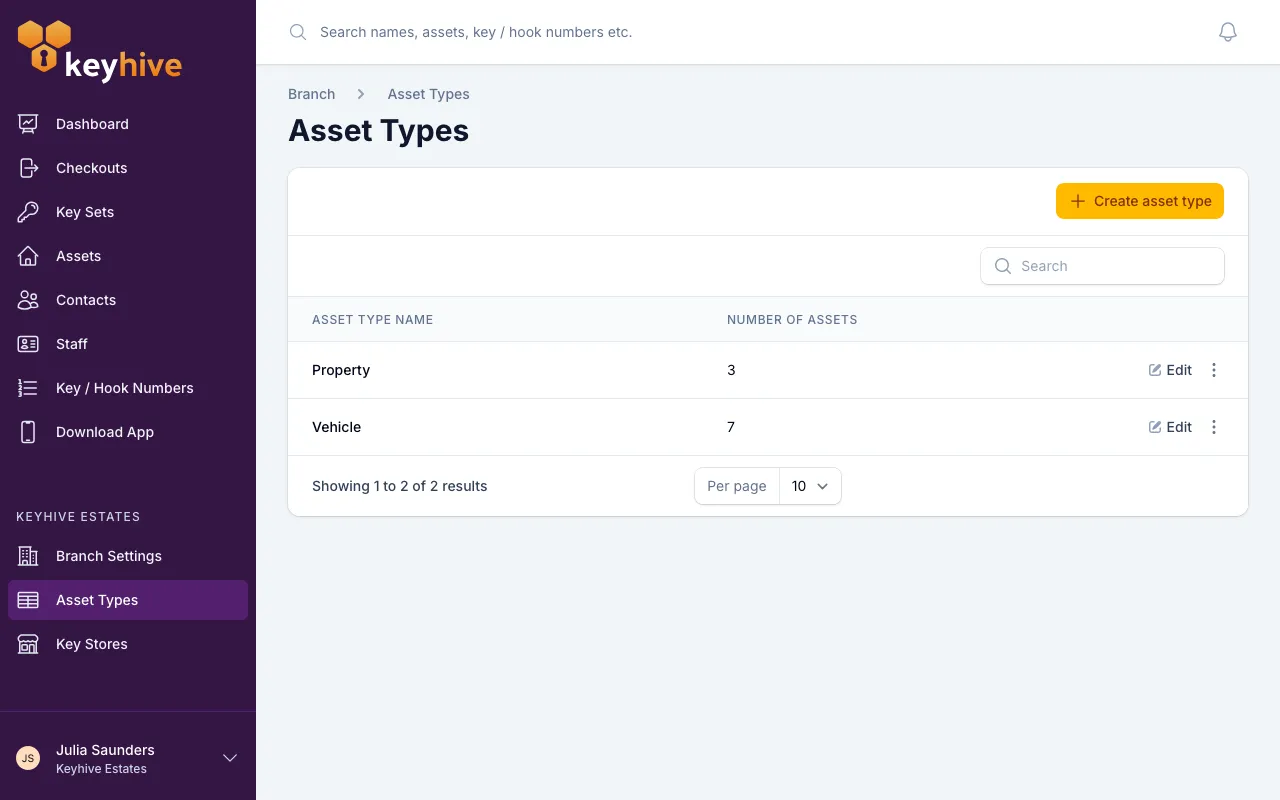
To add an asset type
-
Click Create asset type at the top of the list.
-
Name it, singular and plural:
Storage unit/Storage units,Safe/Safes,Aeroplane/Aeroplanes. Two types can’t share a name, and Keyhive tells you when you save if that one’s taken. -
Click Create, or Create & create another if you’re adding several in one go, which keeps the form open for the next one.
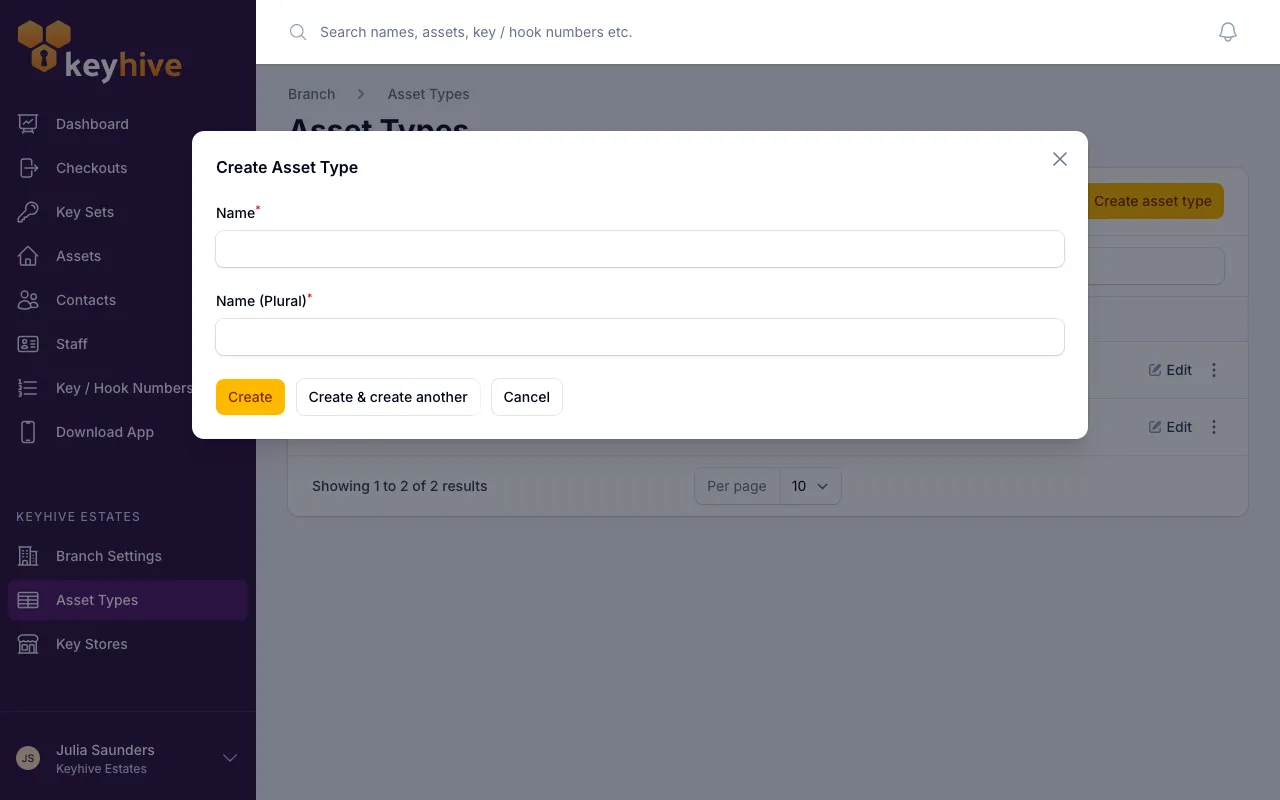
The type is available immediately. It appears in the Asset Type list on the Create Asset form and can be used in an import straight away.
To rename an asset type
Click Edit on the row, change the Name or Name (Plural), and save.
Every asset already using that type keeps it, so there’s nothing to re-file afterwards. The one thing to check is your spreadsheets: an asset import matches the type name exactly as you’ve spelled it, so a file written before the rename will fail on those rows until you update the column.
To delete an asset type
Click the ⋯ menu at the end of the row, click Delete, and confirm.
You can only delete a type that nothing is using. If its Number of Assets isn’t zero, Keyhive refuses and tells you to remove the association first. To clear it, open each asset, choose Edit from the ⋮ menu next to its name, and move it to a different type. Then come back and delete.
Good to know
- The Number of Assets column tells you what’s safe to delete. It counts only the assets in everyday use: assets you’ve archived aren’t included, so a type showing zero can still be the type an archived asset will come back as. Move those assets to a type you’re keeping before you delete this one.
- Types are for organising, nothing more. The type an asset has doesn’t change how its keys behave: what you can check out, to whom, or for how long is the same either way. It shows under the asset’s name in your list so you can tell at a glance which kind of thing you’re looking at.
- Assets from a connected outside system arrive as Property or Vehicle. Renaming those two is safe, since synced assets keep landing in the renamed type rather than creating a duplicate. Types you’ve added yourself are only ever used by assets you create in Keyhive.
- There’s no limit. Add as many types as it takes to describe what you hold keys for.