

How to import contacts from a spreadsheet
In short: On the Contacts page in the portal, click Import Contacts, download the example file, put your list into it, and upload it back. The contacts are created in the background.
When you’d do this: When you’re getting started and already have a list of the people you hand keys to (contractors, clients, regular visitors) and typing them in one at a time would take all day. For one or two, use Create Contact instead.
Before you start
Contacts are external people. Your own team are staff: they’re invited by email and get a login instead, so leave colleagues out of the file.
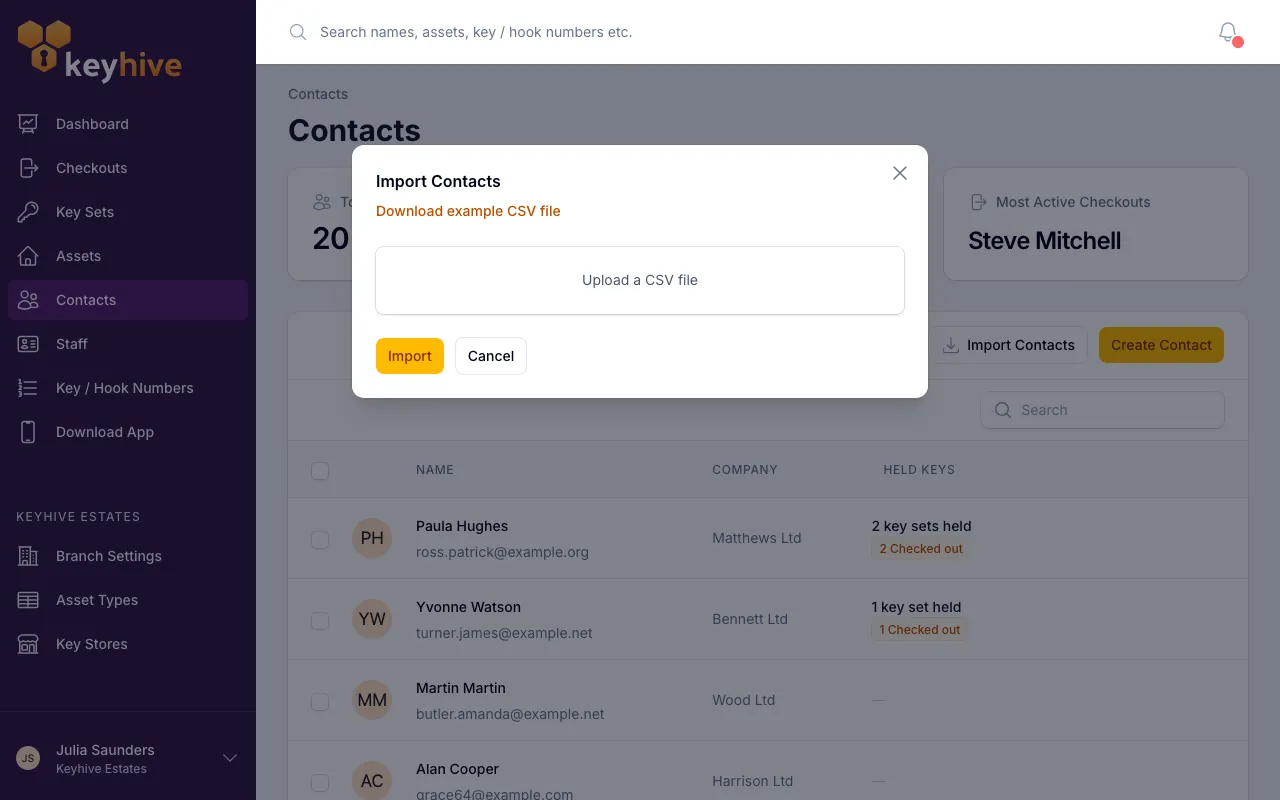
Start from the example file, not a blank spreadsheet. The import modal has a Download example CSV file link. That file already has the headings Keyhive looks for, so replacing its rows with your own is the quickest way to get a file that works first time.
Steps
-
Click Contacts in the sidebar.
-
Click Import Contacts at the top of the list.
-
Click Download example CSV file. It saves a small file with the headings filled in and a few example rows underneath.
-
Put your list in. Open the file in your spreadsheet program, delete the example rows, and fill in one row per person. Keep the headings as they are:
forename(required). First name.surname(required). Last name.email(optional, but see below). Where Keyhive chases them about keys they’re holding.mobile(optional). A number to reach them on.company(optional). Who they work for, or what they are to you:Plumbers4U,Contractor.
-
Fill in the email addresses. Only the two name columns have to be filled in, but an email is what lets Keyhive chase overdue keys on your behalf, so a contact without one you’ll have to chase yourself. Each address can only belong to one contact, so don’t reuse the same one down the column.
Save the file as a CSV. That’s the format it already came in, so Save is usually enough.
-
Upload it. Back in the modal, drop the file onto the upload box or click to choose it. Because you kept the headings, Keyhive matches your columns up for you. Check each one has landed on the right heading before you go on.
-
Click Import. The import runs in the background, so you can carry on working. When it finishes you’ll get a notification telling you how many rows went in, and how many didn’t.
Good to know
- An email address that already exists updates that contact, rather than making a second one. Keyhive matches rows to existing contacts on the email address, so re-importing a corrected file tidies up the same people instead of creating duplicates, and their key history stays in one place. Blank cells overwrite, though, so an empty company column wipes companies you already have.
- Rows without an email address are always added as new contacts. There’s nothing to match them on, so importing the same no-email list twice gives you two of everyone. Search before you re-run it.
- Two contacts can share a name. Keyhive won’t stop you importing a second J. Smith, so check the list if you’re not sure.
- You can import in batches. There’s no need to get everyone into one file. Bring in a section at a time and check it looks right before doing the next.
- Rows that fail don’t stop the rest. The most common cause is a missing first or last name.
- Anyone can run the import. There’s no admin permission needed.